3. Creating a Class / Lesson
To start using focuspang, you’ll first need to create a class. Each class gets an invite code that students use to join, and once the class is created you and your students can use Focus Time, Quizpang and other activities together.
📍 Class Schedule → [Add class]
Step 1: Open Add class
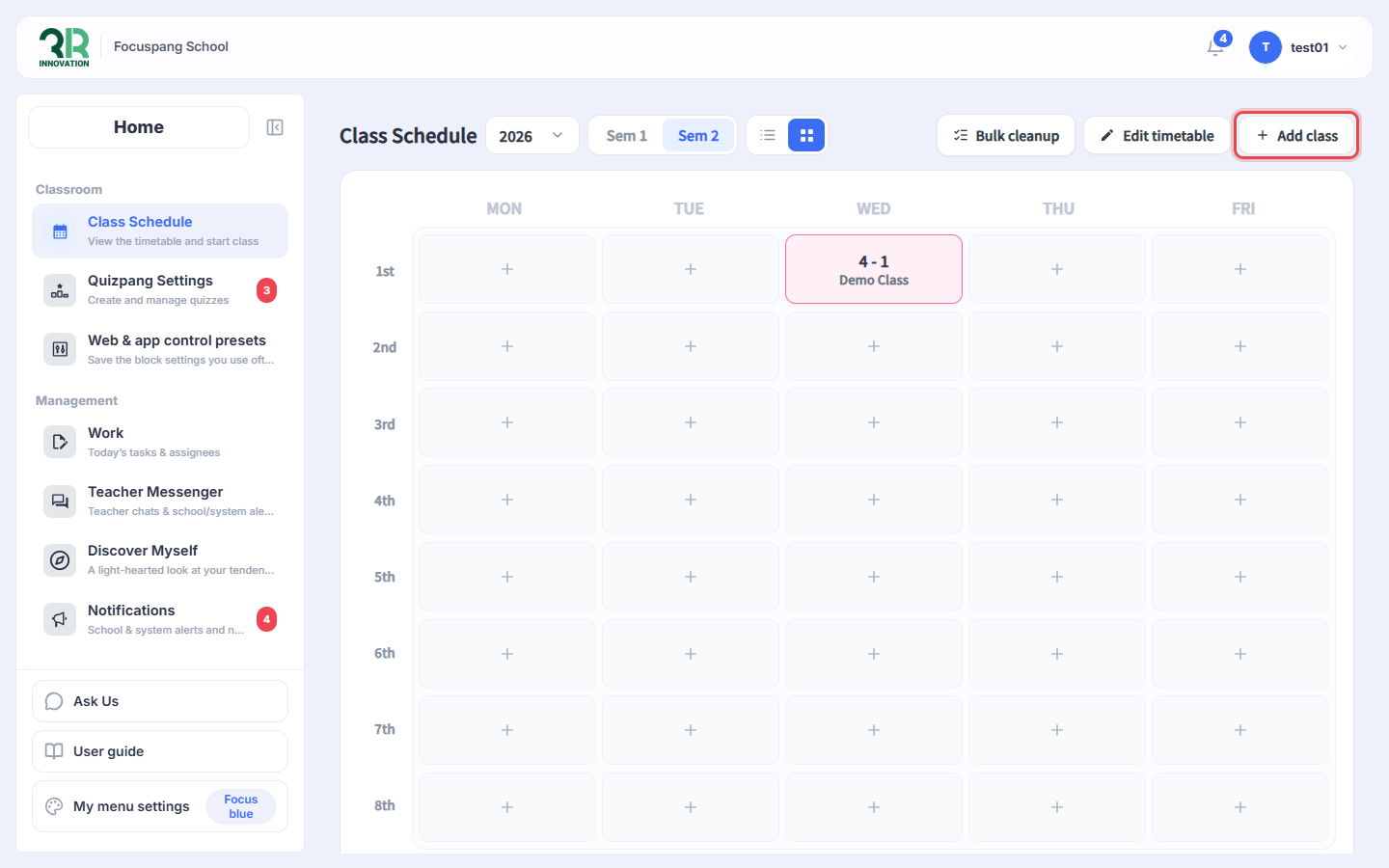
On the Class Schedule page, click [+ Add class] at the top right. Classes you create appear in this timetable.
Step 2: Enter the class information
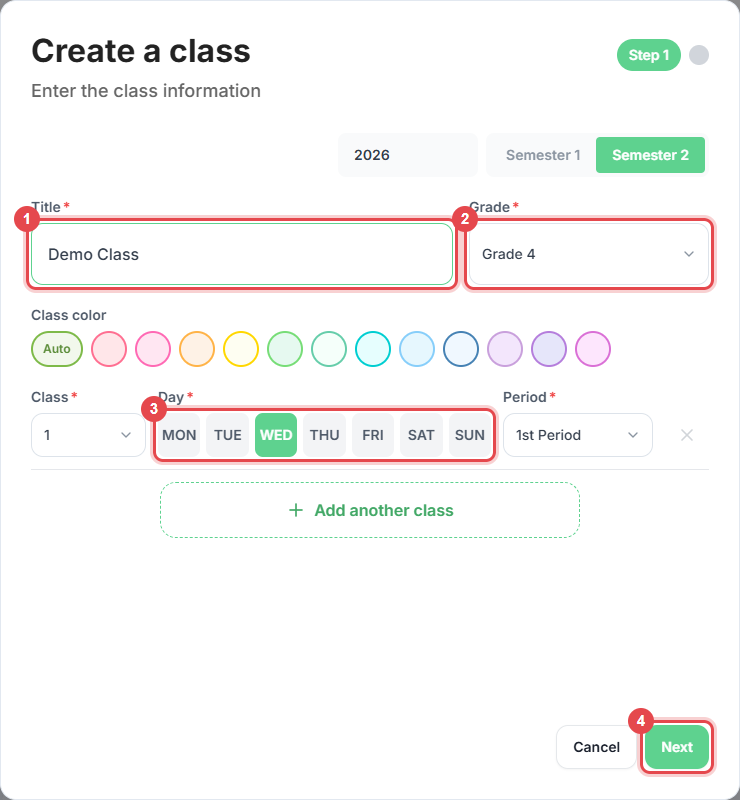
In the Create a class window, fill in the following and click [Next] ④.
- Title ①: The name of the class, for example the subject or activity.
- Grade ②: The grade of your students.
- Class: The class number.
- Day ③ and Period: When the class meets. You can set up classes ahead of time.
- Class color (optional): The color of the class card in the timetable.
To add the same class on another day or period, click [+ Add another class].
Step 3: Check and add the class
Check the summary and click [Add Class]. The class now appears in the timetable.
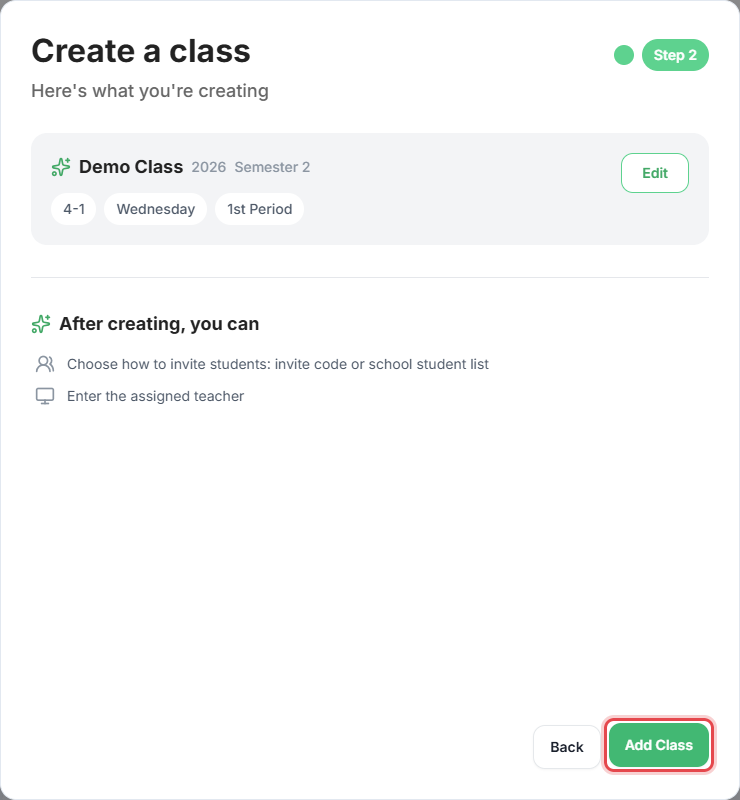
You can choose how to invite students — with the invite code or from the school student list — and enter the assigned teacher.
Step 4: Share the invite code
Click the class in the timetable. The 8-character Invite code is shown at the top of every class page.
- Click [Copy Invitation Code] ① and send the code to your students.
- Or click the enlarge button ② to show the code and a QR code on the classroom screen. Students can scan the QR code to join.

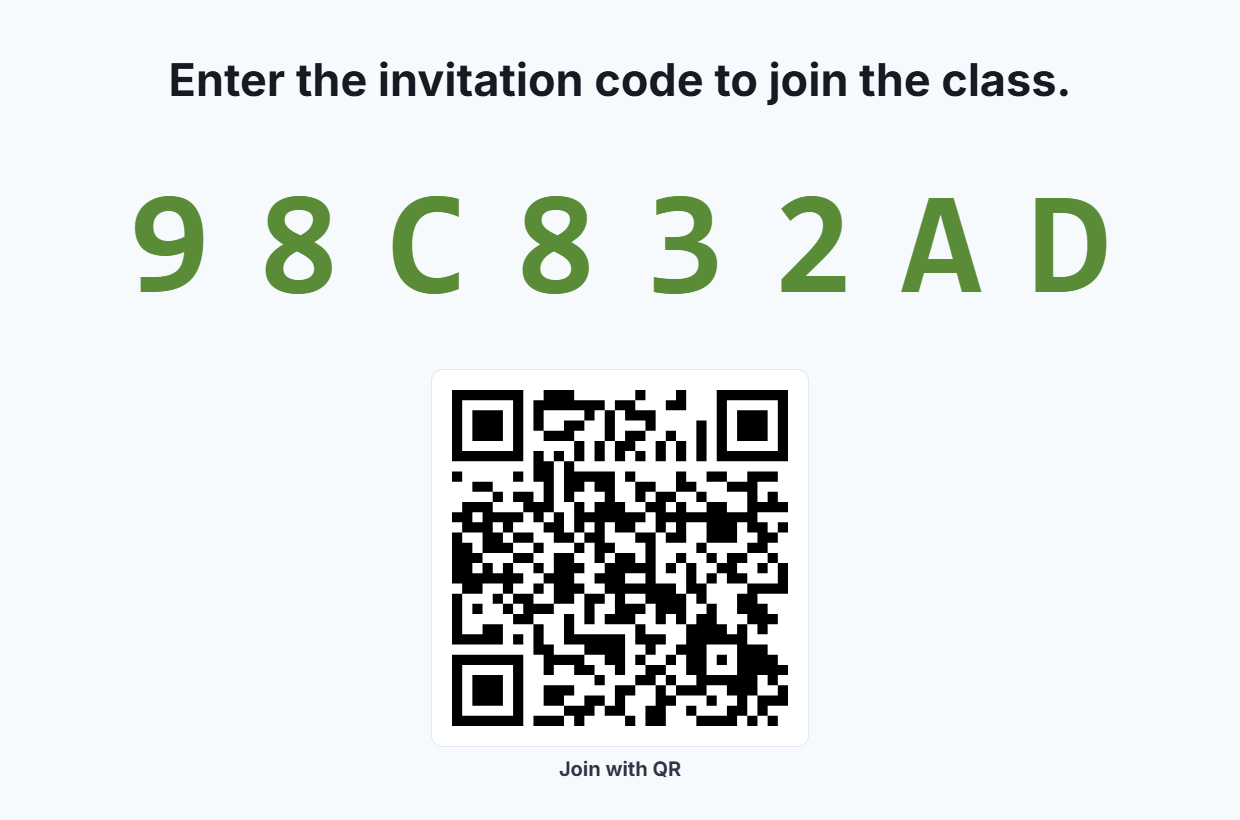
Students join the class with this code. See Student guide: Login.