Quizpang
📍 Main Page → Click the class in the timetable → Click [Quizpang] on the left sidebar
QuizPang is a real-time, interaction-based learning assessment tool that allows teachers to instantly check students’ understanding and enhance motivation. By providing a gamified learning experience, it encourages active participation from students.
- Formative Assessment: Check students’ understanding of the lesson in real time
- Summative Assessment: Evaluate overall learning achievements at the end of a unit
- Review Activity: Reinforce memory and review content from previous lessons
- Warm-up: Boost focus and motivation before class starts
How to Use Quizpang
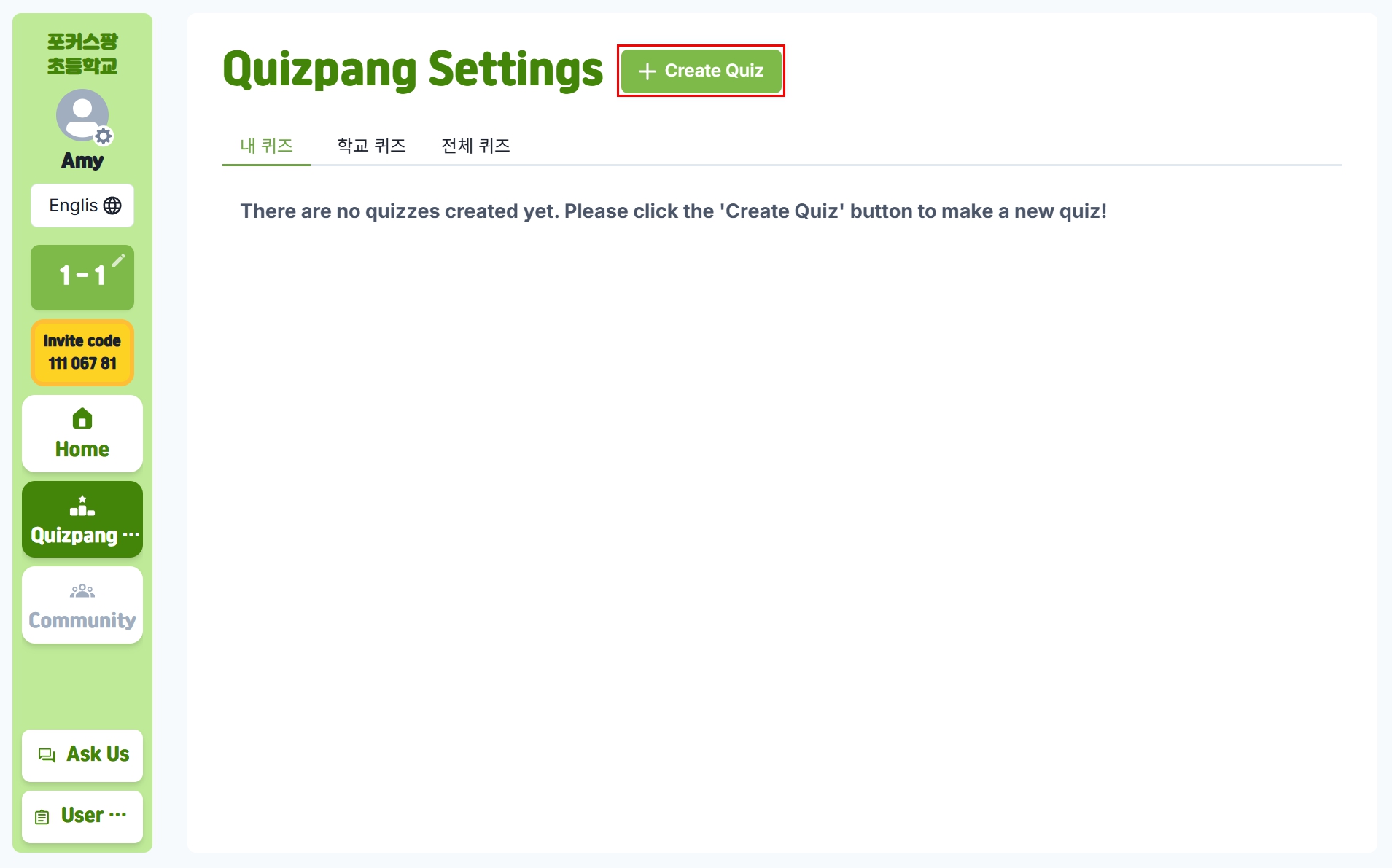
Step 1: Create a Quiz
Click the [+ Create Quiz] button to make a new quiz.
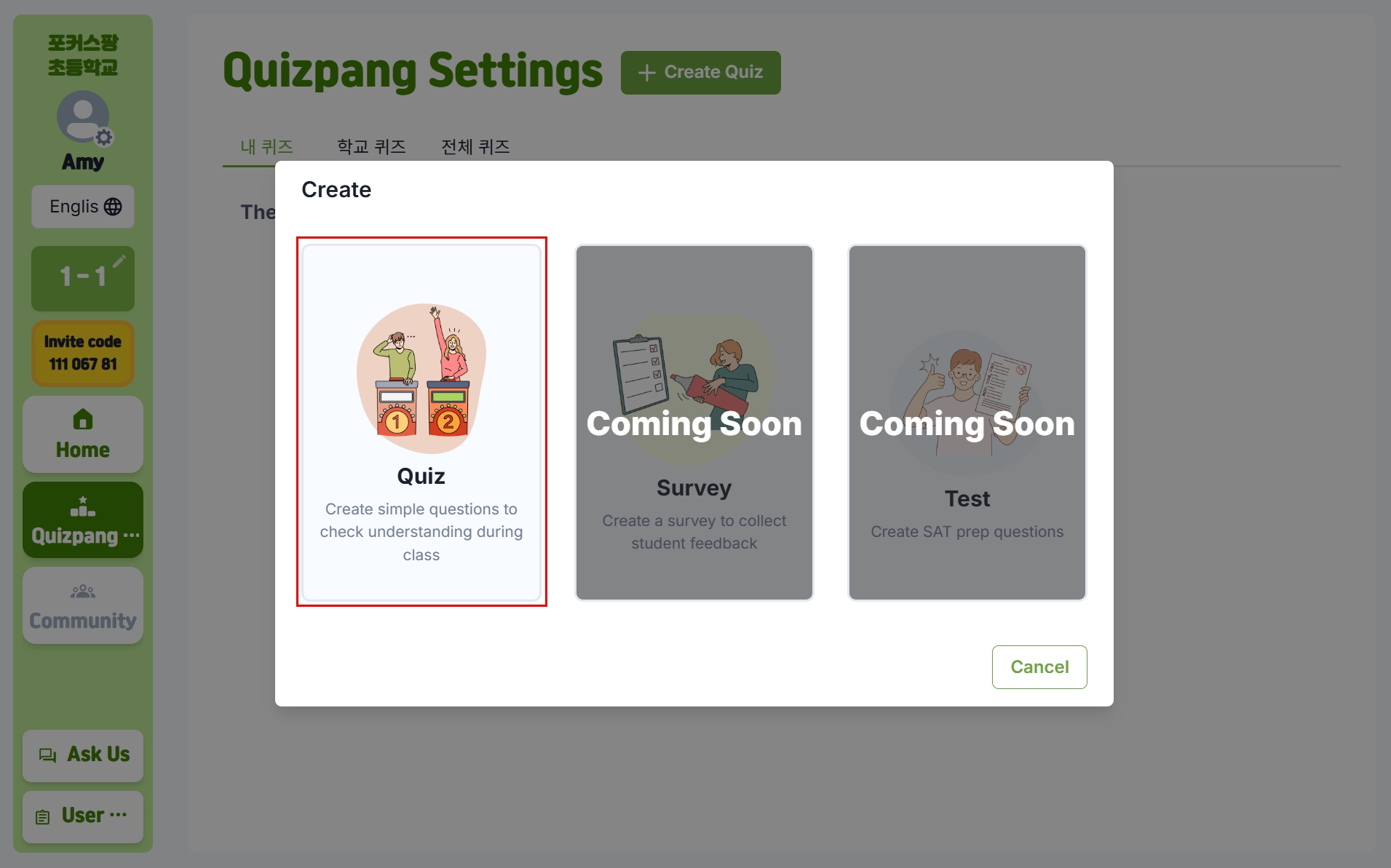
Step 2: Select Quiz Type
In the quiz creation pop-up, select [Quiz].
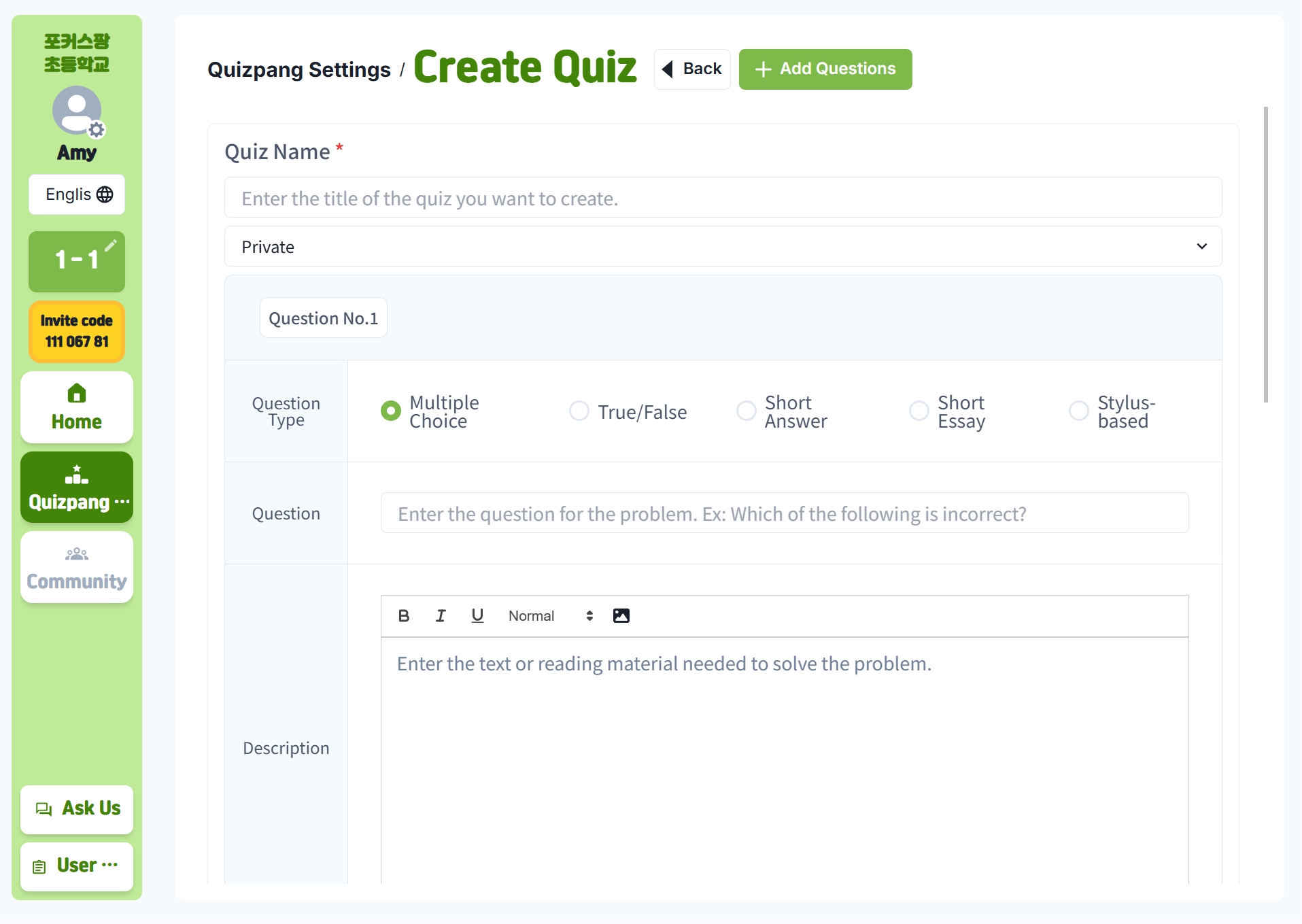
Write Quiz Content
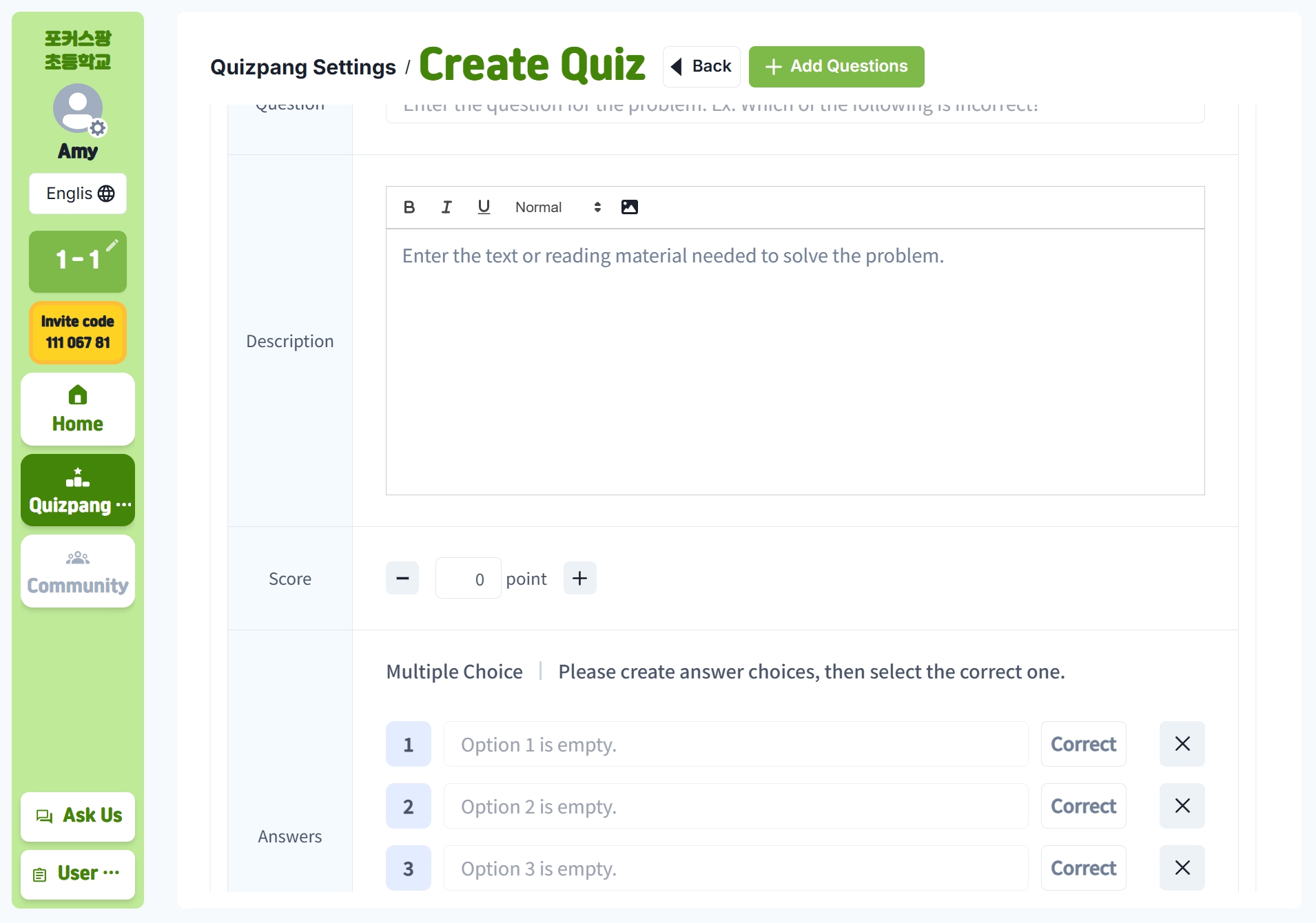
Fill out the following items in order: Quiz Name: A clear title students can easily recognize
- Question Type: Choose appropriate formats (multiple choice, short answer, true/false, etc.)
- Question: Write clear and specific questions aligned with learning objectives
- Description: Provide supporting information if needed for better understanding
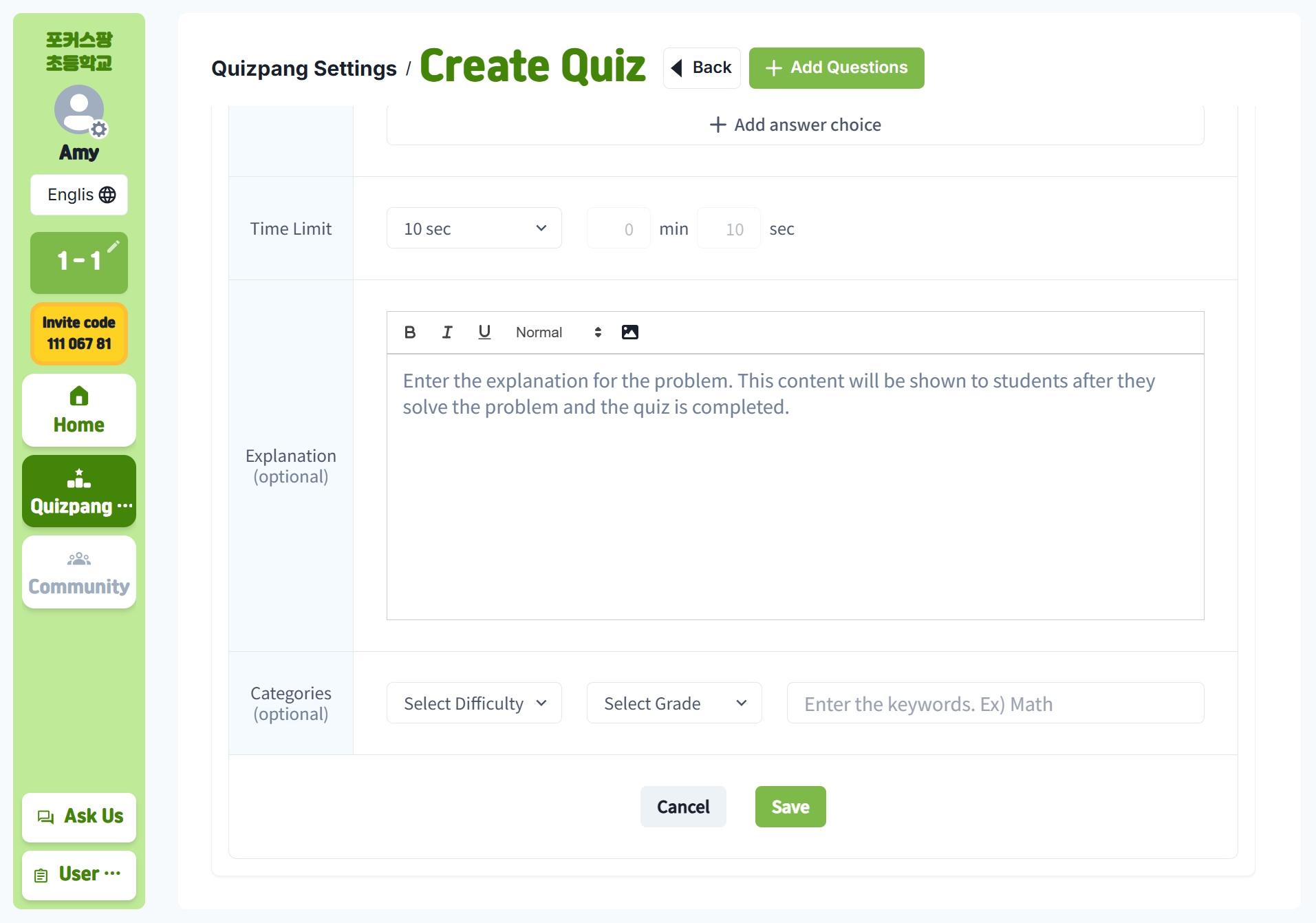
- Choices: For multiple-choice questions, create suitable answer options
- Time Limit: Set an appropriate time based on difficulty and student level
- Explanation: Provide correct answer explanations and key learning points (optional)
- Categories: Add classification for organized quiz management (optional)
Step 4: Run the Quiz
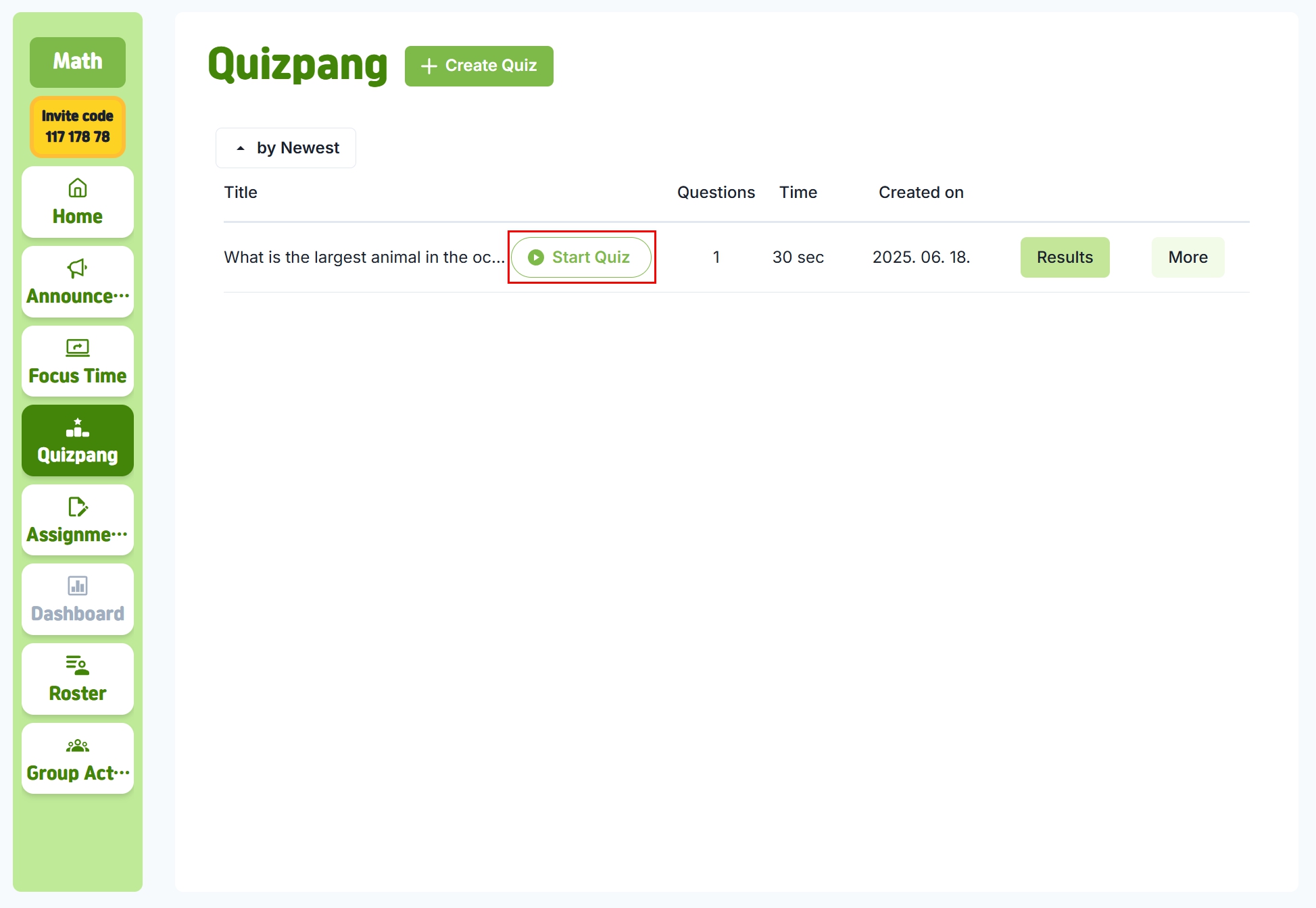
After creating the quiz, you’ll automatically move to the Quizpang management screen. Click [Start Quiz] to let students participate.
Cannot Run with Focus Time
-
Focus Time (class mode) and Quizpang cannot run simultaneously.
-
Please end the class before starting Quizpang.
Quiz Must Be Ended
-
After the quiz, you must click the [End] button.
-
If not ended, students will remain stuck on the quiz screen.