6. Log Out
When you finish using focuspang, remember to log out, especially on a shared computer.
How to log out
From the profile menu
- Click your name at the top right of any page.
- In the menu (Language, Help, Settings, Log out), click Log out.
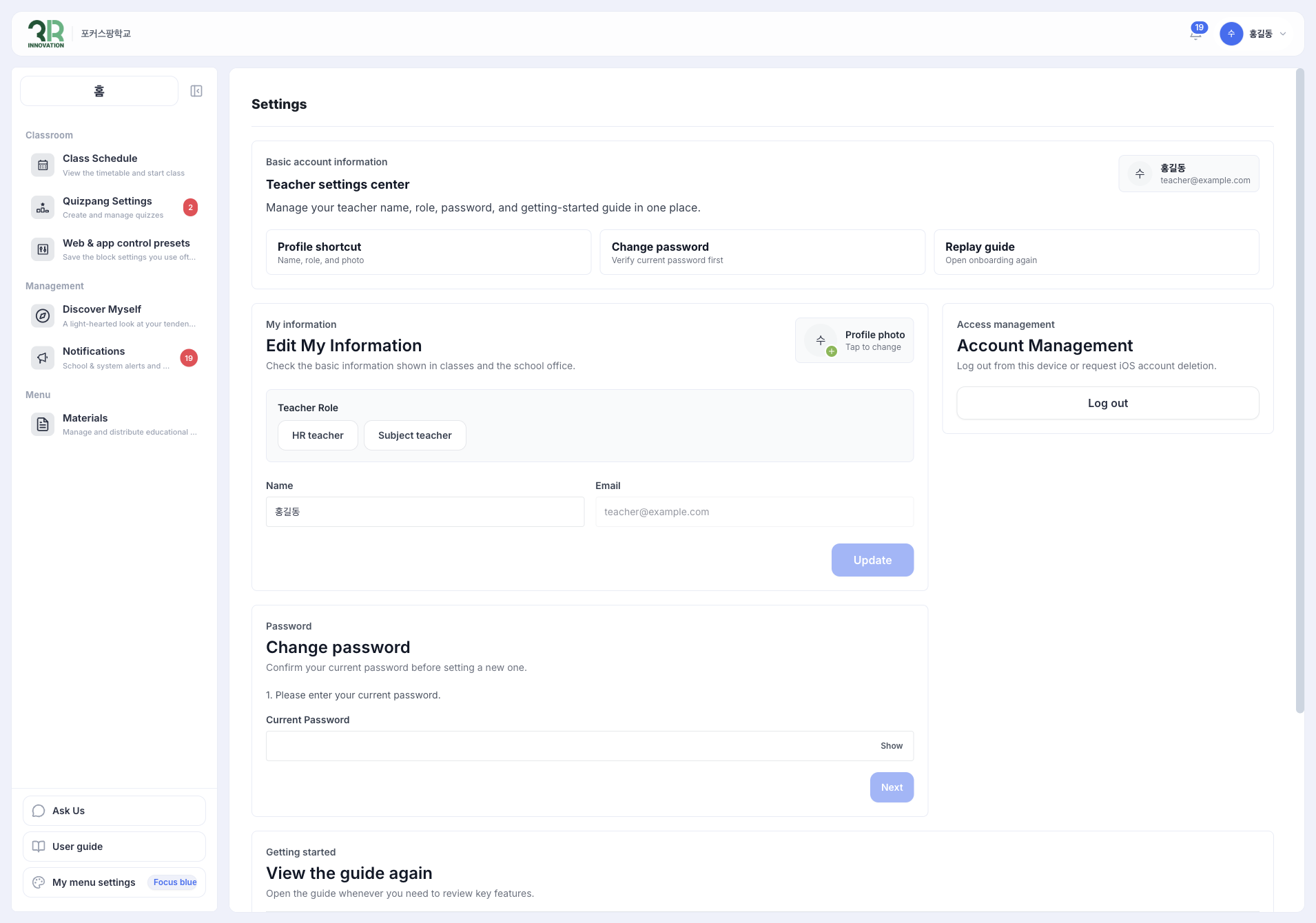
From Settings
- Click your name at the top right, then click Settings.
- In Account Management, click [Log out].
When to log out
- After class
- After each lesson: Log out when you finish using focuspang.
- Before moving classrooms: Log out before you leave the computer.
- End of the day: Log out after your last class.
- When security matters
- Shared computer: If other teachers use the same device.
- Leaving your seat: Even for a short break.
- School computers: Always log out after use.
tip
If focuspang is open in other tabs or on another computer with your account, log out there too.
Troubleshooting
If logging out doesn’t work:
- Refresh the page (F5) and try again.
- Check other tabs: Make sure focuspang isn’t open elsewhere.
- Restart the browser: Close it completely, then open it again.
- If the problem continues, contact your school administrator.