Roster
📍 Class Schedule → Click the class in the timetable → Click [Roster] in the left menu
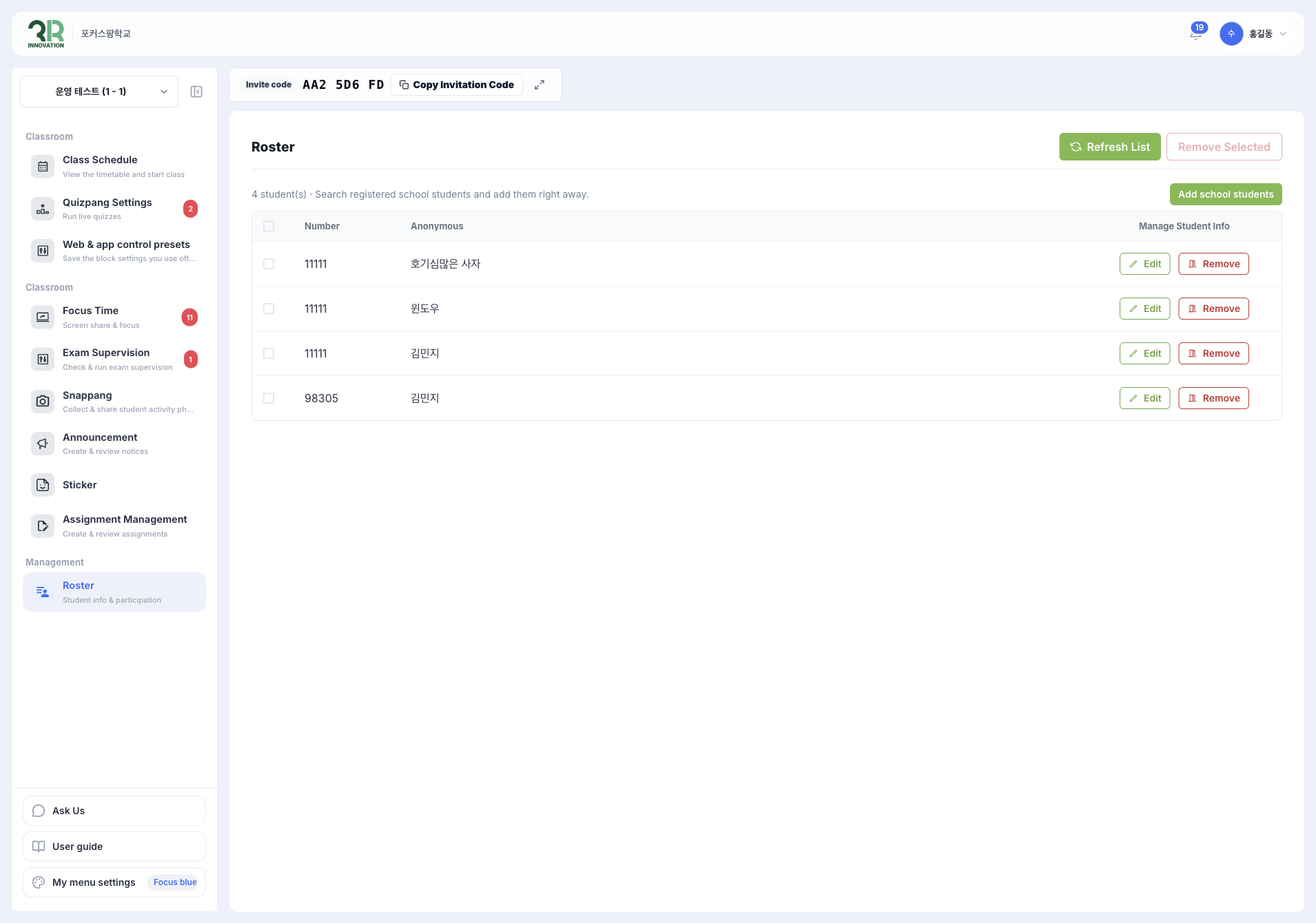
The Roster lists the students in the class in two columns: Number and Anonymous (the student's name or pseudonym). You can update student information, add students from your school and remove students from the class.
Refresh the list
Click [Refresh List] to update the list, for example after students join with the invite code.
Add students from your school
Click [Add school students] to search for students already registered at your school and add them to the class right away.
Edit student information
Click [Edit] in a student’s row to update that student’s information, for example if a student entered the wrong number.
Remove students
- To remove one student, click [Remove] in the student’s row.
- To remove several students at once, check the boxes next to their names and click [Remove Selected].
caution
Check that you have chosen the right student before you remove them from the class.