Subject Teacher
Subject teachers (e.g., PE, Music, Art) should create lessons directly instead of creating a class.
Why can’t a subject teacher create a class?
If a subject teacher creates a class, all lessons will be tied to a single invite code, making it impossible to manage Grade 1 and Grade 2 separately. That’s why you need to create lessons one by one.
Creating Lessons
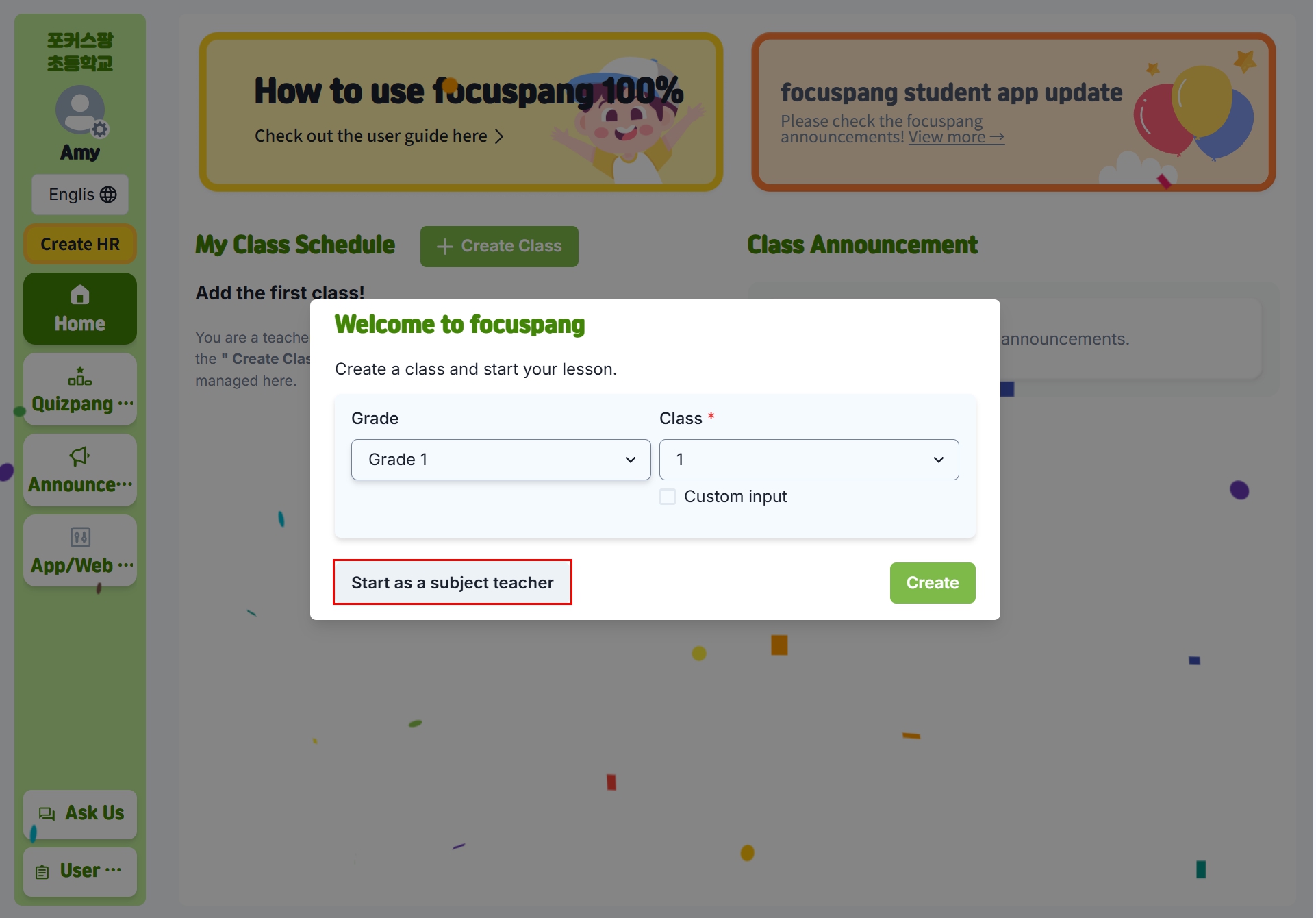
Step 1: Start as a subject teacher
- Click the [Start as a Subject Teacher] button instead of [Create Class].
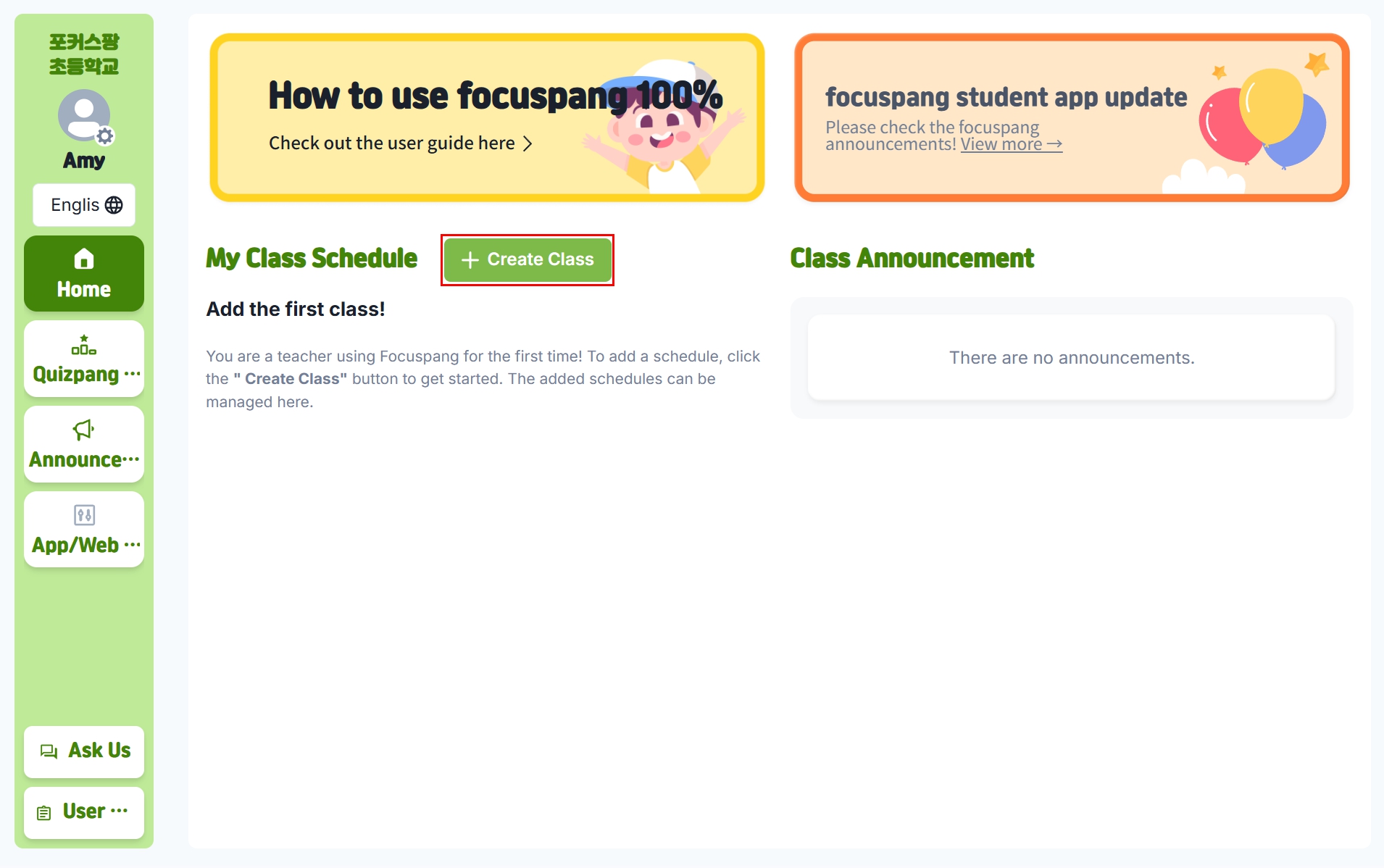
Step 2: Add lesson
- Click the [+Add Lesson] button.
- Create separate lessons for each grade and class.
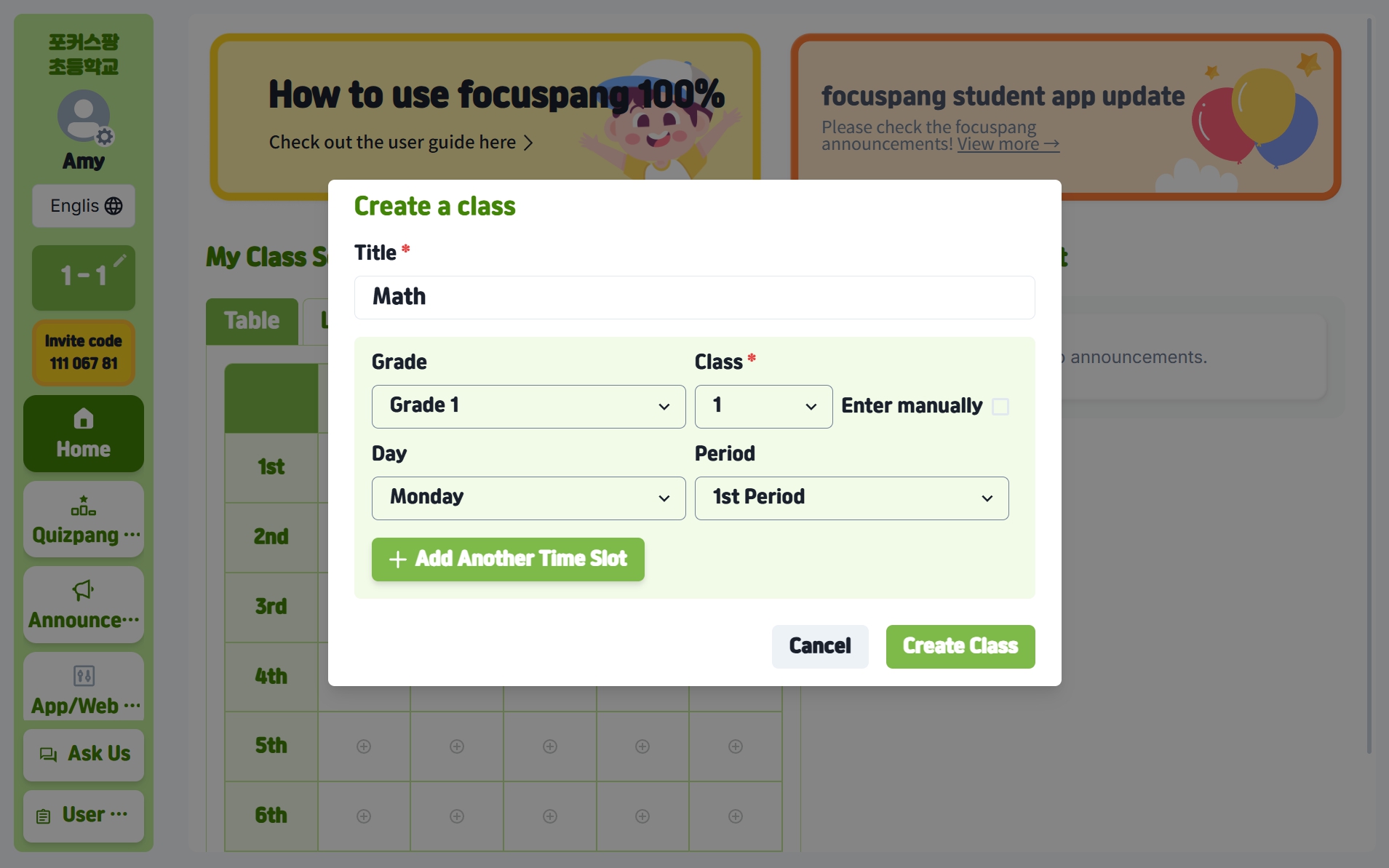
Step 3: Enter lesson details
In the pop-up, enter:
-
Subject: e.g., Korean, Math, English
-
Grade: the grade level
-
Class: the class number
-
Day: the day of the week
-
Period: the lesson period
Step 4: Complete lesson creation
Click the [Add Lesson] button to finish.
What if the same lesson is on multiple days?
Click [+ Add Lesson Time] to add multiple lessons at once.
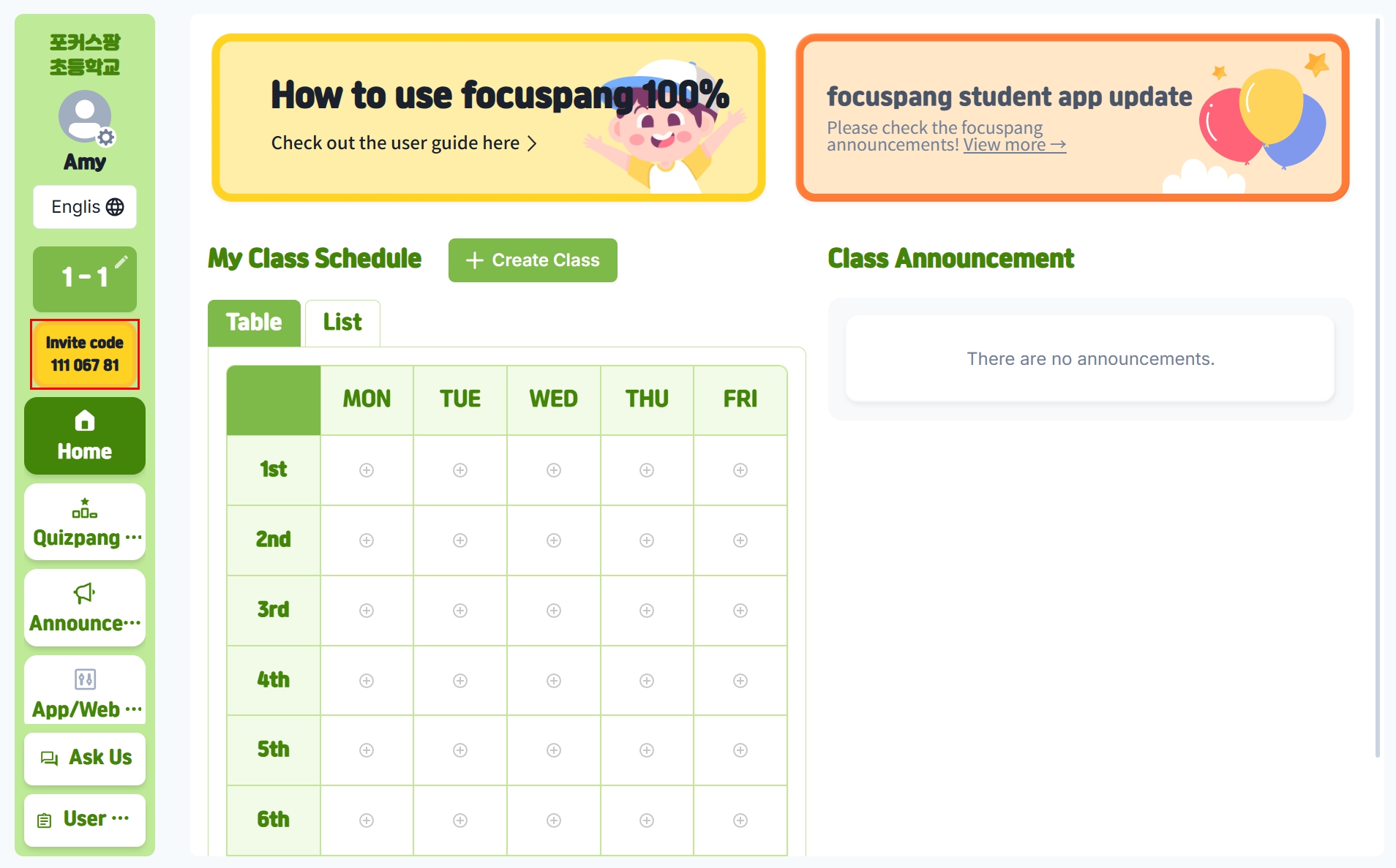
Step 5: Invite students
Once the lesson is created, an invite code is automatically generated. Students must enter this code to join the lesson.
What is an invite code?
- It works like a password that students need to enter your lesson.
- Students join with invite code + student ID + name.
Editing or Deleting a Lesson
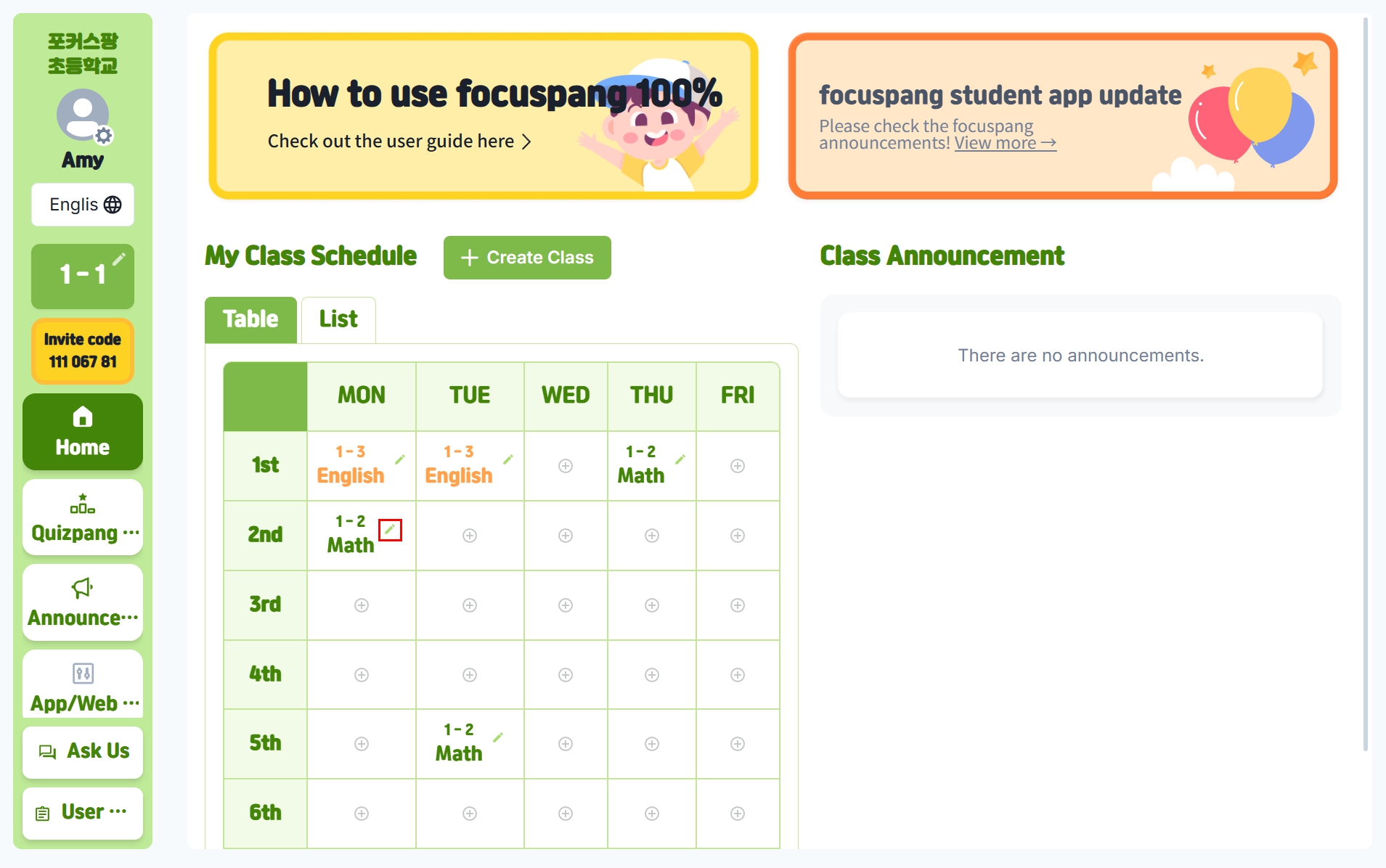
Step 1:Select the lesson
On the main timetable, click the ✏️pencil icon in the top right of the lesson.
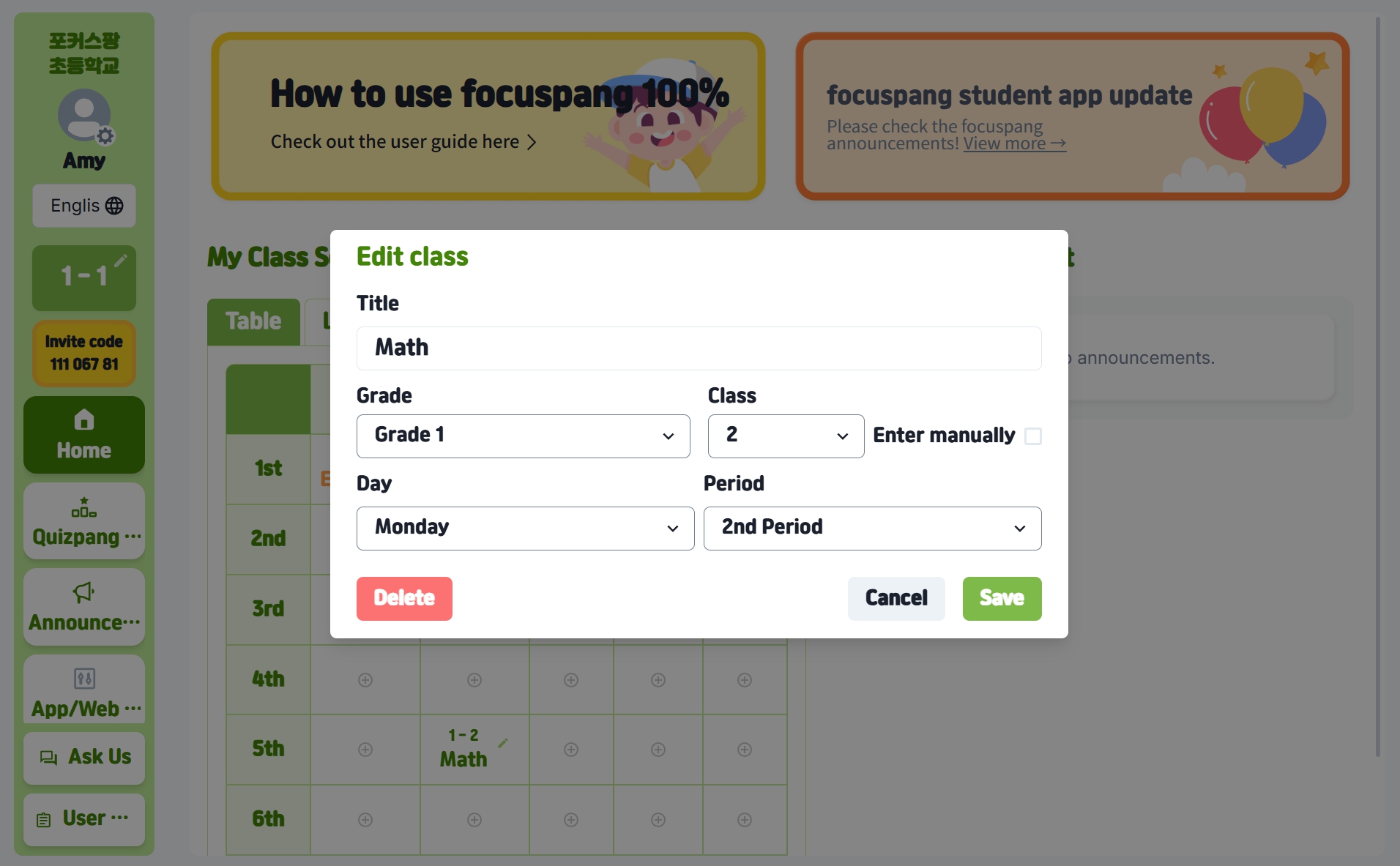
Step 2: Edit or delete
- Edit: Change the details, then click [Save]
- Delete: Click [Delete] to remove the lesson completely
Tips
- Update lesson times immediately if the schedule changes.
- Delete lessons you no longer teach.
- Use clear names students will understand.
If you run into problems
- Refresh the page.
- Log in again.
- Contact your school administrator.