2. Login
Students don’t need an account or an email. You log in with the invitation code from your teacher and your student number.
How to Log In
Step 1: Invitation Code Login
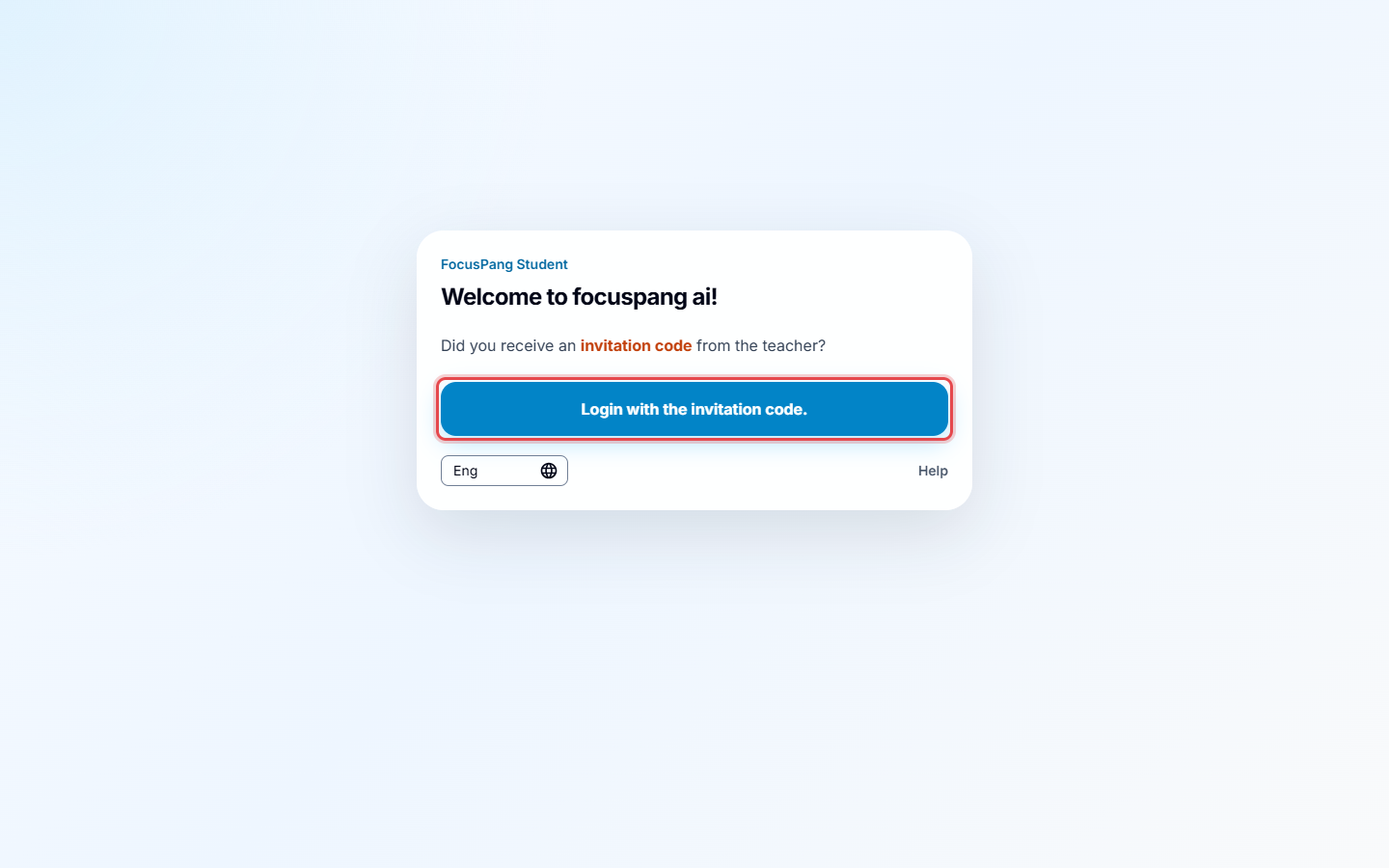
Open the focuspang app. On a computer, open student.focuspang.com in Chrome. Click the Login with the invitation code. button. You can also scan the QR code your teacher shows.
Step 2: Enter the Invitation Code
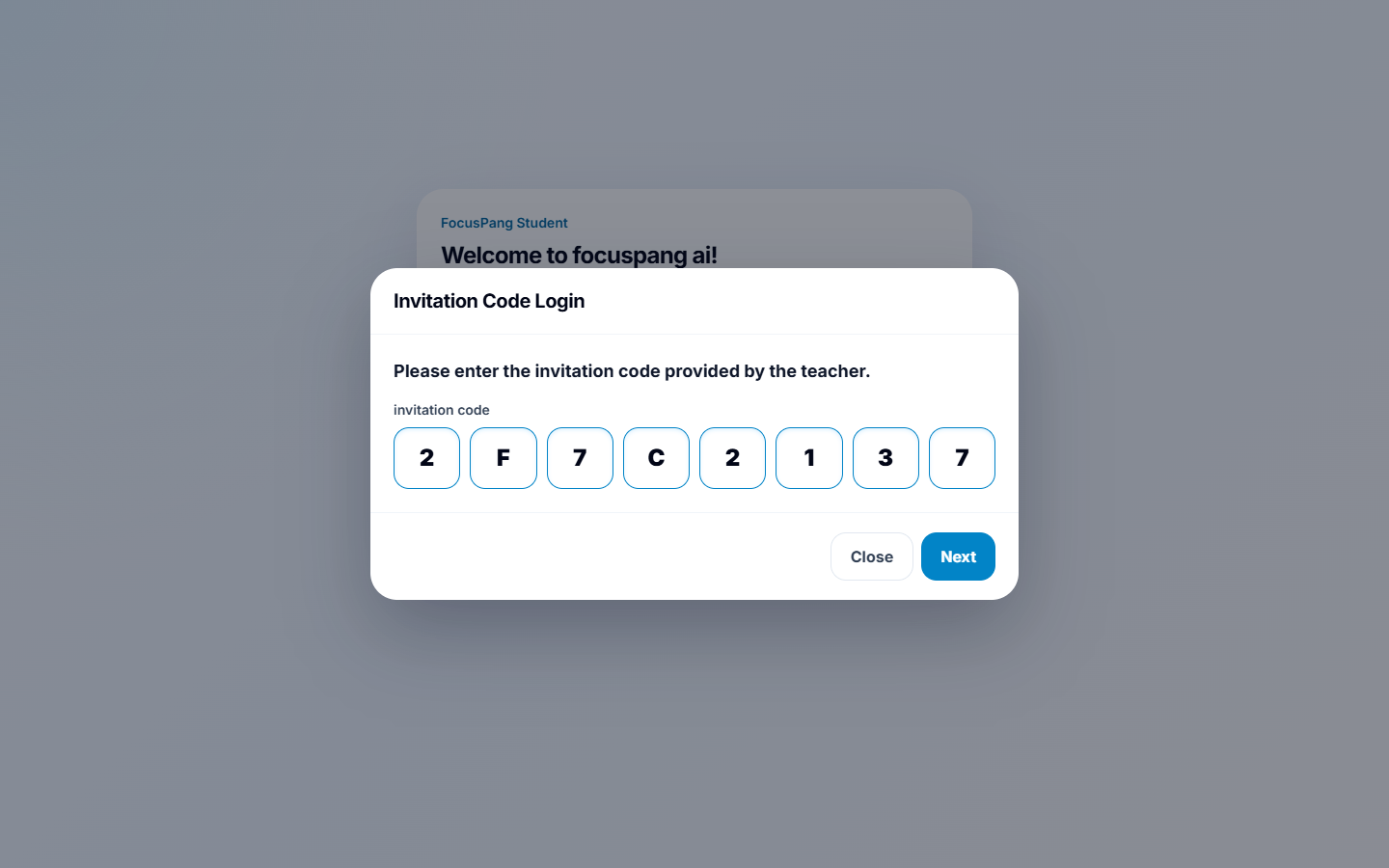
Enter the 8-character invitation code from your teacher, then click [Next].
Important Notes
- Enter the code exactly as your teacher gave it.
- When copying and pasting the code, make sure there are no extra spaces before or after the code.
Step 3: Enter your student number
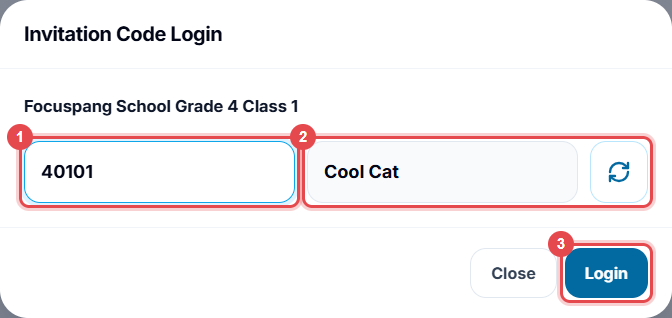
Your school, grade and class are shown at the top. Check that they are correct.
- Enter your 5-digit student number ①.
- Example: A student in Grade 4, Class 1, number 1 enters 40101.
- Check your name ②. A nickname may be filled in for you; click the refresh button next to it to get a different one.
- Click [Login] ③.
After you log in, your class appears in your timetable. See 3. Joining Classes.
Common Issues & Solutions
- Invitation Code & Account Issues
- Incorrect code: Confirm the exact code with your teacher.
- Input errors: Make sure every letter and number is entered correctly.
- Already logged in on another device: Log out on the other device first, then try again.
- Technical Issues
- Network error: Check your Wi-Fi connection.
- App error: Close and restart the app completely.
- Browser: On a computer, use Chrome. Safari is not supported.
tip
If you have problems, please ask your school’s IT support teacher for assistance.