2. Sign Up / Log In
To use focuspang in your lessons, you first need to log in with a teacher account.
Account Request & Registration
How to apply for an account
Open teacher.focuspang.com in Chrome and click Sign up now next to Not a member yet?.
The sign-up screen has three steps. First, enter your email address and click [Send verification code].
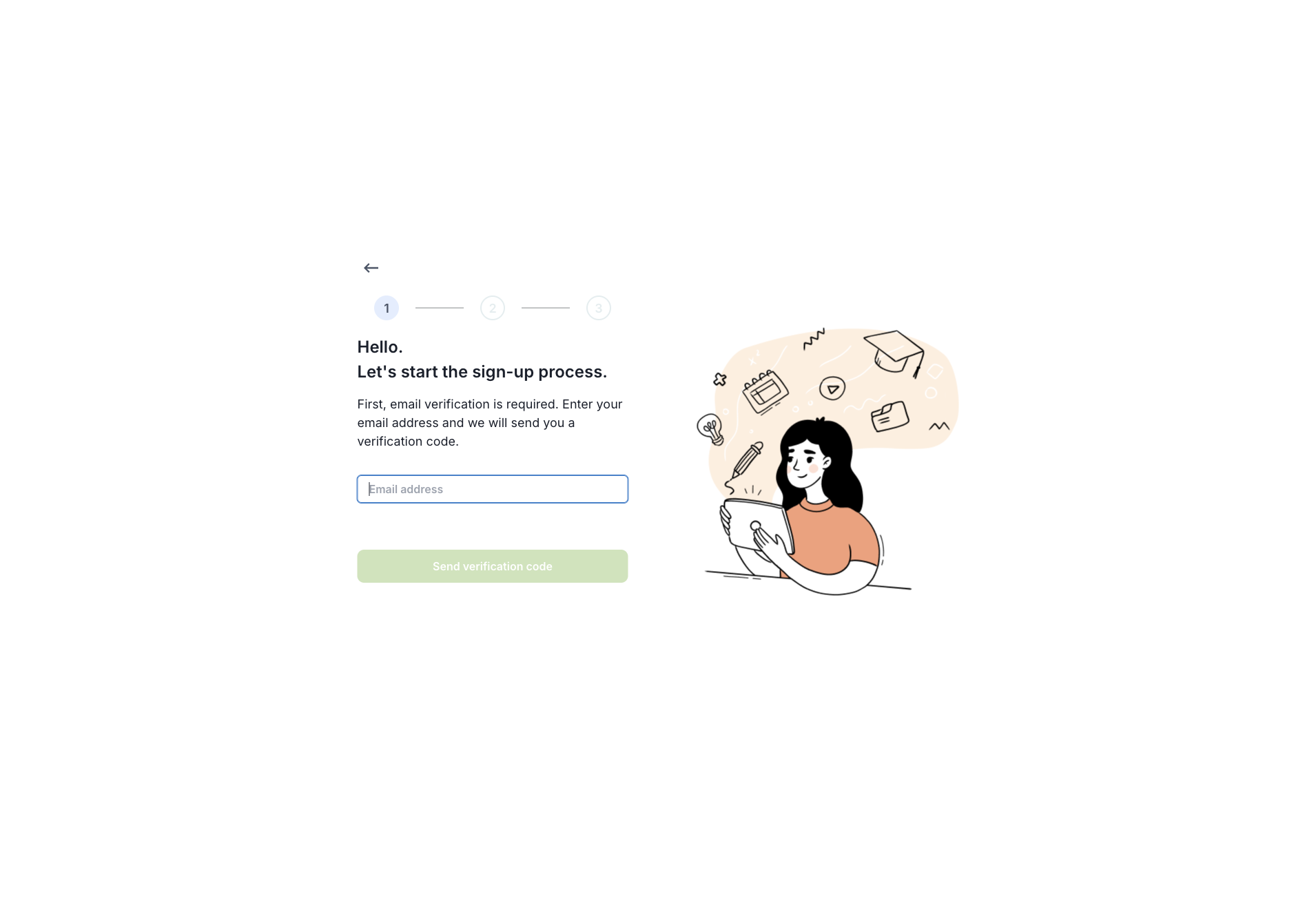
Registration process
During those three steps, you will:
- Email verification – Enter your email address and check the verification email.
- Enter verification code – Type in the code you received by email.
- Enter personal details – Fill in your name and password.
- Agree to terms – Accept the Terms of Service and Privacy Policy.
- Select your school – Choose the school where you work.
- Finish registration – Click [Next] or [Confirm] to complete your registration.
Note about personal information consent
During registration, you consent to the collection and third-party use of your personal information. You do not need to submit a separate consent form.
Account Approval
- Administrator check – After registration, your school administrator reviews your request.
- Approval – The administrator approves your account.
- Ready to use – Once approved, you can log in and use focuspang.
Tip for faster approval
For quicker approval, ask your school administrator directly to approve your account.
Login
How to log in
- Go to the teacher site – Open teacher.focuspang.com in Chrome on Windows, Mac or Chromebook. If the page is in Korean, choose English(US) in the language menu at the bottom.
- Enter account info – Type the email ① and password ② you registered.
- Log in – Click [Login] ③. You’ll be taken to the Class Schedule page.
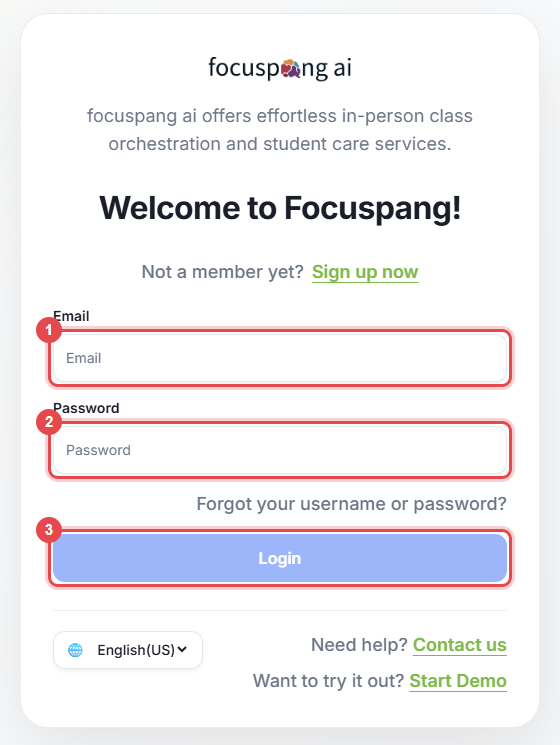
Welcome tour
The first time you log in, a short welcome tour may appear. Click [Next] to read it or [Skip] to close it. You can open it again later from Settings → View the guide again.
Common Issues
- Pending approval – Your account hasn’t been approved by the administrator yet.
- Incorrect password – The password you entered is wrong.
- Wrong account info – The email address doesn’t match your registration.
- Browser issues – Use Chrome. Other browsers may not work correctly.
Steps to Resolve Issues
- Check your approval status with the administrator.
- Reset your password with Forgot your username or password?.
- Double-check the email you used for registration.
- Use the latest version of Chrome.
After you log in
- Settings: Add a profile picture and choose your Teacher Role (HR teacher or Subject teacher). See Settings.
- Classes: Create your first class in the timetable. See Create a Class.