Quizpang
📍 Class Schedule → Click the class in the timetable → Click [Quizpang Settings] in the left menu
Quizpang is a live quiz. Everyone answers within a time limit and sees the answer right away, so you can check students’ understanding instantly.
- Formative Assessment: Check students’ understanding of the lesson in real time
- Unit Review: Check what students have learned at the end of a unit
- Review Activity: Review content from previous lessons
- Warm-up: Boost focus and motivation before class starts
Create a quiz
Step 1: Click Create quiz
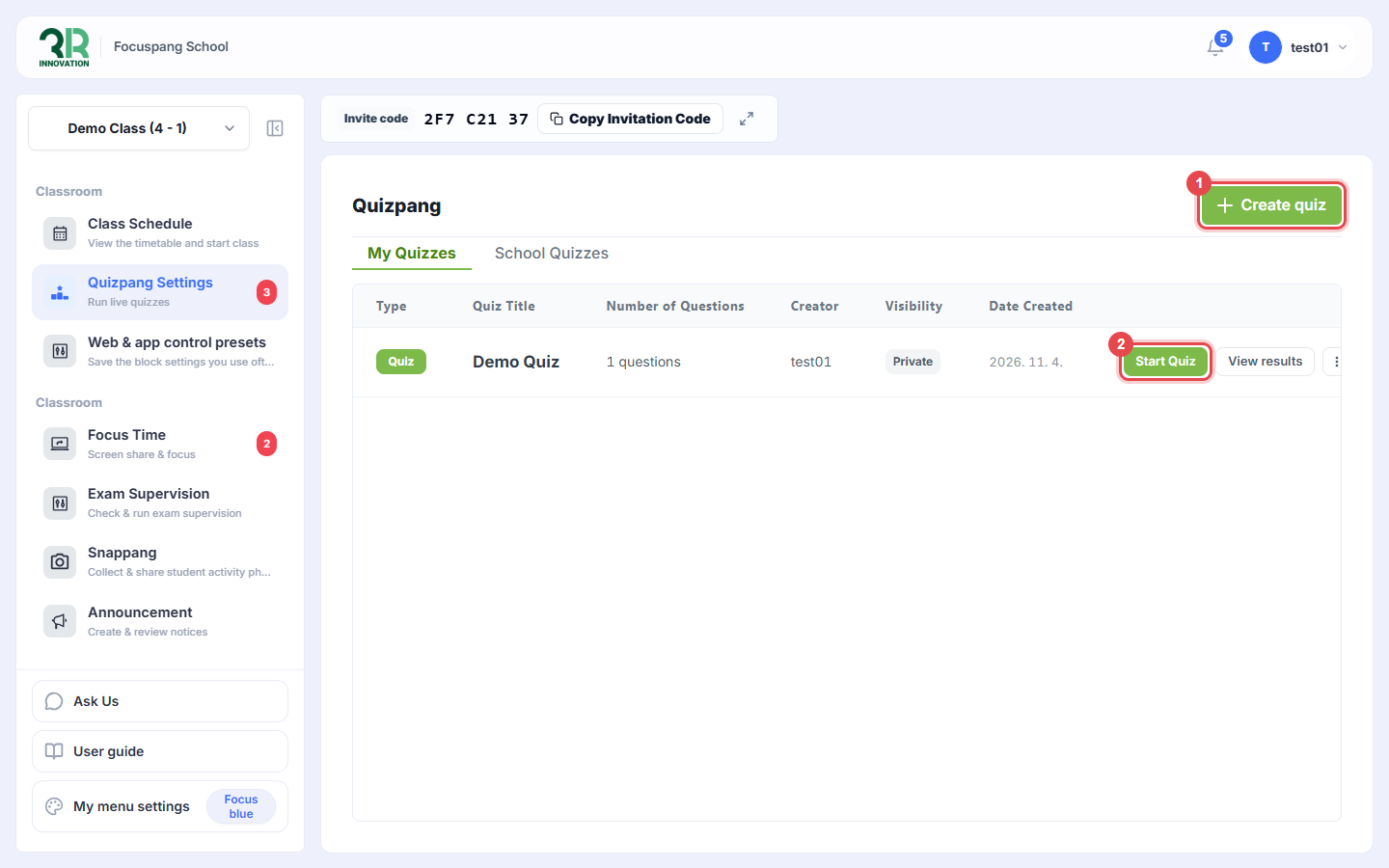
Click [+ Create quiz] ①. Your quizzes appear in the My Quizzes list, where you can start a quiz ② or view its results. Quizzes shared in your school are in School Quizzes.
Step 2: Choose the quiz type
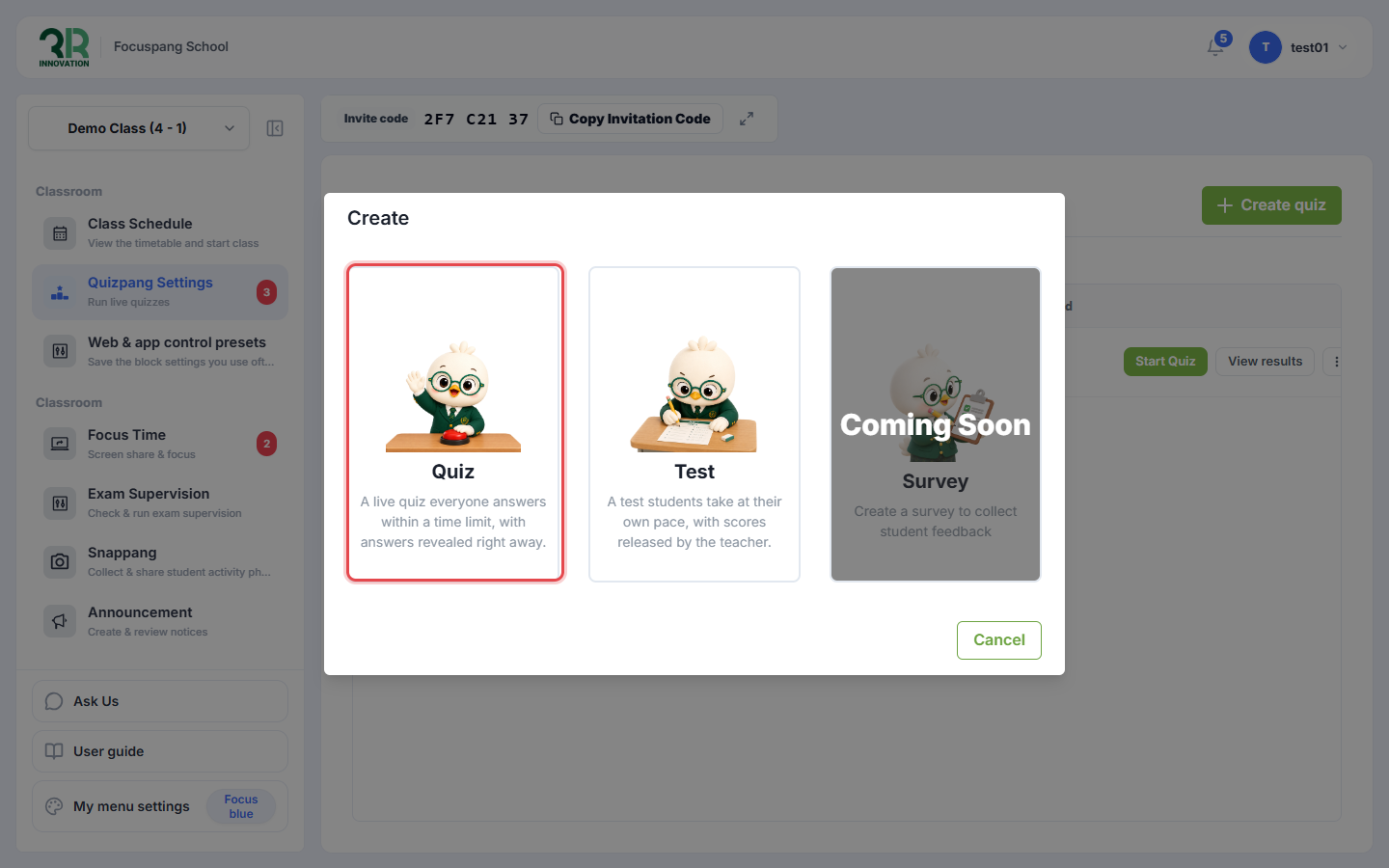
In the Create pop-up, choose Quiz.
- Quiz: A live quiz everyone answers within a time limit, with answers revealed right away.
- Test: A test students take at their own pace, with scores released by the teacher.
Step 3: Write the questions
- Give the quiz a name and grade, then click [Start writing questions].
- Click [Add question] and choose a question type, such as Multiple choice.
- Type the question ① and the options. Click the circle next to the correct answer ②. You can add a Description (optional), such as a reading passage, below the question.
- Set the Time Limit ③. The default is 10 seconds; give more time for longer or harder questions.
- Click [Save this question], then [Done] ④ and [Save and finish].
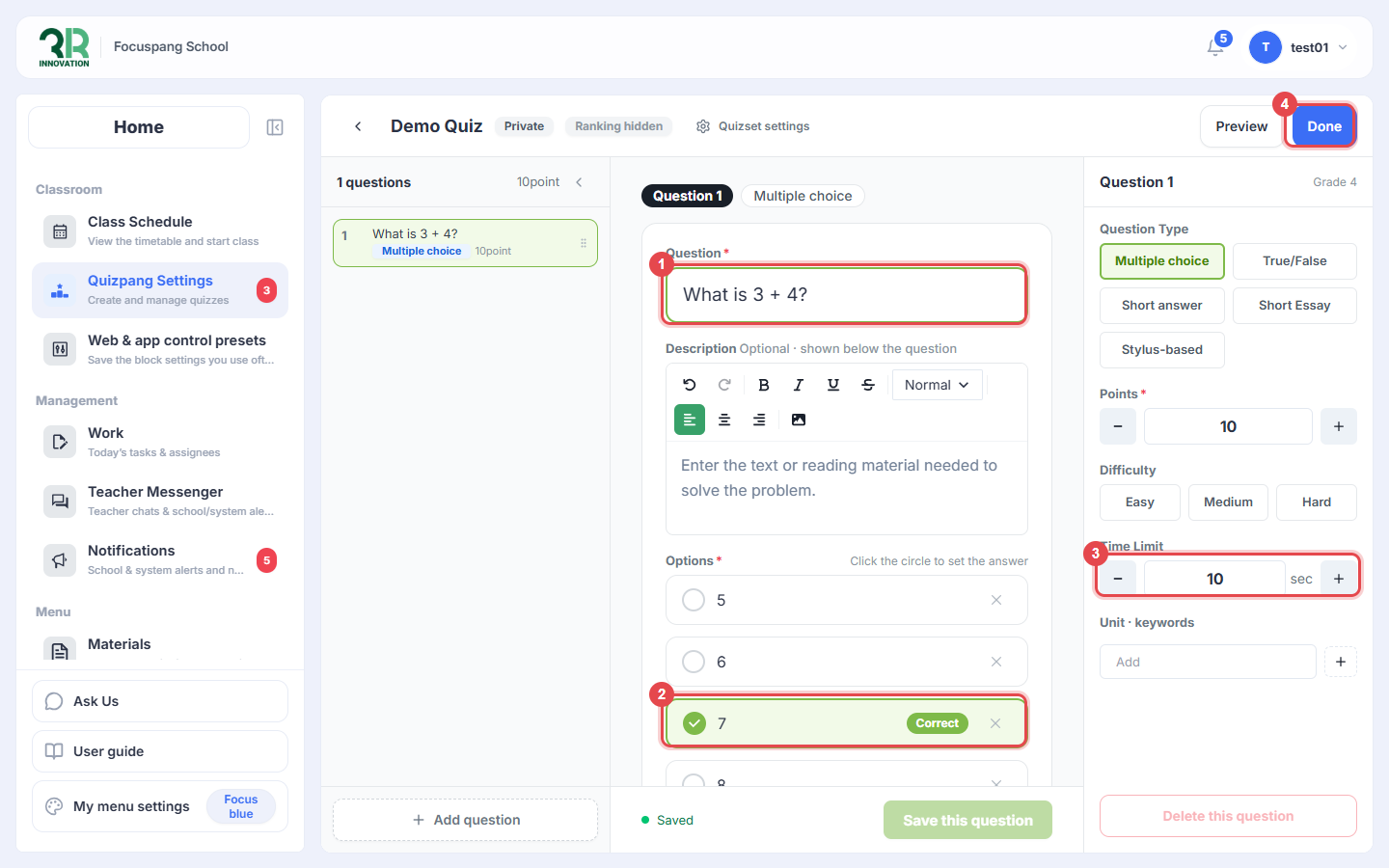
Other question types are True/False, Short answer, Short Essay and Stylus-based. You can also set Points, Difficulty and Unit · keywords for each question.
Run the quiz
Step 1: Open the lobby
Click [Start Quiz] next to your quiz. A waiting room (lobby) opens. When students click Quizpang in their left menu, the Participation count goes up. When everyone has joined, click [Start quiz].
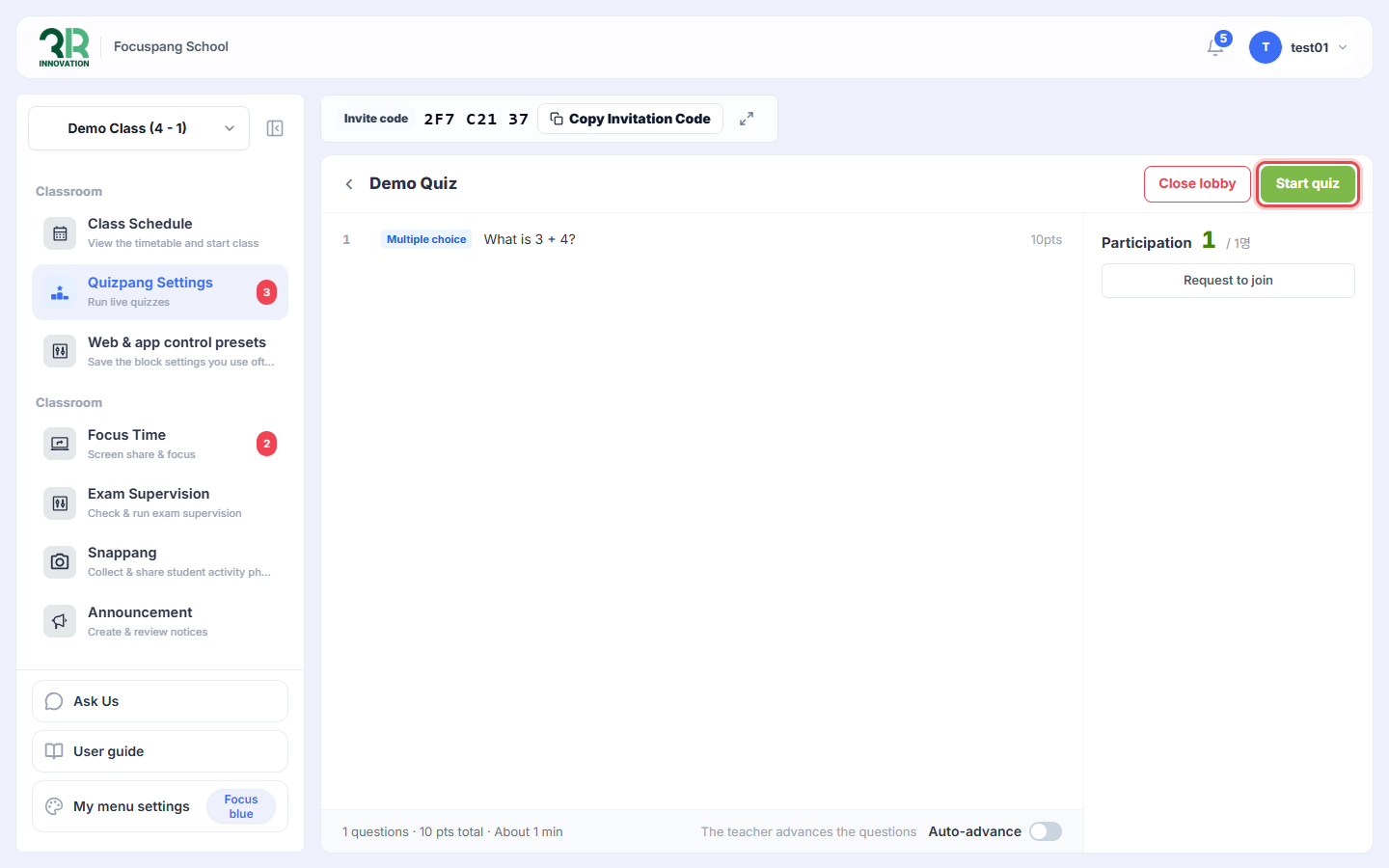
Turn on Auto-advance if you want the questions to move on automatically. When it is off, you move to the next question yourself.
Step 2: Watch answers live
You can see how many students chose each answer, who has not submitted yet, and the ranking. After the last question, click [End] and confirm.
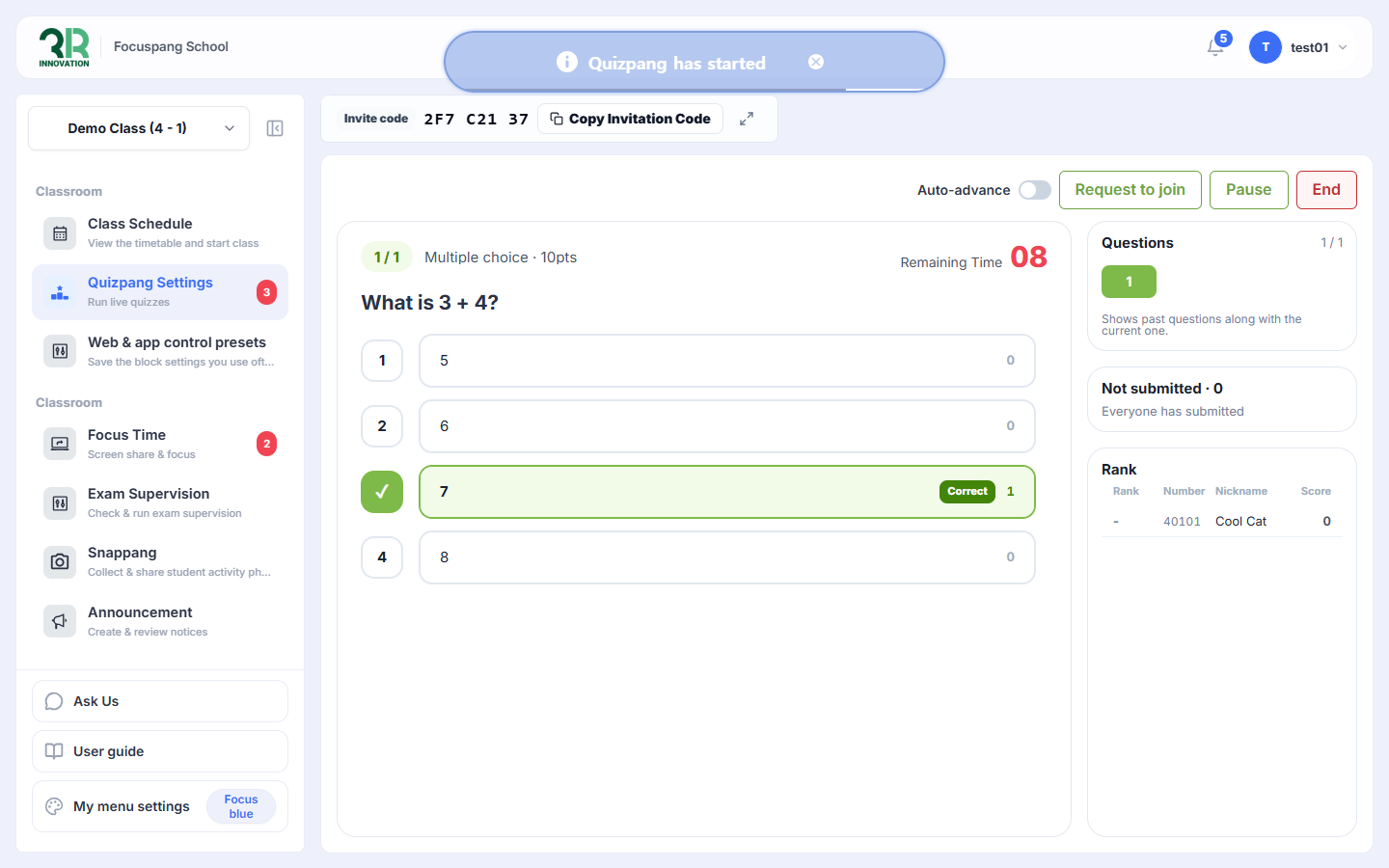
Students stay on the quiz screen until you end the quiz. Be sure to click [End] after the quiz.
See the results
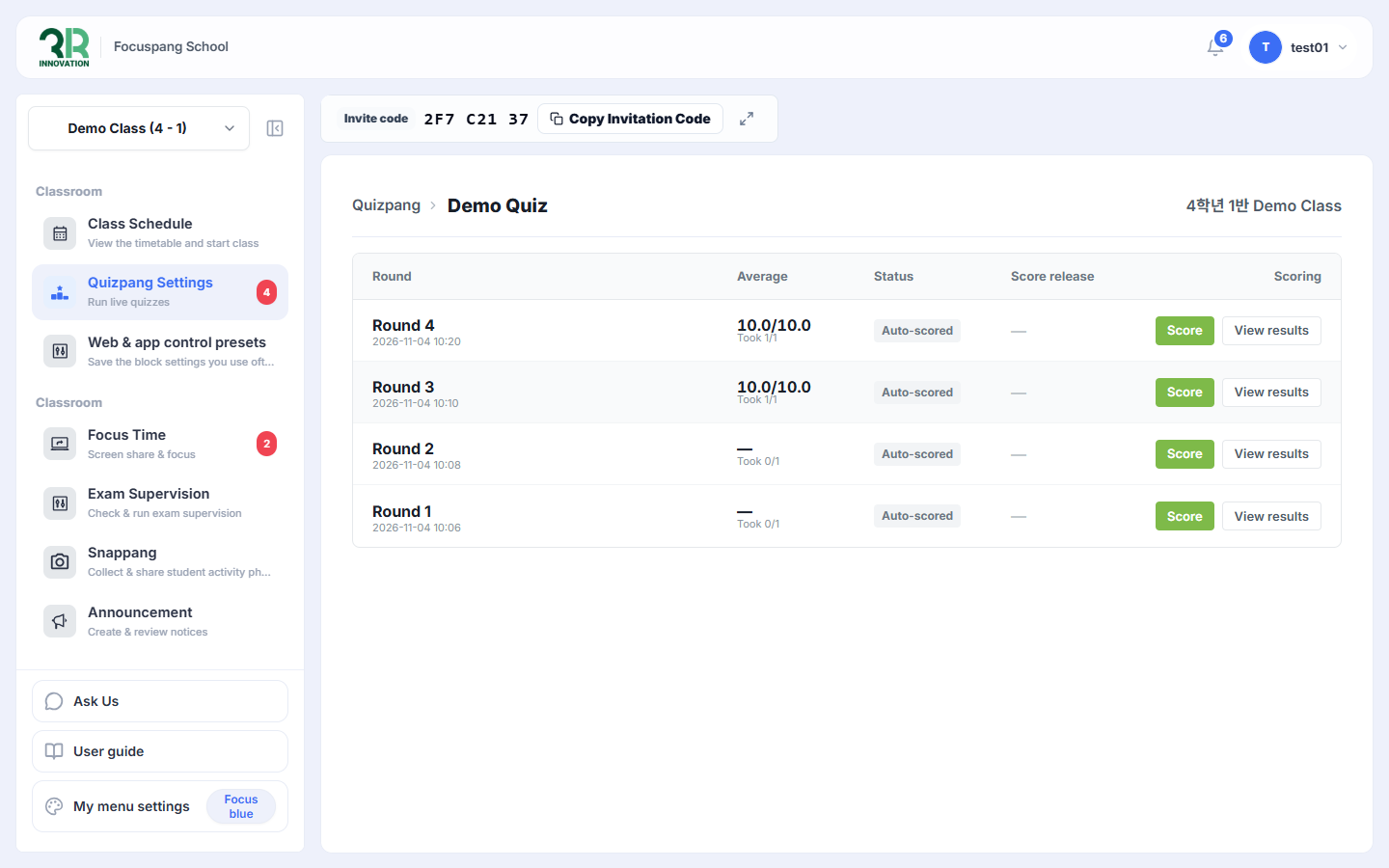
In the quiz list, click [View results]. Each time you run a quiz, it is saved as a round with the class average and auto-scored answers. Click [View results] for a round to see its details, or [Score] to grade it.