Assignment Management
📍 Main Page → Click the class in the timetable → Click [Assignment Management] on the left sidebar
What Can You Do with Assignment Management?
- Assign tasks to students.
- Check whether students have submitted their assignments.
- Download submitted assignment files.
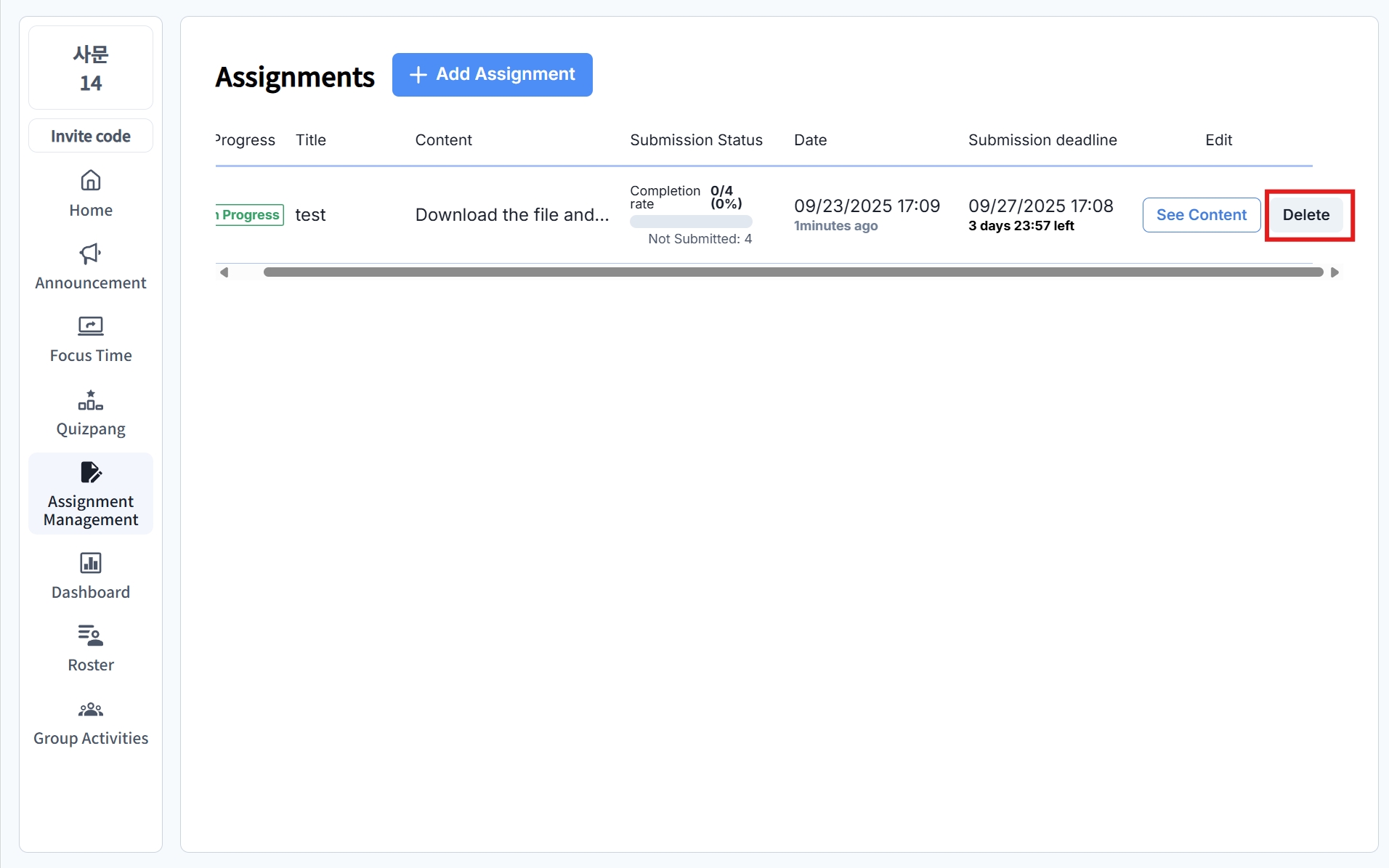
- Edit or delete assignments.
Registering an Assignment
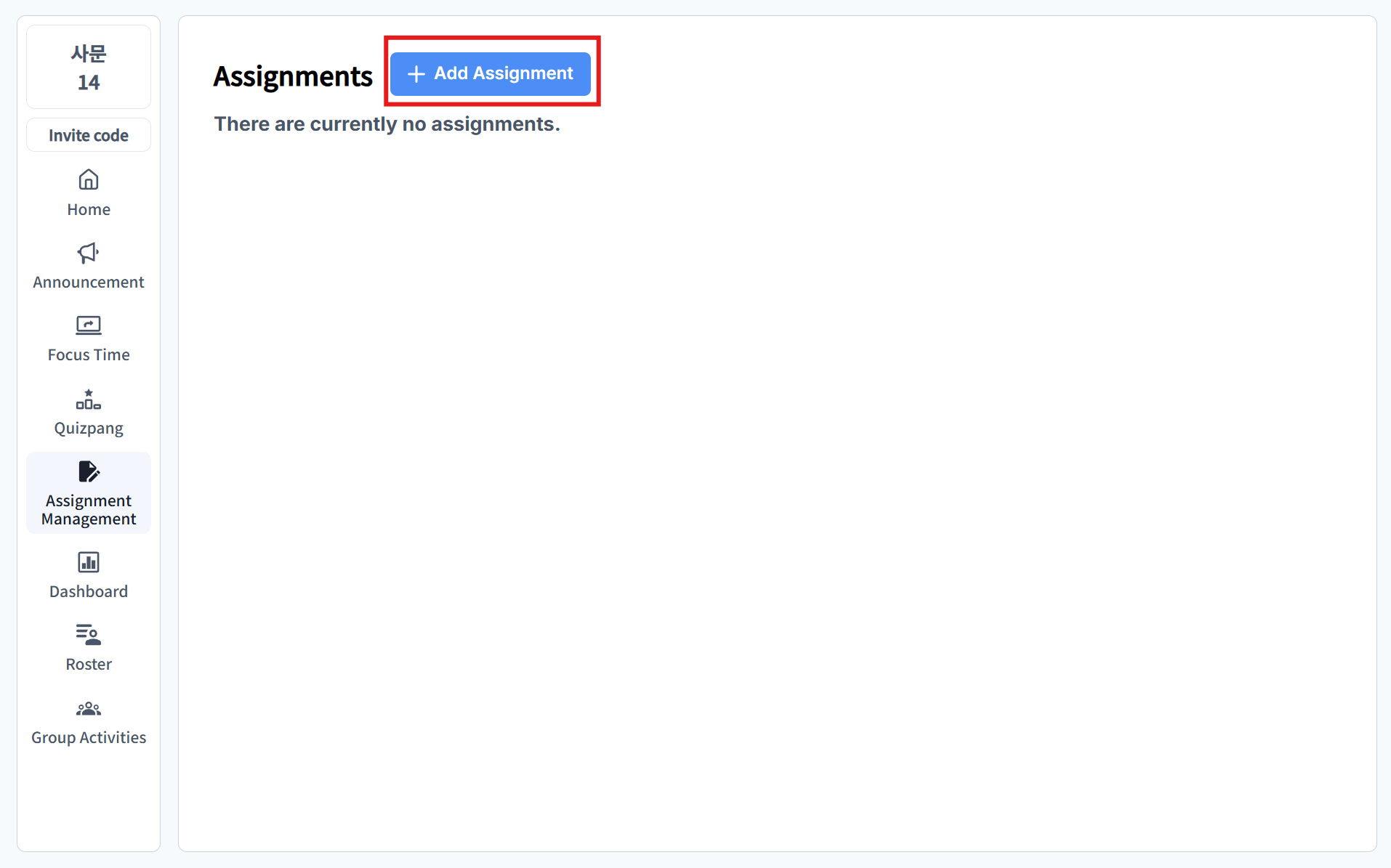
Step 1: Create a New Assignment
Click the [+ Add Assignment] button to go to the assignment registration page.
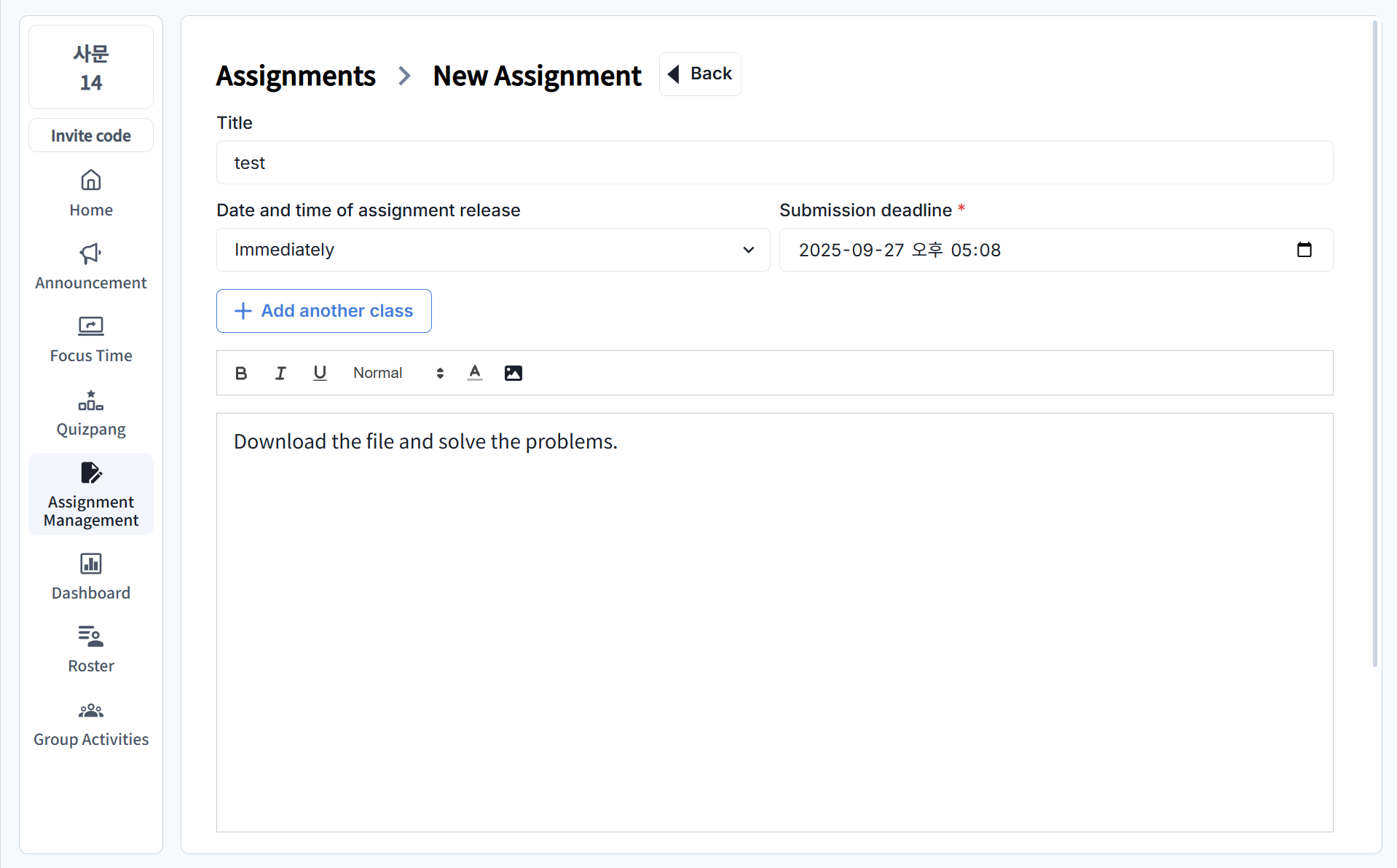
Step 2: Enter Assignment Details
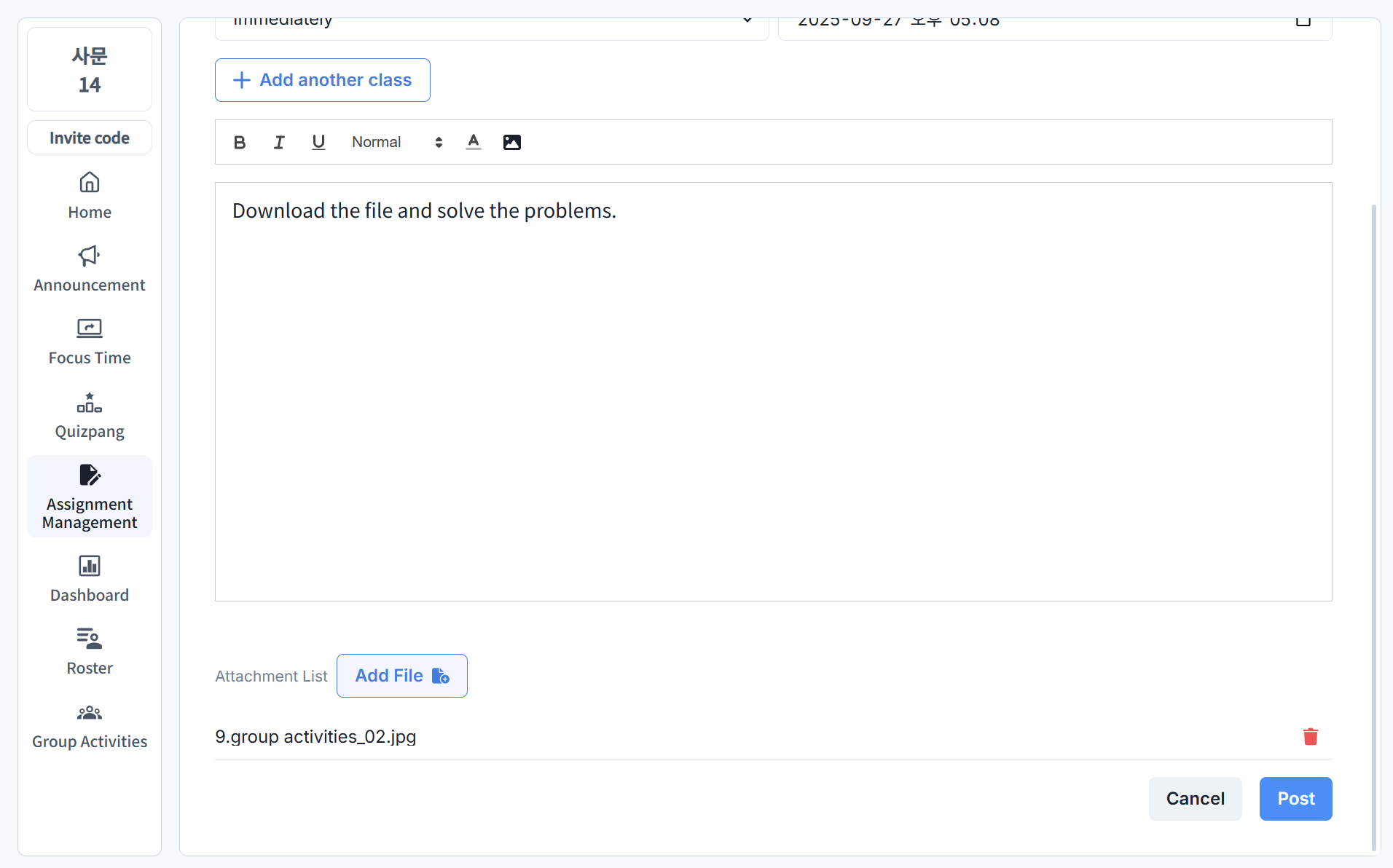
Fill in the following fields and click [Register]:
- Assignment Title
- Assignment Content: Provide detailed instructions for students.
- Visibility: Choose when students can see the assignment.
- Due Date: Set the assignment deadline.
- Attachments: Attach any files that help students understand the assignment.
Step 3: Check Student Submissions
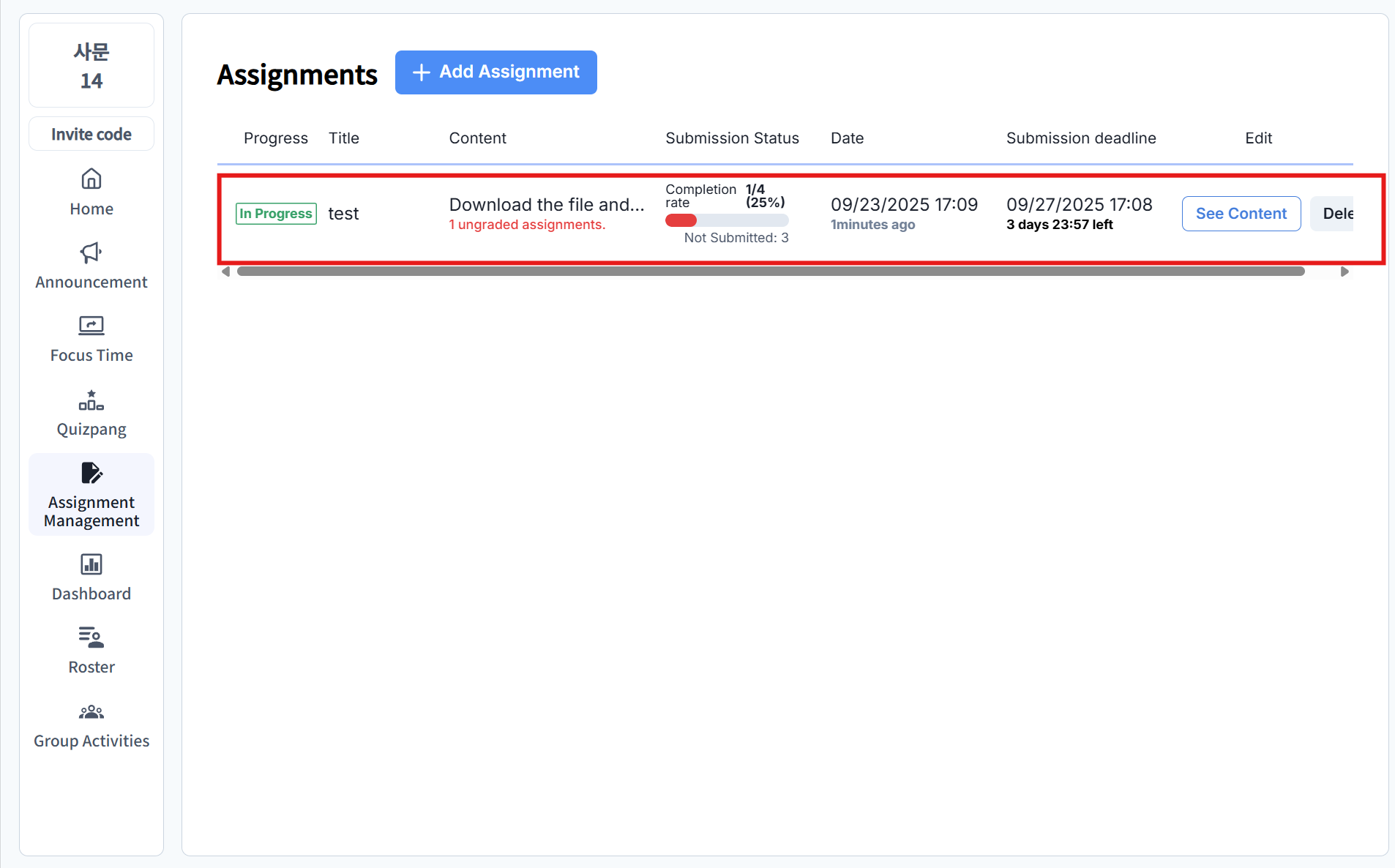
- In the Assignment Management list, check submission status and whether grading is complete. Click [View Details] on the assignment you want to check.
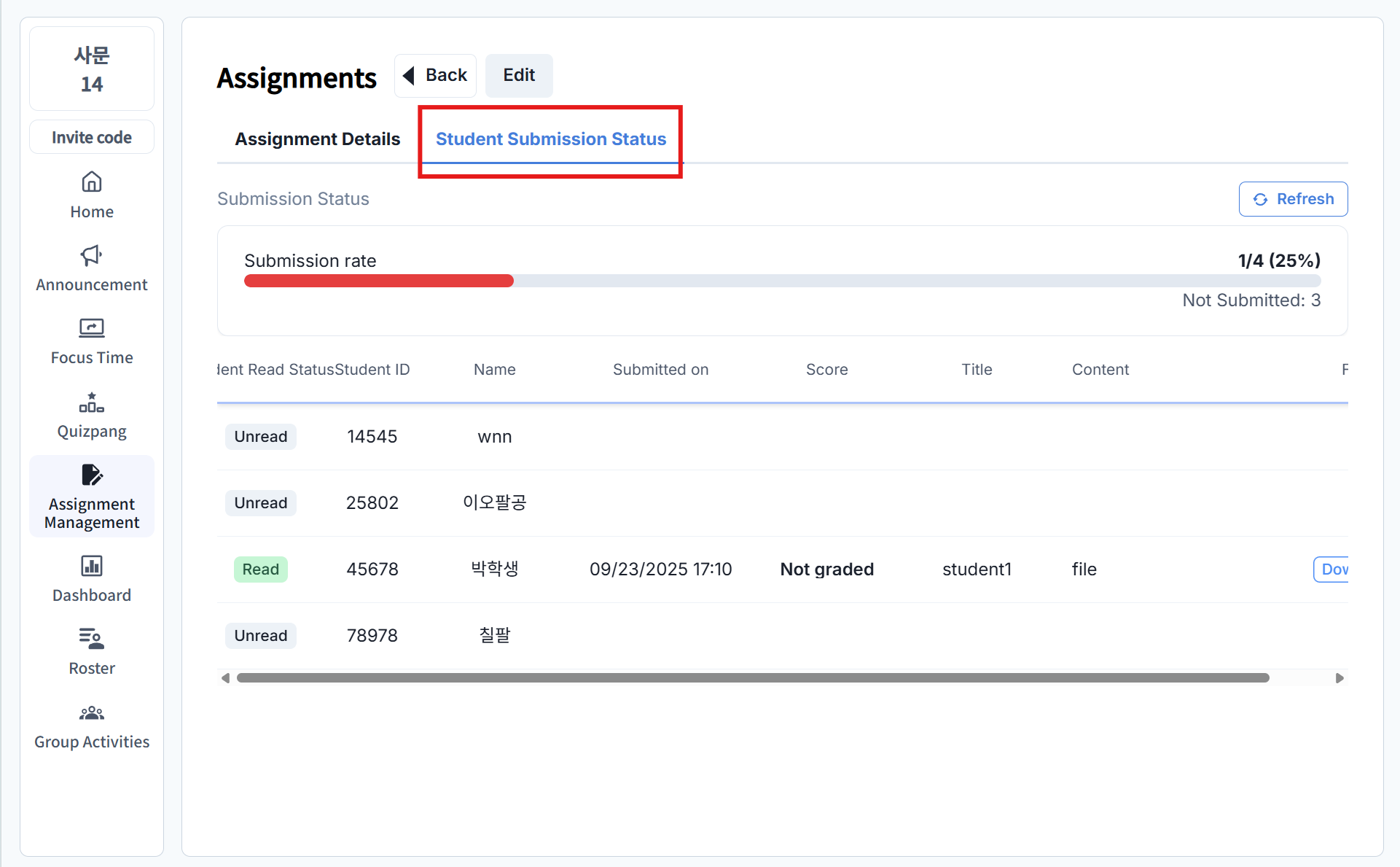
- In the [Student Submission Status] tab, you can see the list of students.
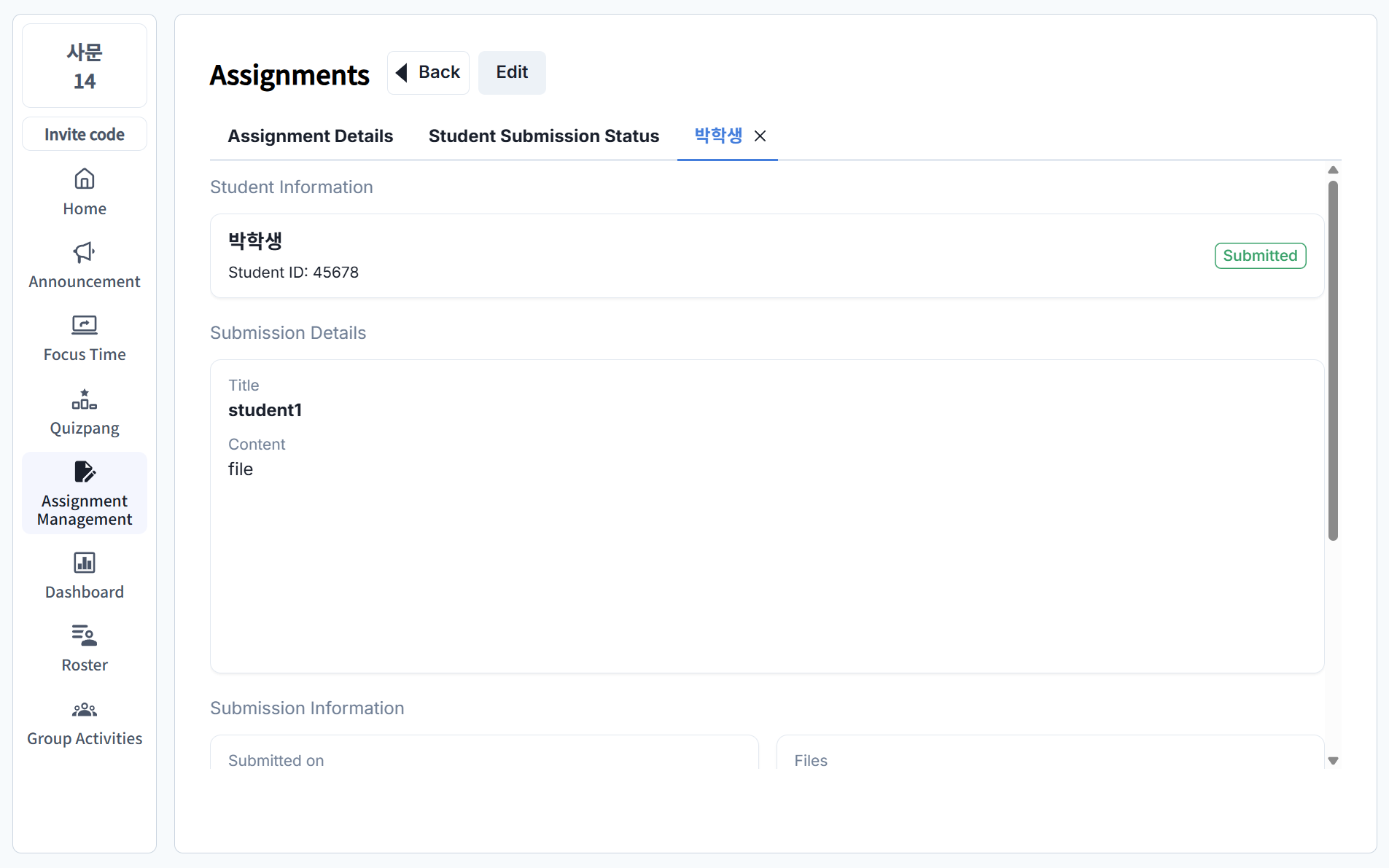
- Click a student’s name to view the submitted assignment content.
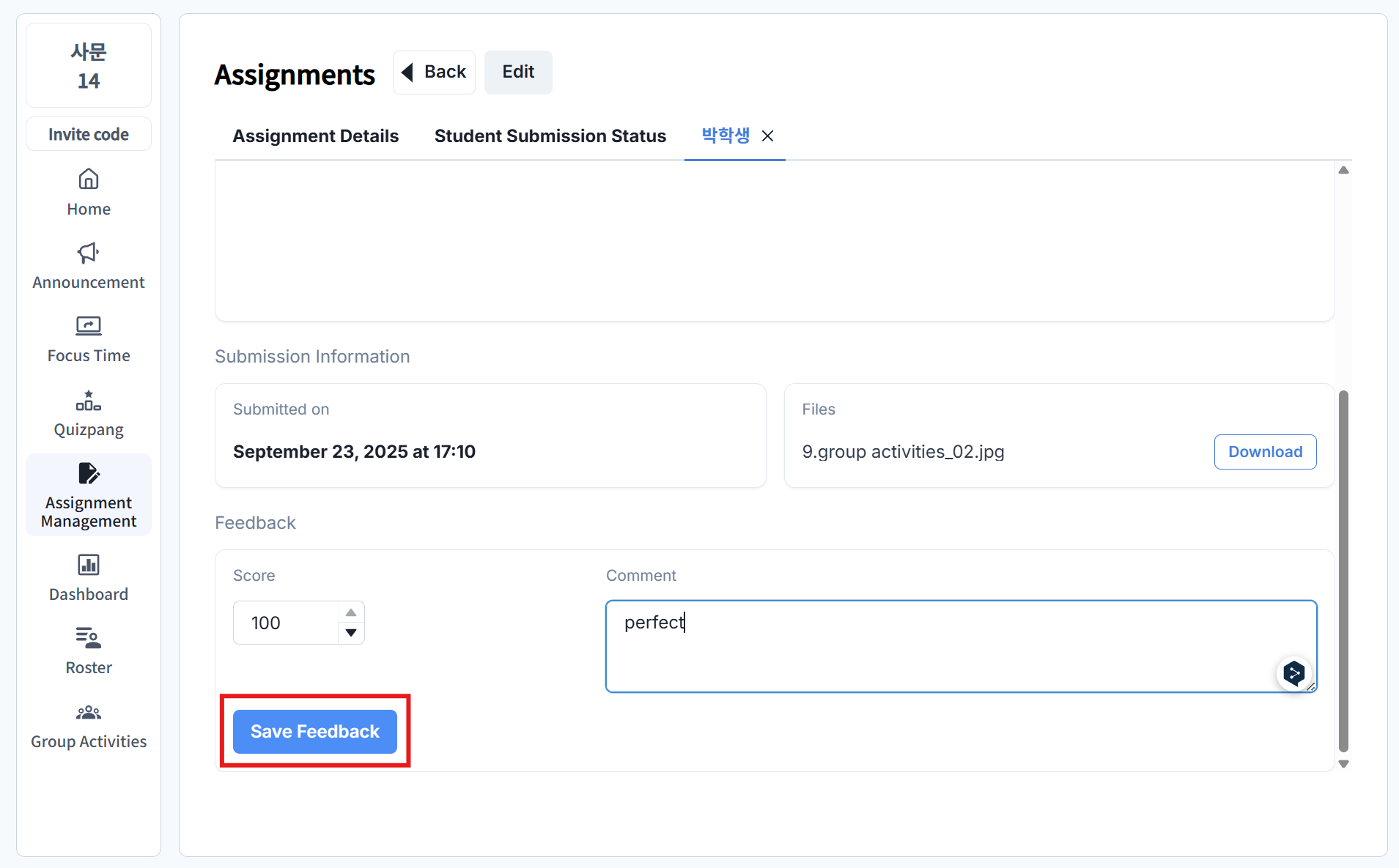
Step 4: Provide Feedback
Enter scores and comments, then click [Save Feedback]. Students can view the feedback once saved.
Editing and Deleting Assignments
Editing Assignments
- In the Assignment Management list, click [View Details].
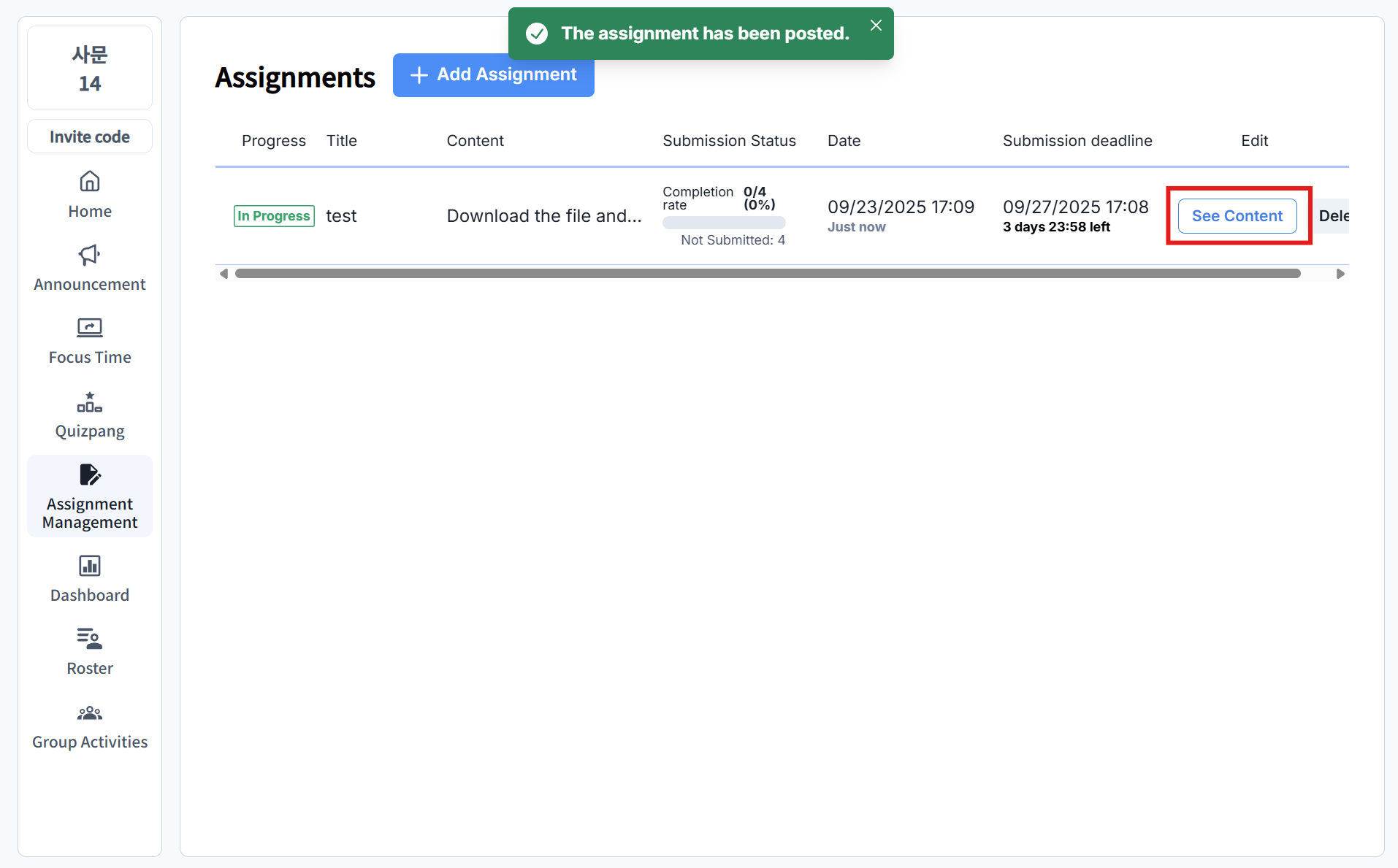
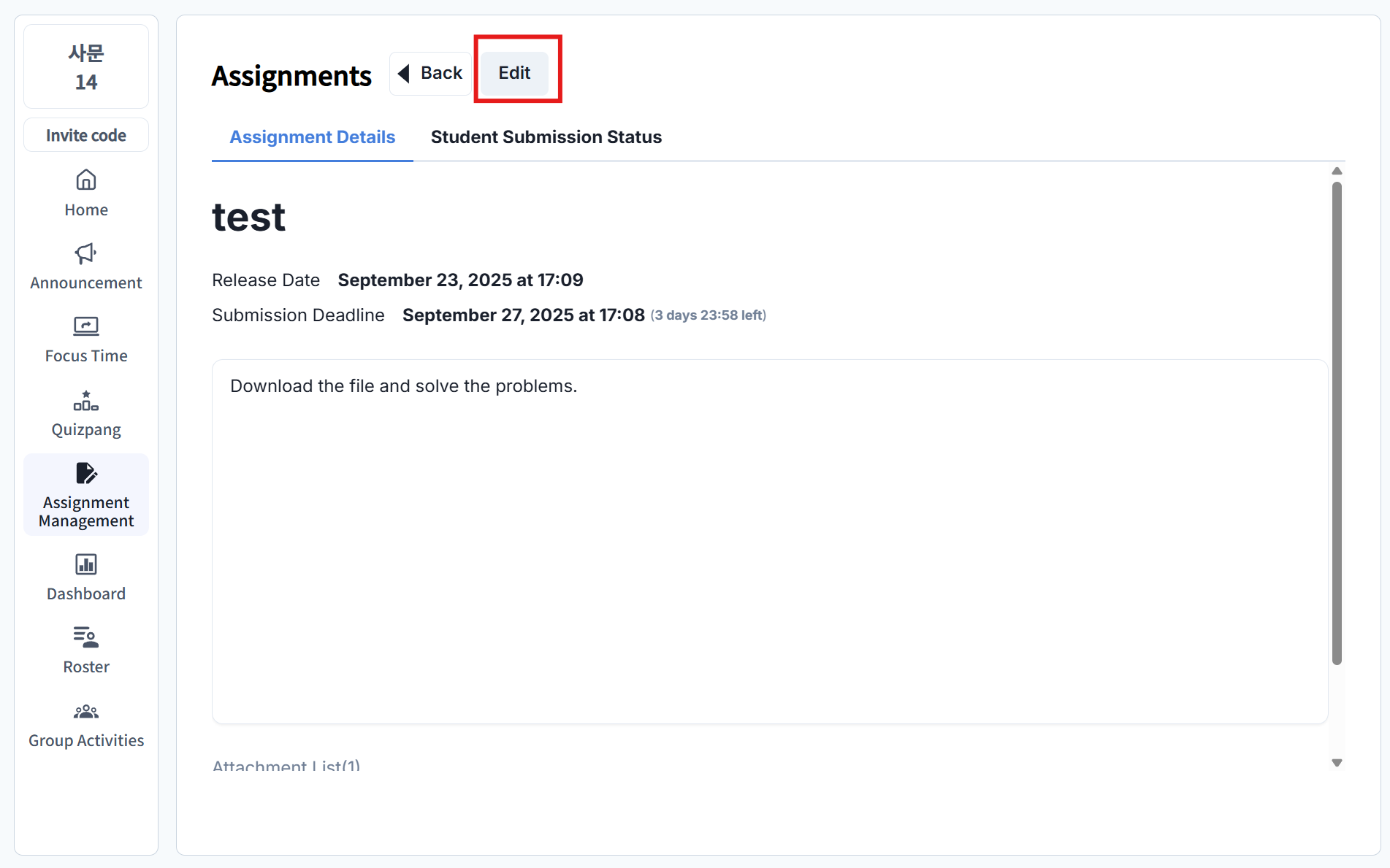
- Click [Edit].
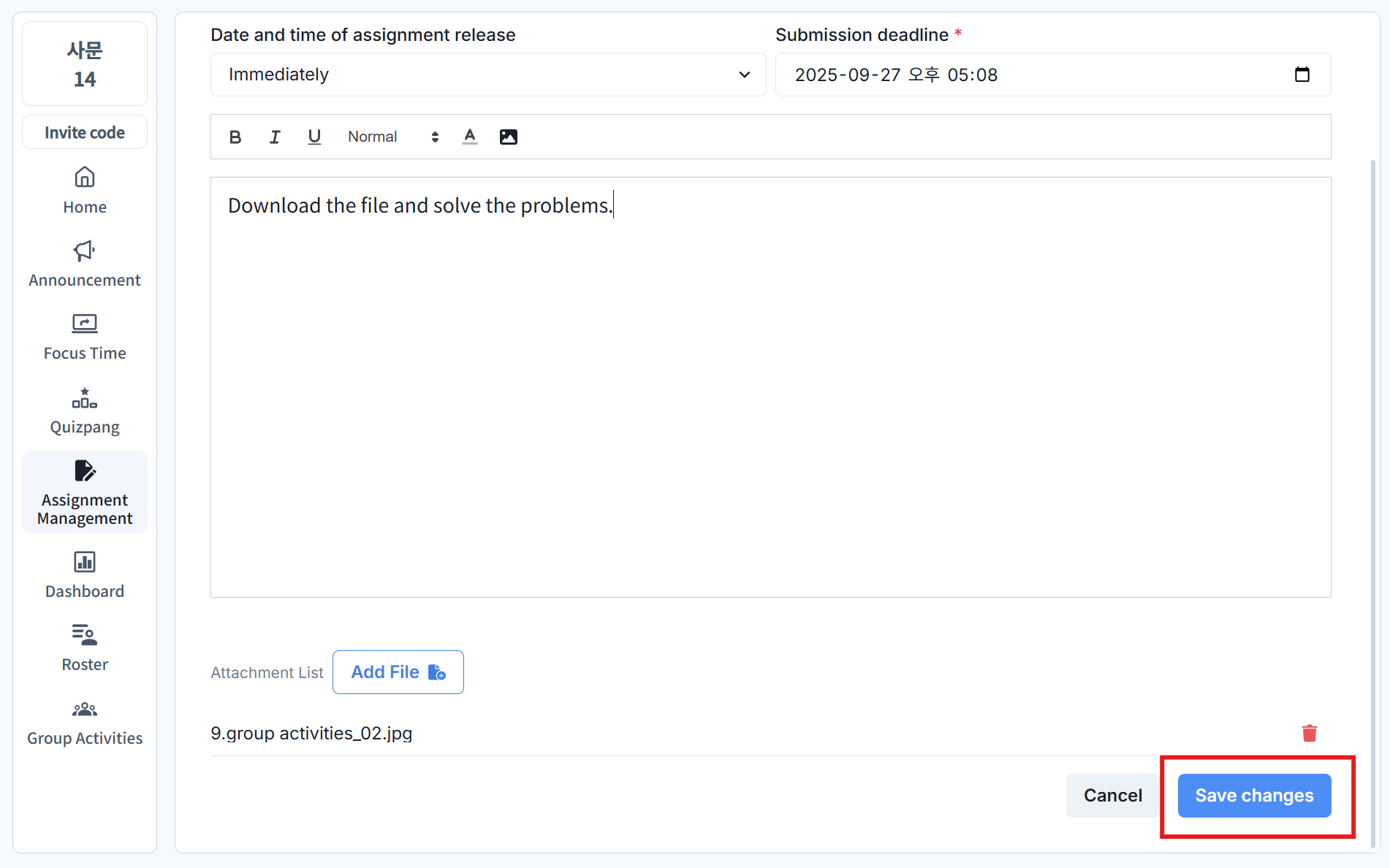
- Make changes and click [Save] to submit the updates.
Deleting Assignments
In the Assignment Management list, click [Delete] to remove the assignment.