Using focuspang on Chromebook
Note
Chromebooks can use focuspang directly in the web browser without installing any separate app.
How to use
Step 1: Open Chrome browser
Open the Chrome browser on your Chromebook. (The Chrome browser comes pre-installed on all Chromebooks.)
Step 2: Go to the focuspang Teacher site
Type teacher.focuspang.com in the address bar or click the link to access the site.
Step 3: Create a shortcut (optional)
For easier access, you can create a shortcut:
- Open the focuspang site.
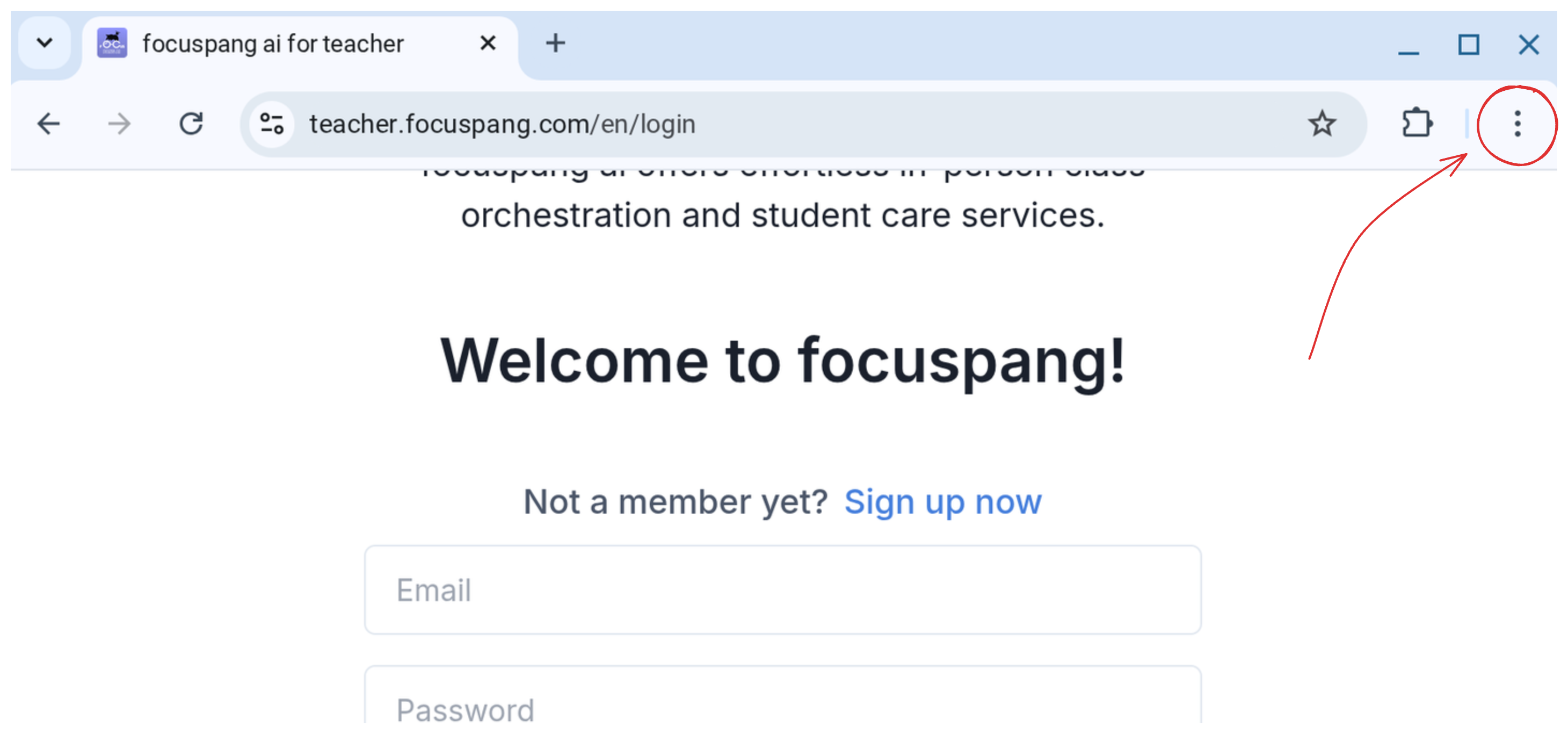
- Click the three-dot menu button in the top right corner of Chrome browser.
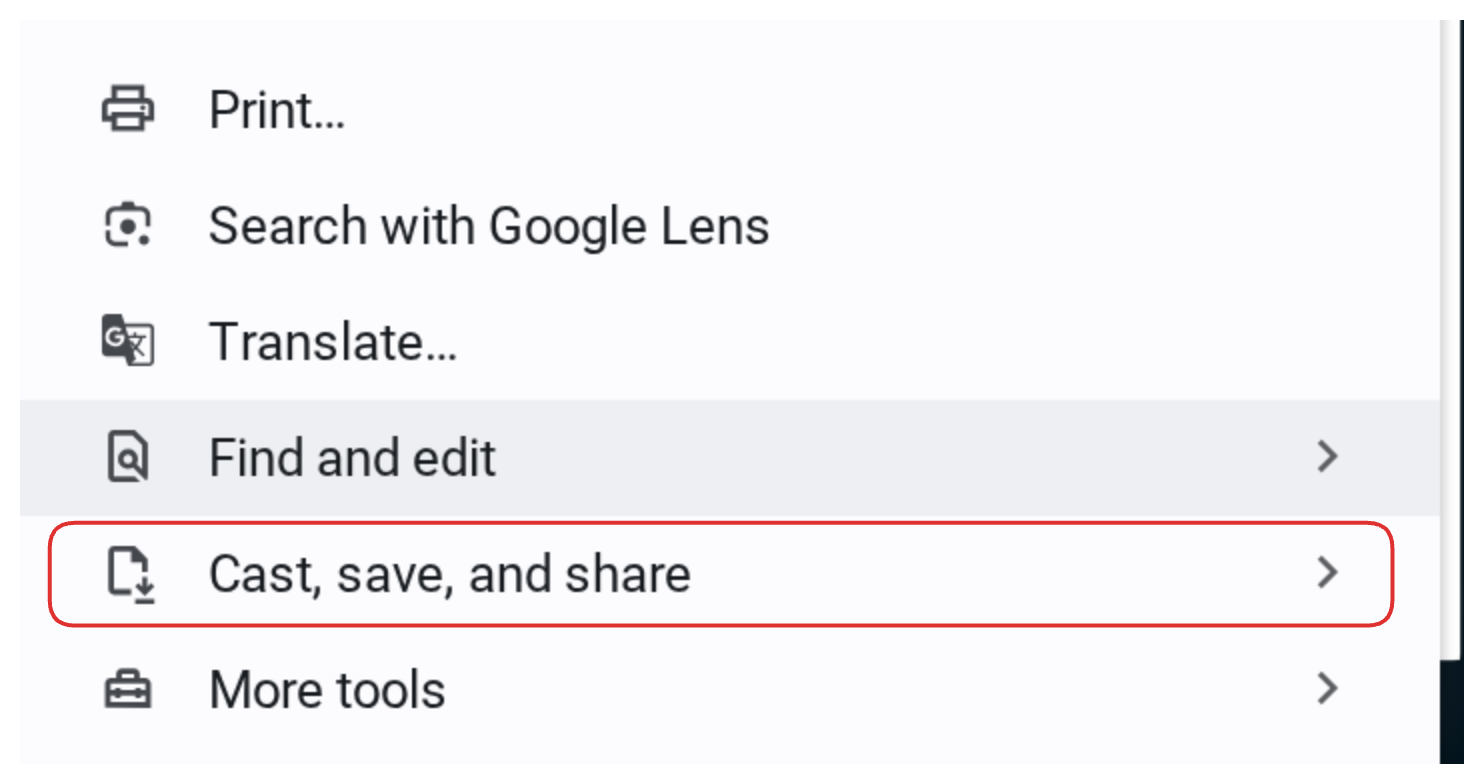
- Click Share, Save, and Share options.
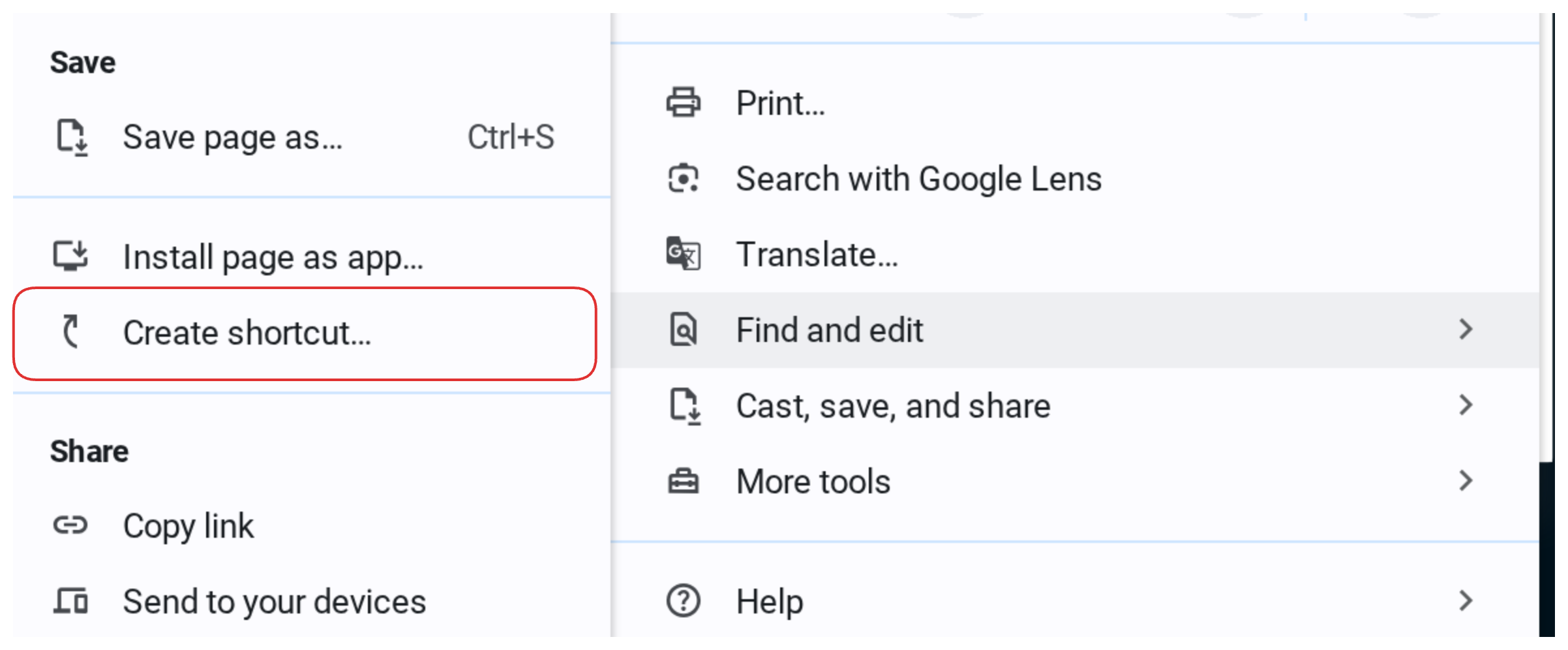
- Click Create Shortcut.
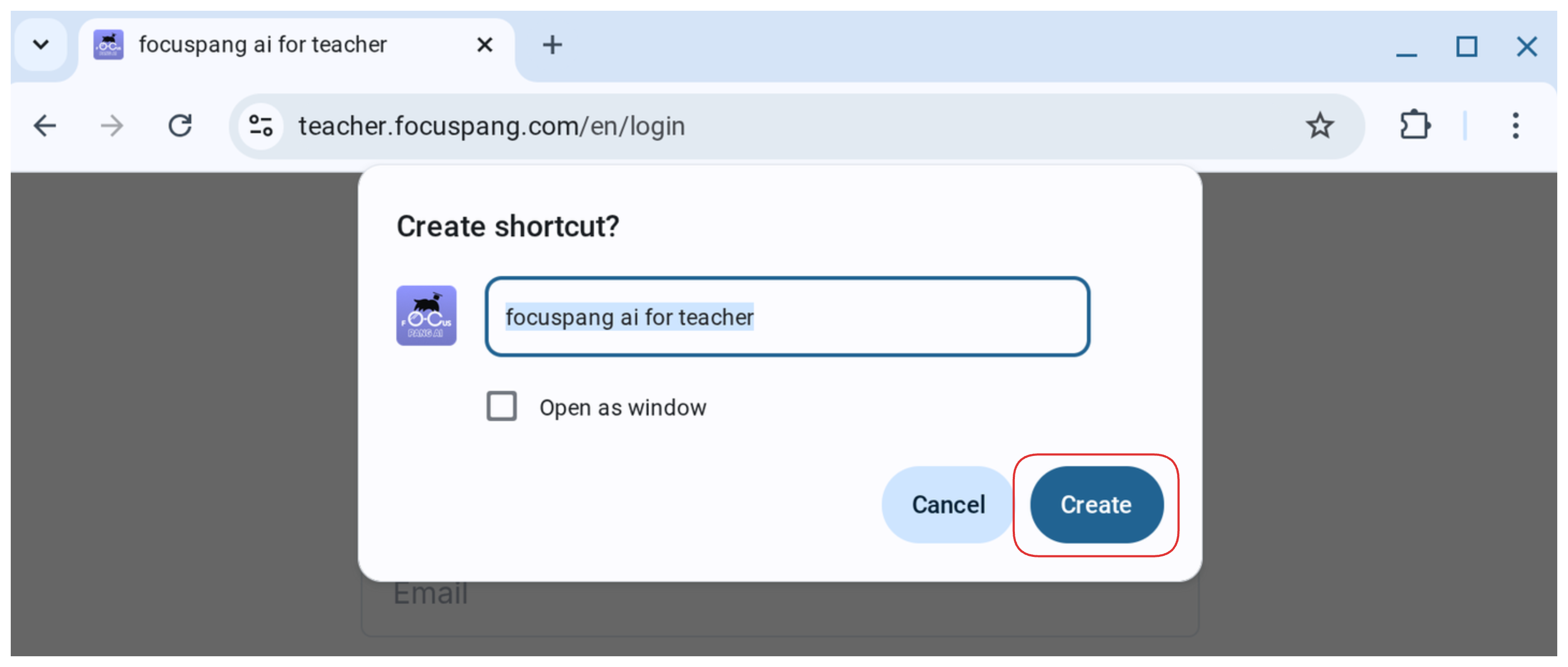
- Click Create.
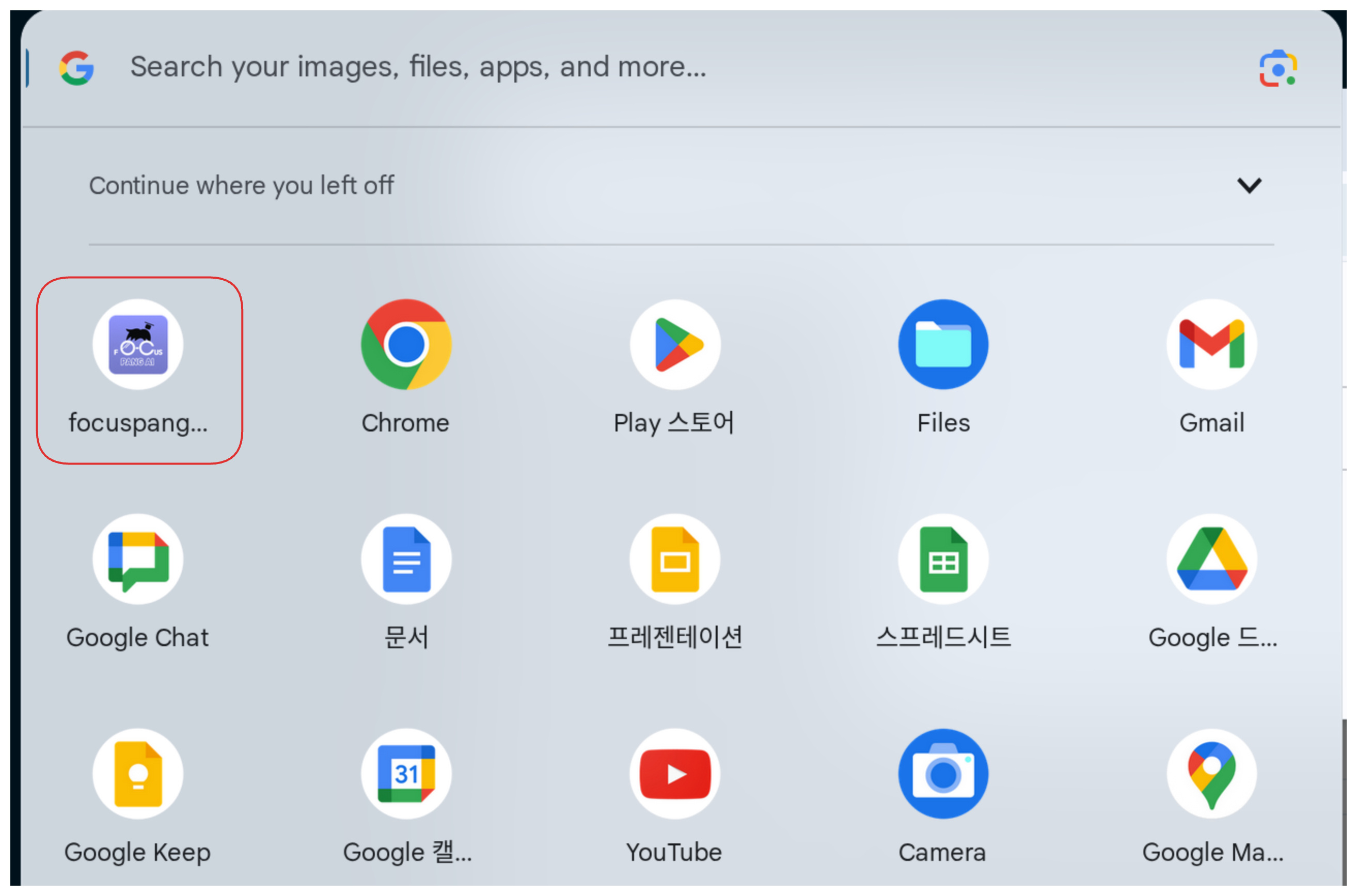
- Click the Start Manager ⦿ to confirm that the shortcut has been created.
Cautions
- Always use the Chrome browser.
- An internet connection is required.
- Allow microphone and camera permissions when prompted.
Help
- If you have difficulty using focuspang, please ask your school’s IT support teacher for assistance.
- Curious about Chromebook CEU settings? Check out the YouTube video(🔗Link).
Next Step: Sign up / Log in