5. Editing Information
To protect personal data and ensure efficient class management, it’s important to keep your account information up to date. Regular updates help maintain a safe and effective digital learning environment.
How to Access the Settings Page
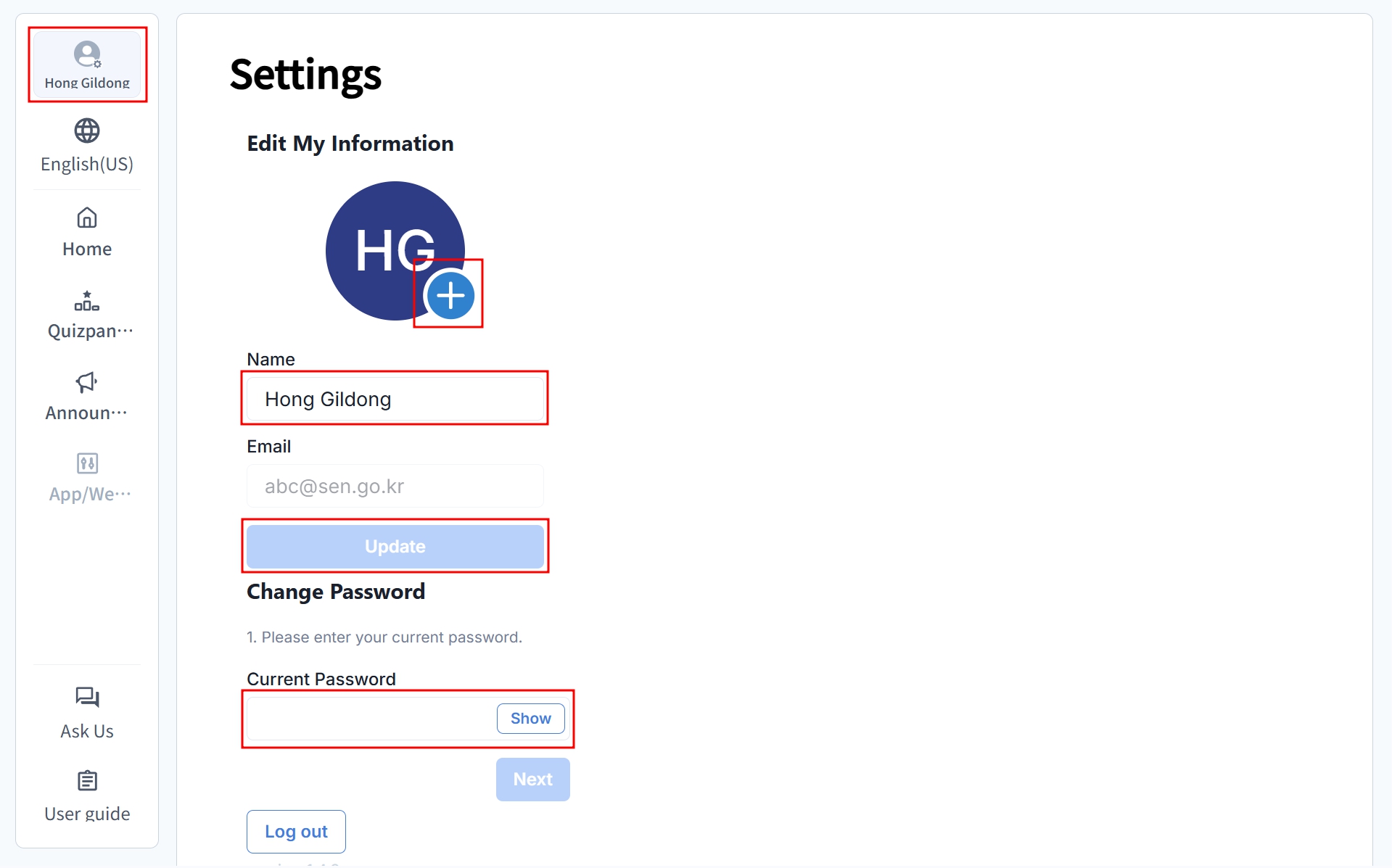
From the home screen, click your profile picture or name in the top-left corner to open the settings page.
Information You Can Update
- Name: Update in case of a legal name change or preferred title change
- Profile Picture: Helps students easily recognize and connect with the teacher
- Password
Changing Your Password
Password Change Steps
- Enter current password: For security verification
- Next step: Click [Next] to proceed
- Enter new password: Type and confirm the new password
- Complete: Click [Change Password] to finalize
Password Requirements
- Length: At least 8 characters (12+ recommended)
- Complexity: Combination of uppercase, lowercase, numbers, and special characters
- Uniqueness: Different from passwords used on other sites\
- Unpredictability: Avoid personal details
Passwords to Avoid
- Personal details: Names, birth dates, phone numbers, etc.
- Simple patterns: 123456, qwerty, etc.
- Dictionary words: Common words or phrases
- Previous passwords: Passwords you’ve already used
Password Management Tips
- Use a password manager: To generate and store strong passwords
- Regular updates: Change your password every 3–6 months
- Don’t write it down: Avoid storing passwords on your computer or paper notes
- Don’t share: Never share your password with others
Problem Solving
If information cannot be updated
- Check input format: Make sure email, phone number, etc. are entered correctly
- Network connection: Ensure stable internet access
- Browser refresh: Reload the page and try again
- Contact administrator: If the issue continues, reach out to your school admin
If password change fails
- Current password: Make sure the existing password is correct
- New password rules: Ensure the new password meets security requirements
- Browser cache: Clear cache and try again
- Password reset: Contact the administrator if necessary