6. Log Out
After finishing focuspang, always remember to log out. Logging out is very important for both account security and service stability.
How to Log Out
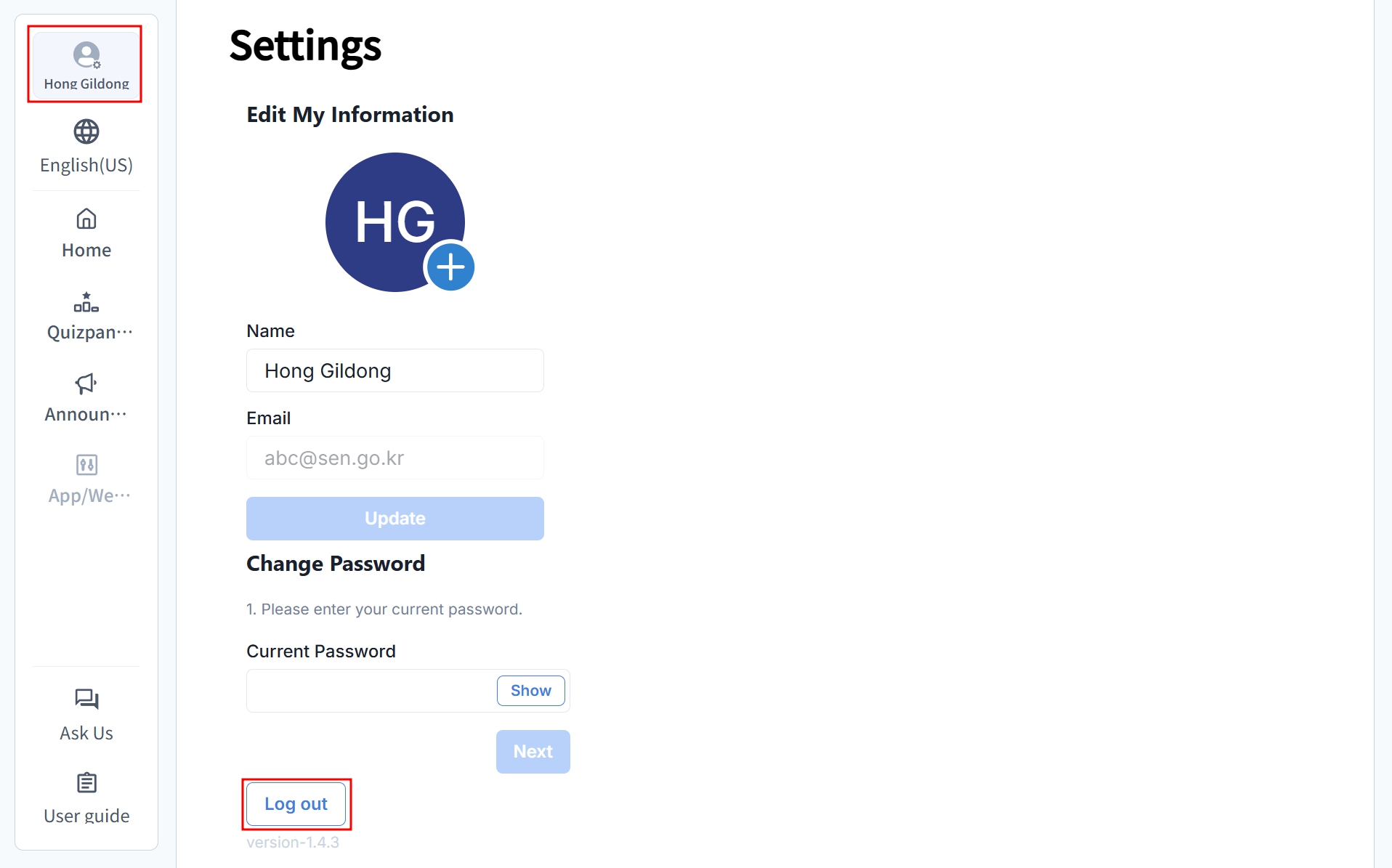
Step 1: Open Settings
On the home screen, click your profile picture or name at the top left to go to the settings page.
Step 2: Log Out
Click the [Log Out] button on the settings page to complete the process.
Why Logging Out Matters
If you don’t log out, duplicate logins may occur. This can cause student monitoring features to malfunction.
Make sure to log out in these situations:
- After finishing class
- End of each lesson: log out immediately after class ends
- Between periods: log out before moving to another classroom
- End of the day: fully log out after all classes are finished
- When security is needed
- Shared computer: if using the same device with other teachers
- Leaving your seat: even for a short break
- Public computers: always log out after using a shared school computer
Troubleshooting
If log out doesn’t work
- Refresh browser (F5)
- Check other tabs: make sure focuspang isn’t open elsewhere
- Restart browser: close completely, then reopen
- Clear cache and cookies
If duplicate login occurs
- Close all browsers with focuspang open
- Wait 5–10 minutes, then reconnect
- Check if another device is still logged in
- Contact your school administrator if the problem continues