Assignments
📍 Main Page → Click the class in the timetable → Click [Assignment] on the left sidebar
Viewing Assignments
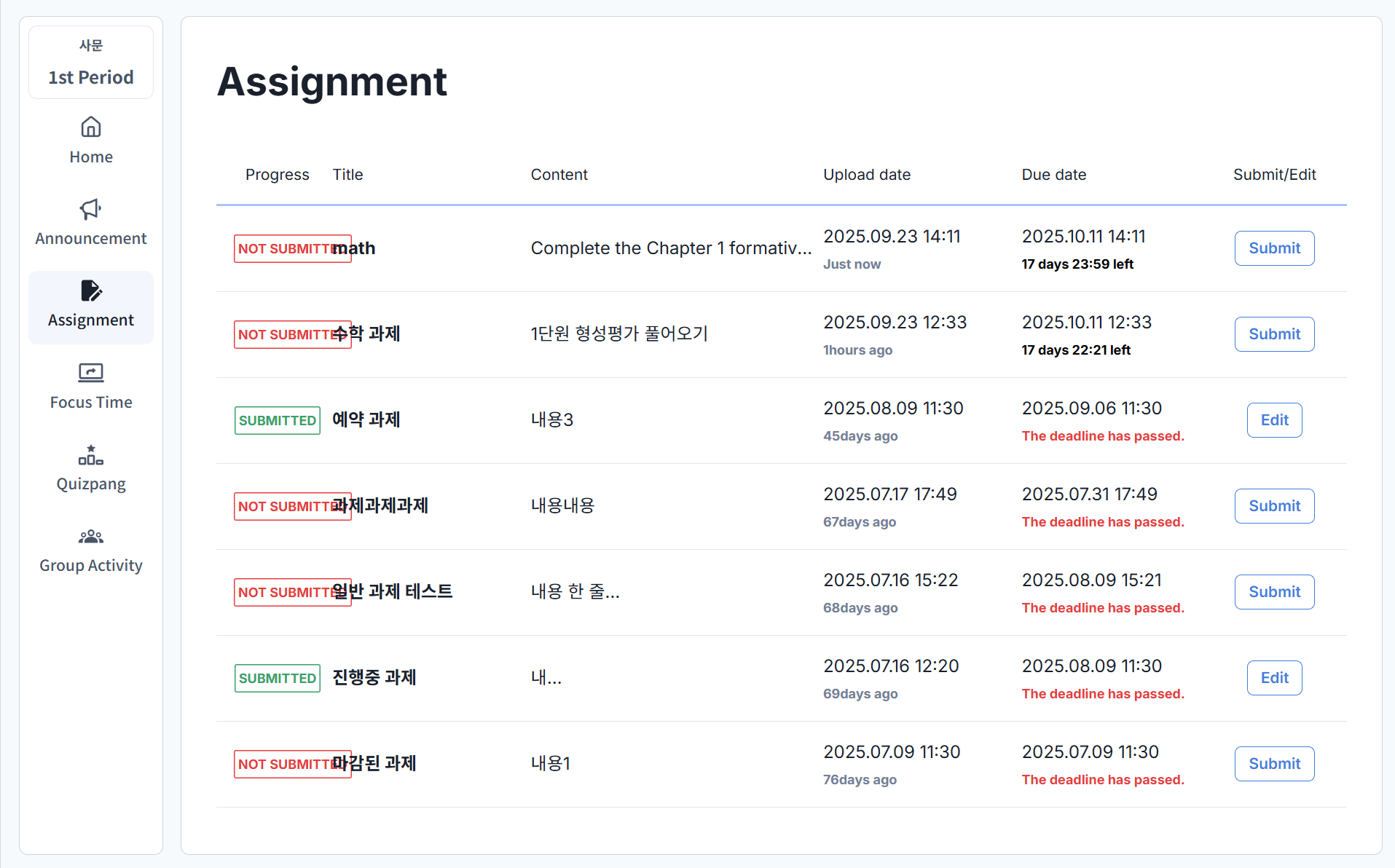
Step 1: Assignment List
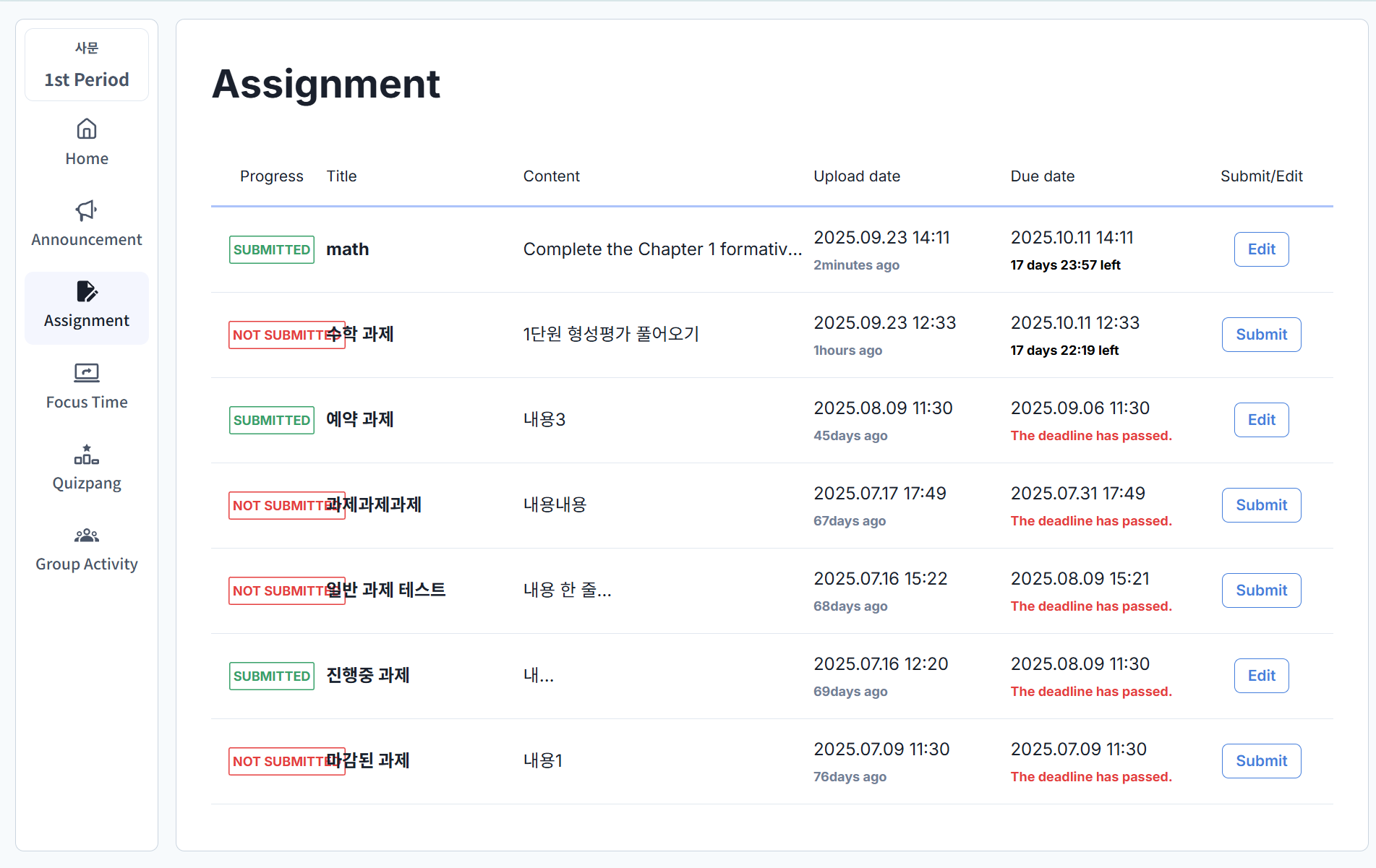
Check the submission status and due dates in the assignment list.
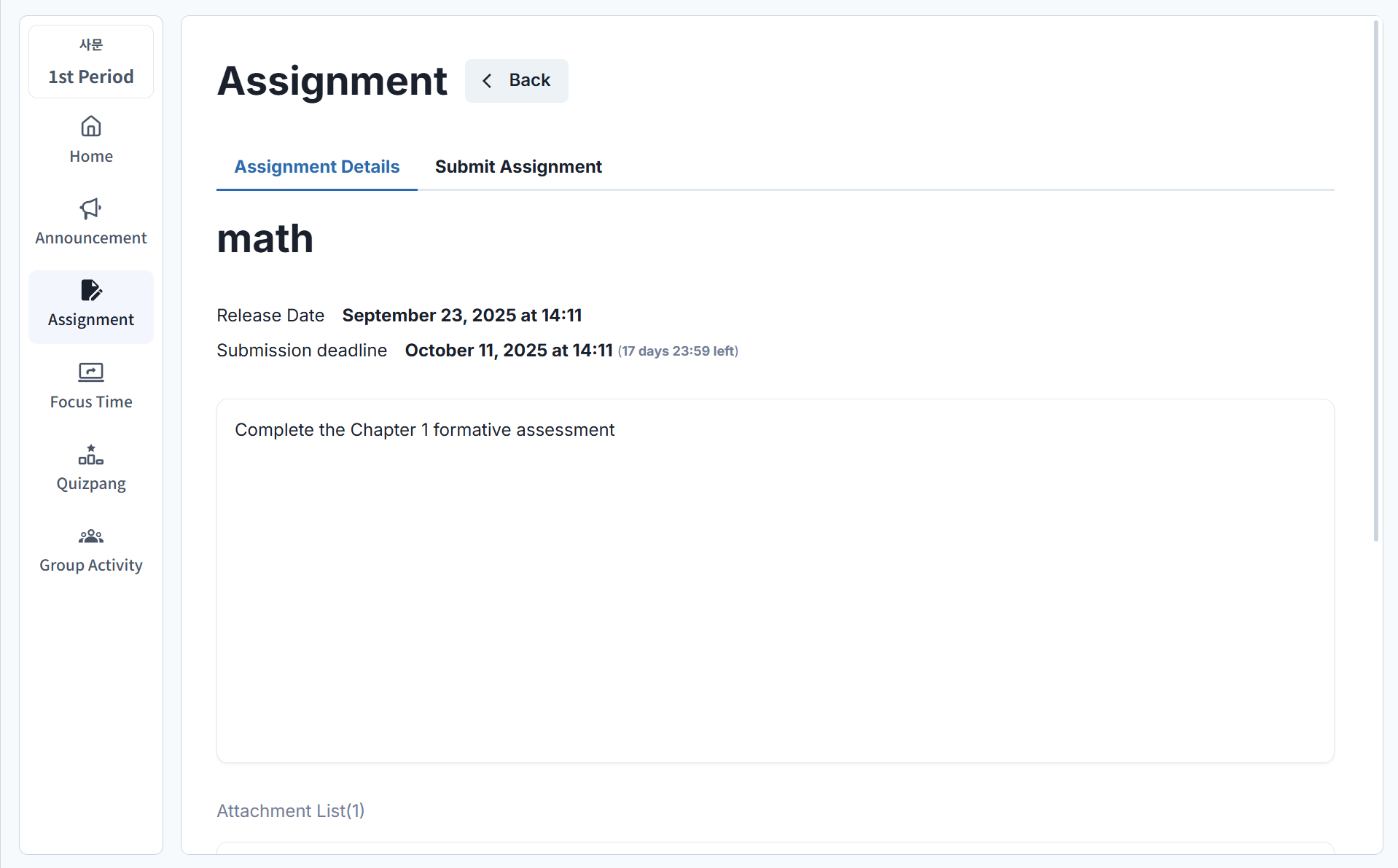
Step 2: View Assignment Details
Click an assignment to see the instructions and any attached files.
Submitting Assignments
Submit an Assignment
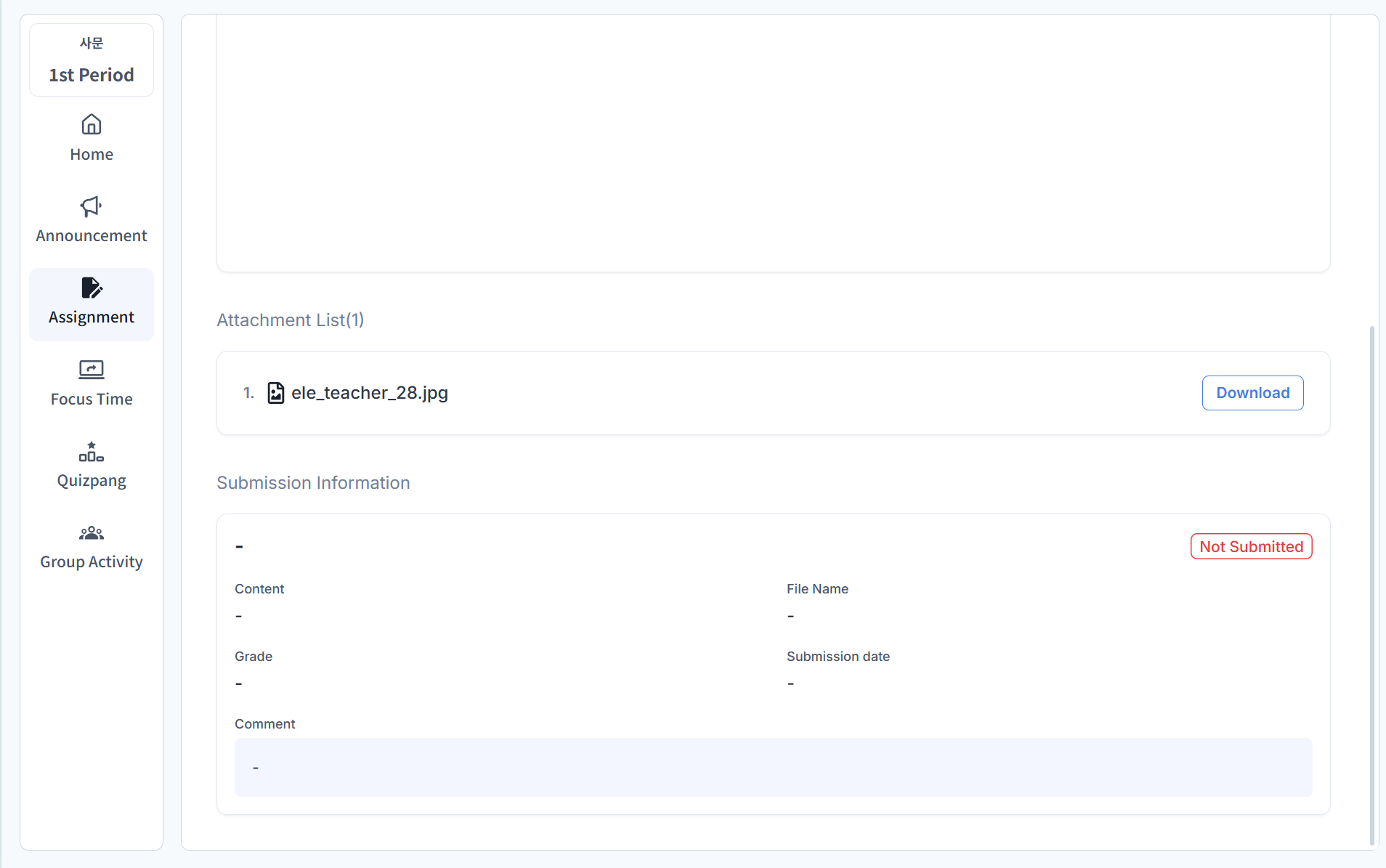
In the Submit Assignment tab, enter the title and content, then click Submit to turn in your assignment.
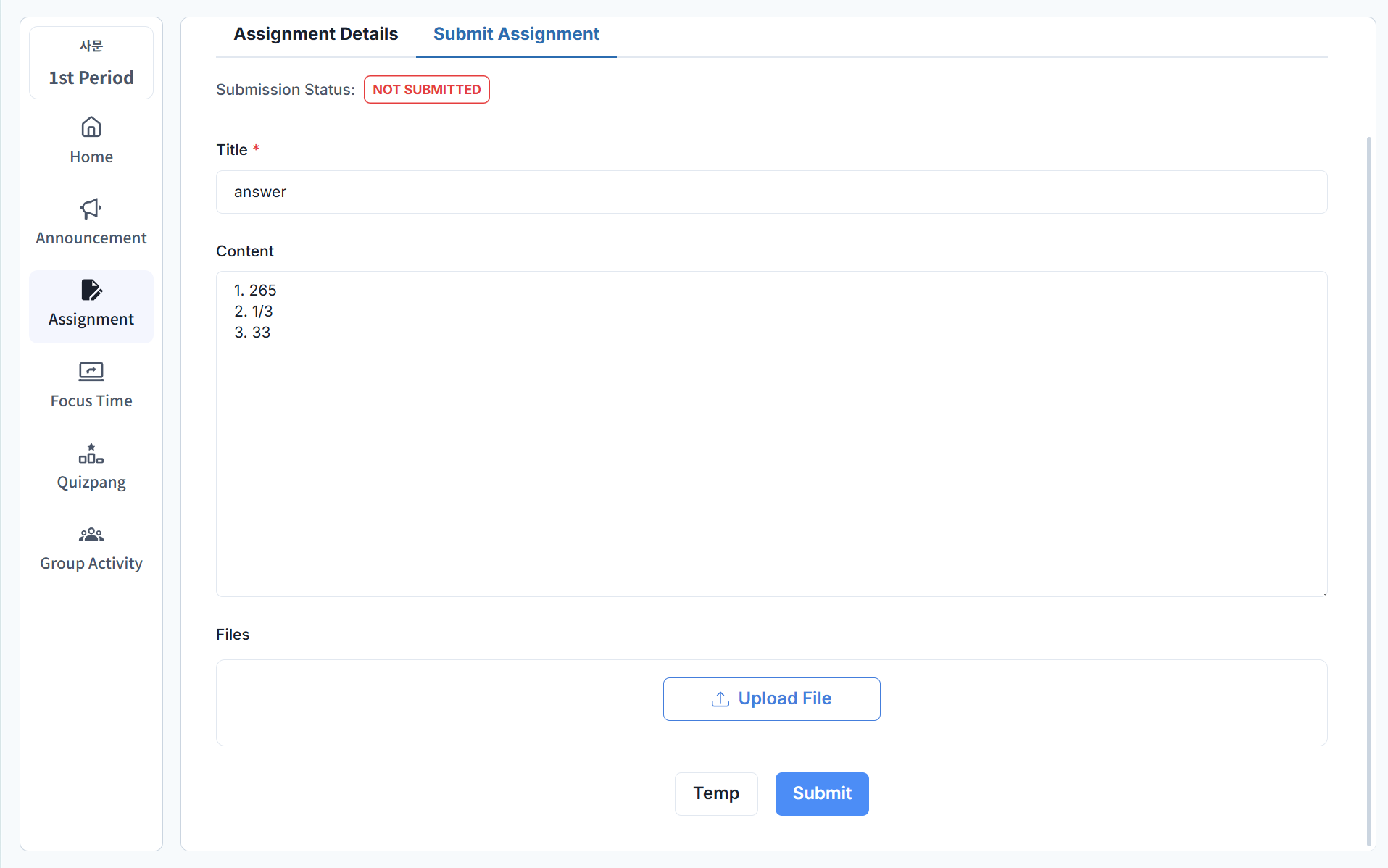
- You can attach files if needed.
- If the assignment is not yet complete, you can save it temporarily.
Edit an Assignment
You can edit an assignment before the due date.
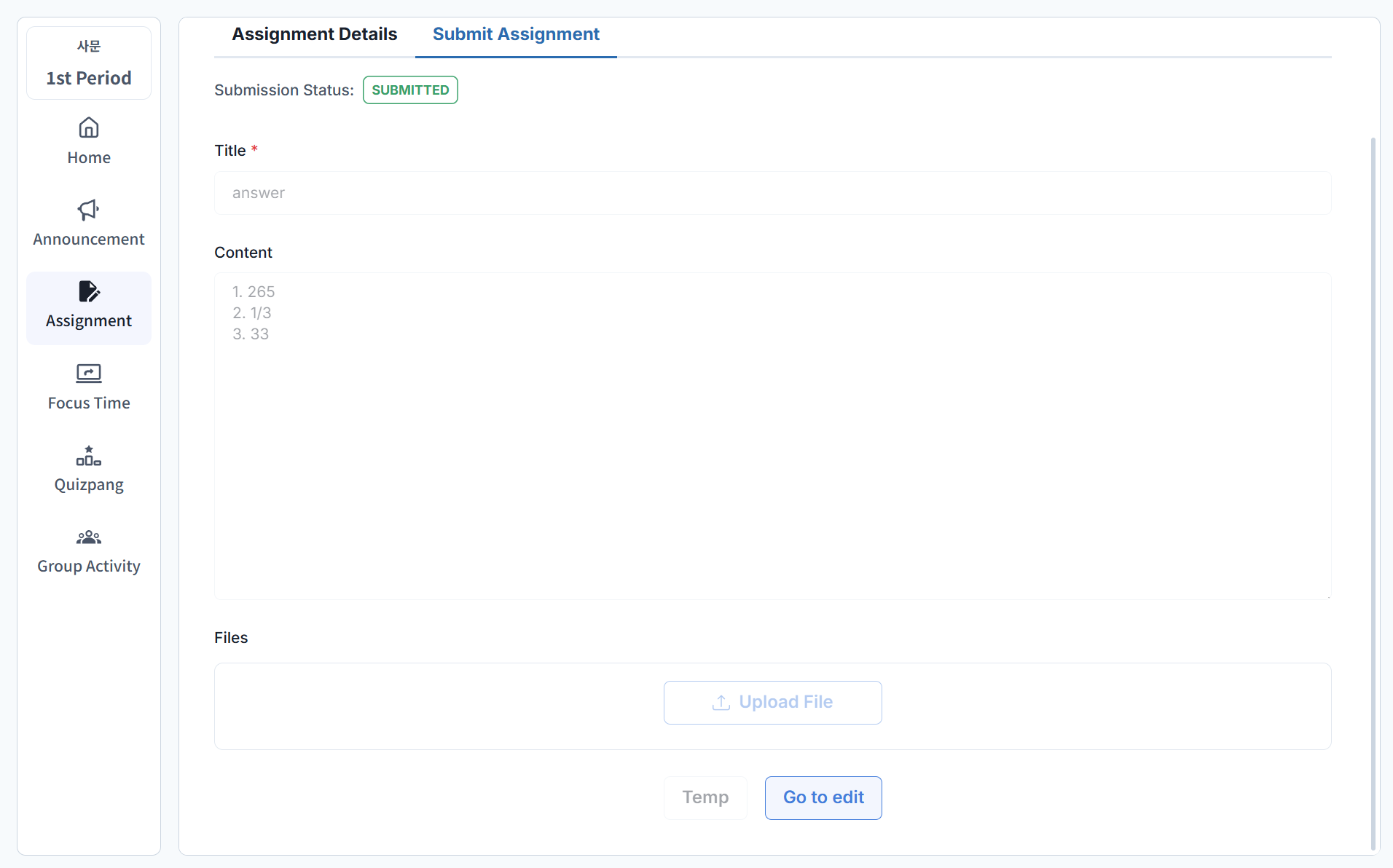
- Click the Edit button to activate the input fields.
- After making changes, click Submit button to save and submit the updated assignment.
Checking Scores
Step 1: Assignment List
Click the assignment for which you want to check the score.
Step 2: View Scores and Comments
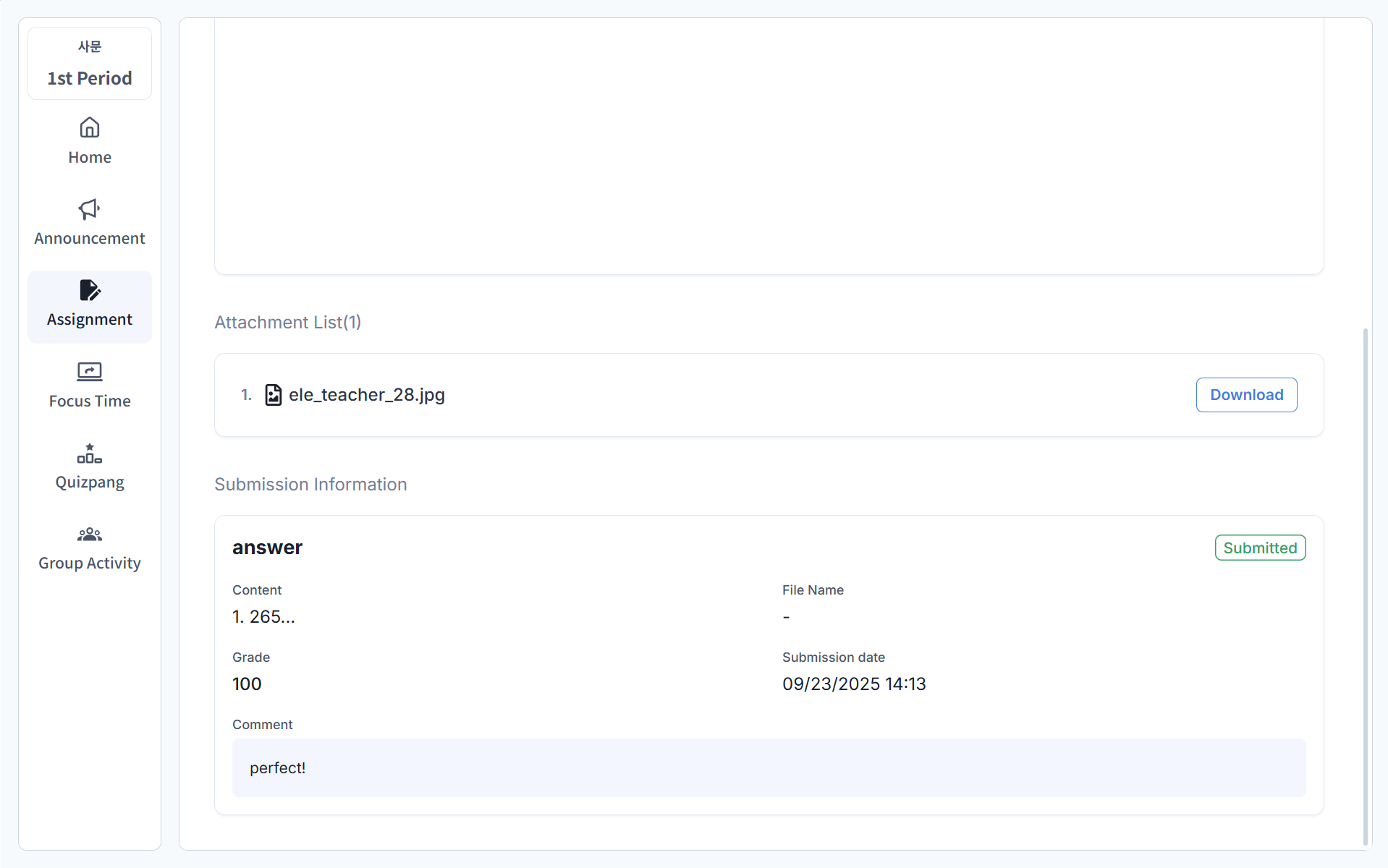
At the bottom of the Assignment Details tab, you can see your score and your teacher’s comments.