2. Login
Students can log in to focuspang directly using an invitation code, without needing to sign up.
How to Log In
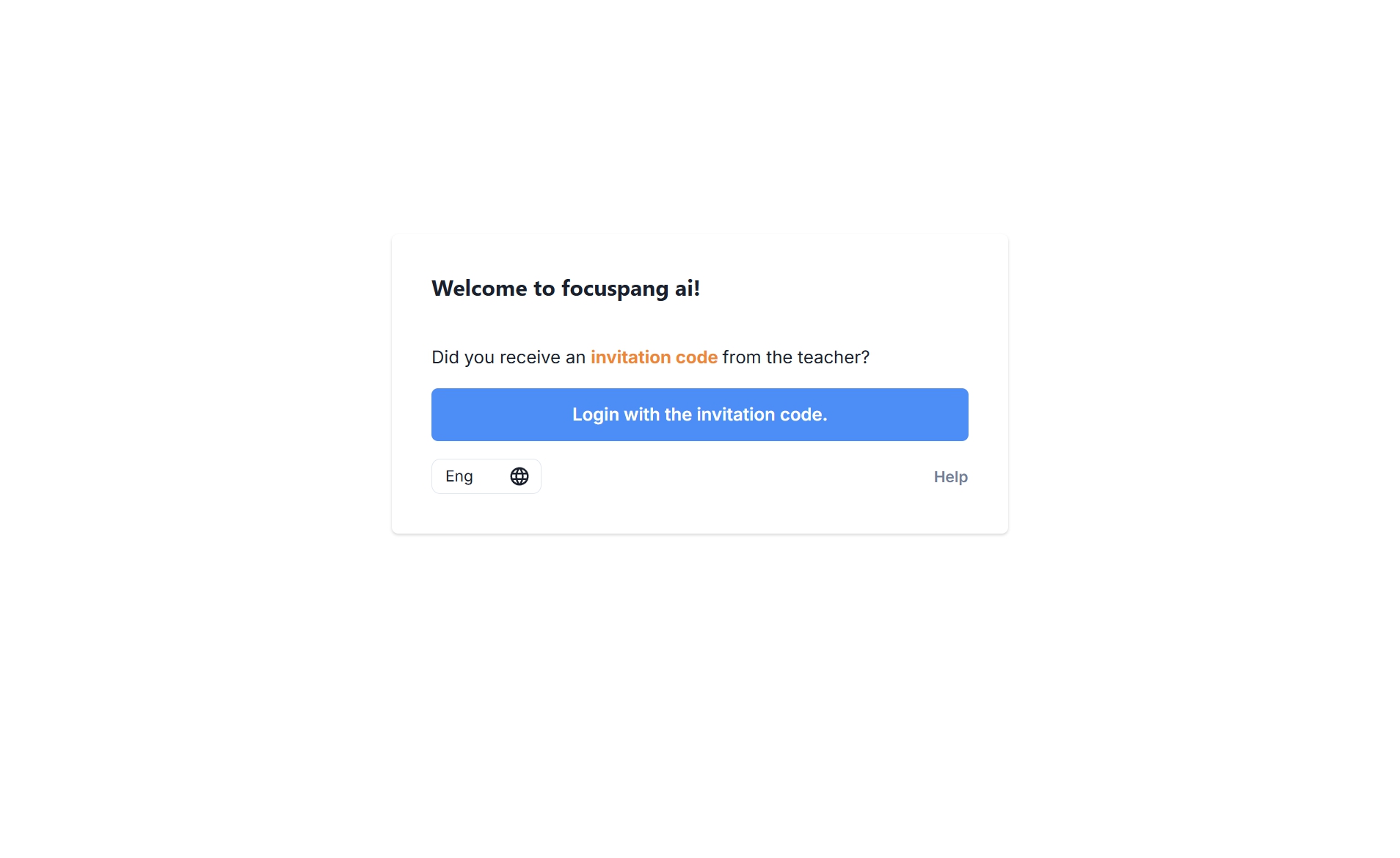
Step 1: Invitation Code Login
Open the focuspang app and click the [Login with Invitation Code] button on the popup window.
Step 2: Enter the Invitation Code
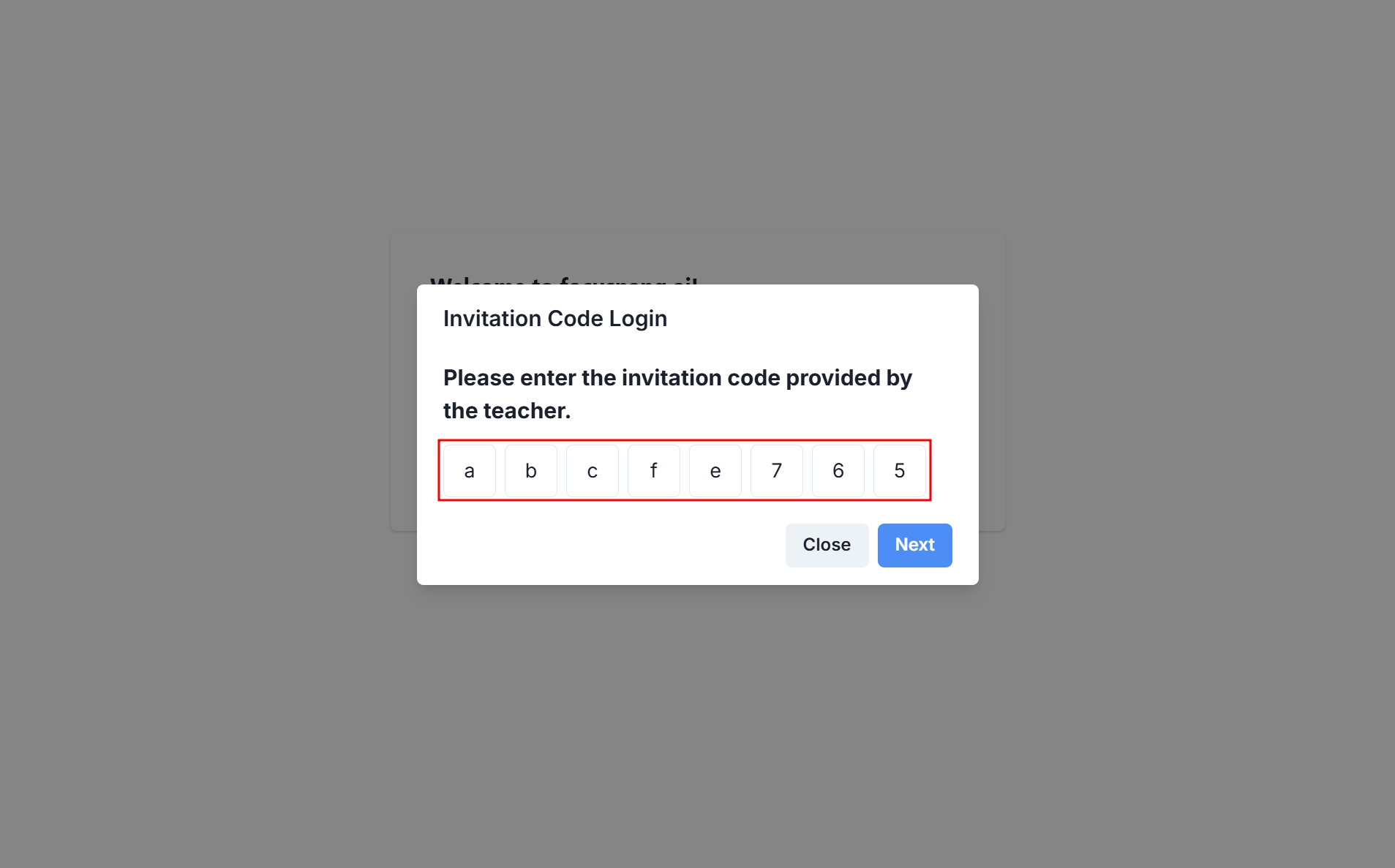
Input the class invitation code provided by your teacher exactly as given.
Important Notes
- The code is case-sensitive, so enter uppercase and lowercase letters correctly.
- When copying and pasting the code, make sure there are no extra spaces before or after the code.
Step 3: Enter Personal Information
Along with the invitation code, enter your 5-digit student ID and name exactly as registered at your school.
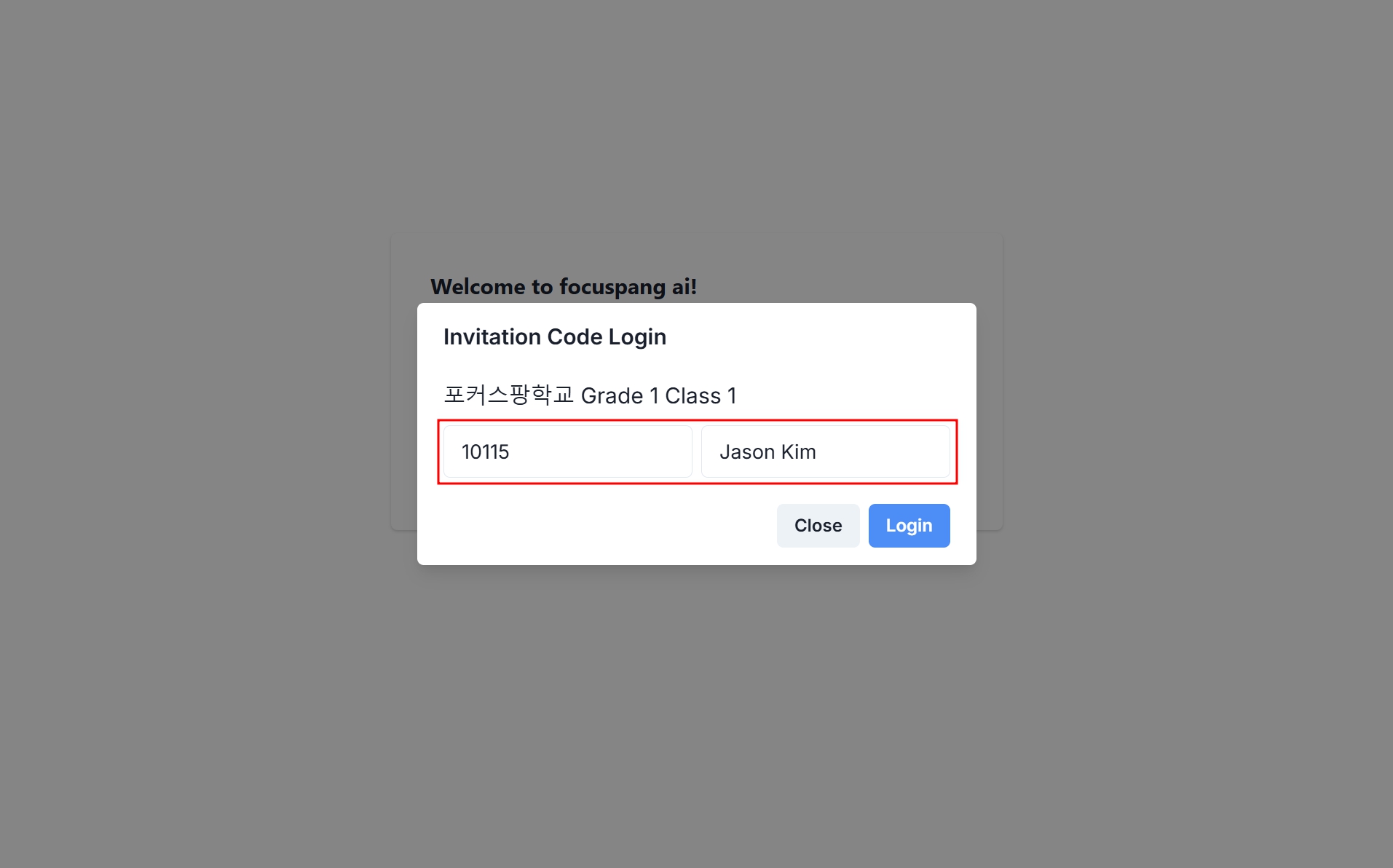
- Student ID: Enter as a 5-digit number
- following the school’s format.
- Example: A student in Grade 1, Class 1, number 8 could enter 10108 or 01108.
- Name: Enter the official name registered at the school.
Common Issues & Solutions
- Invitation Code & Account Issues
- Incorrect code: Confirm the exact code with your teacher.
- Input errors: Ensure correct case, numbers, and special characters.
- Duplicate account: If logged in on another device, end the previous session.
- Technical Issues
- Network error: Check Wi-Fi connection.
- App error: Close and restart the app completely.
- Device issue: Try logging in on a different device.
tip
If you have problems, please ask your school’s IT support teacher for assistance.