Install focuspang on Android Devices
Installation Steps
Step 1: Open the Play Store
On your Android device, find and open the Google Play Store app.
Step 2: Download the App

Download
Search for “focuspang Student” in the Play Store, or click the Download button provided.
Step 3: Install the App
Once you find the app, tap the Install button.
After Installation
Step 1: Launch the App
Open the focuspang Student app.
Step 2: Allow Permissions
1, Notification Permission
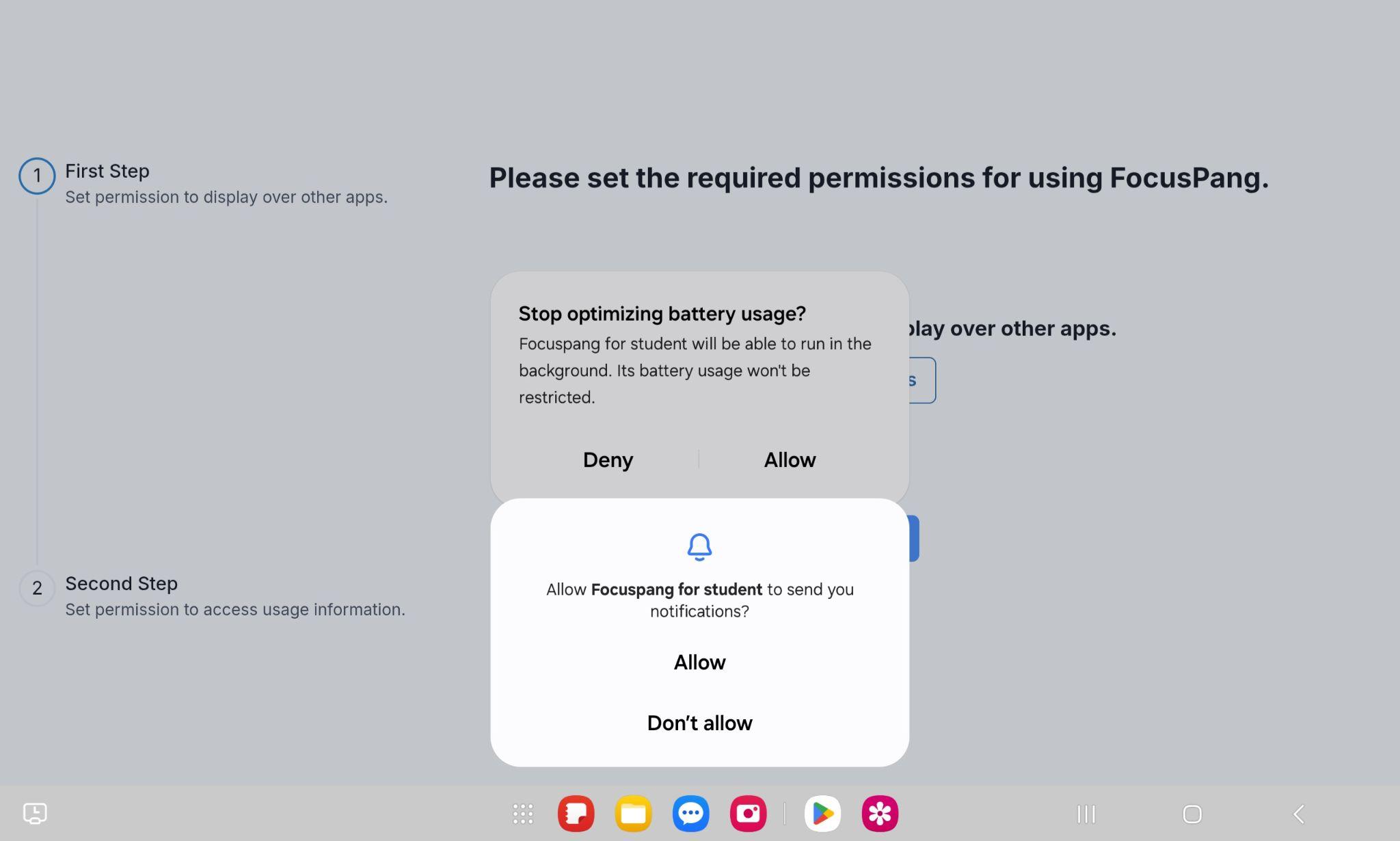
A pop-up will appear asking for notification access. Choose Allow so you can receive service notifications properly.
2. Disable Battery Optimization
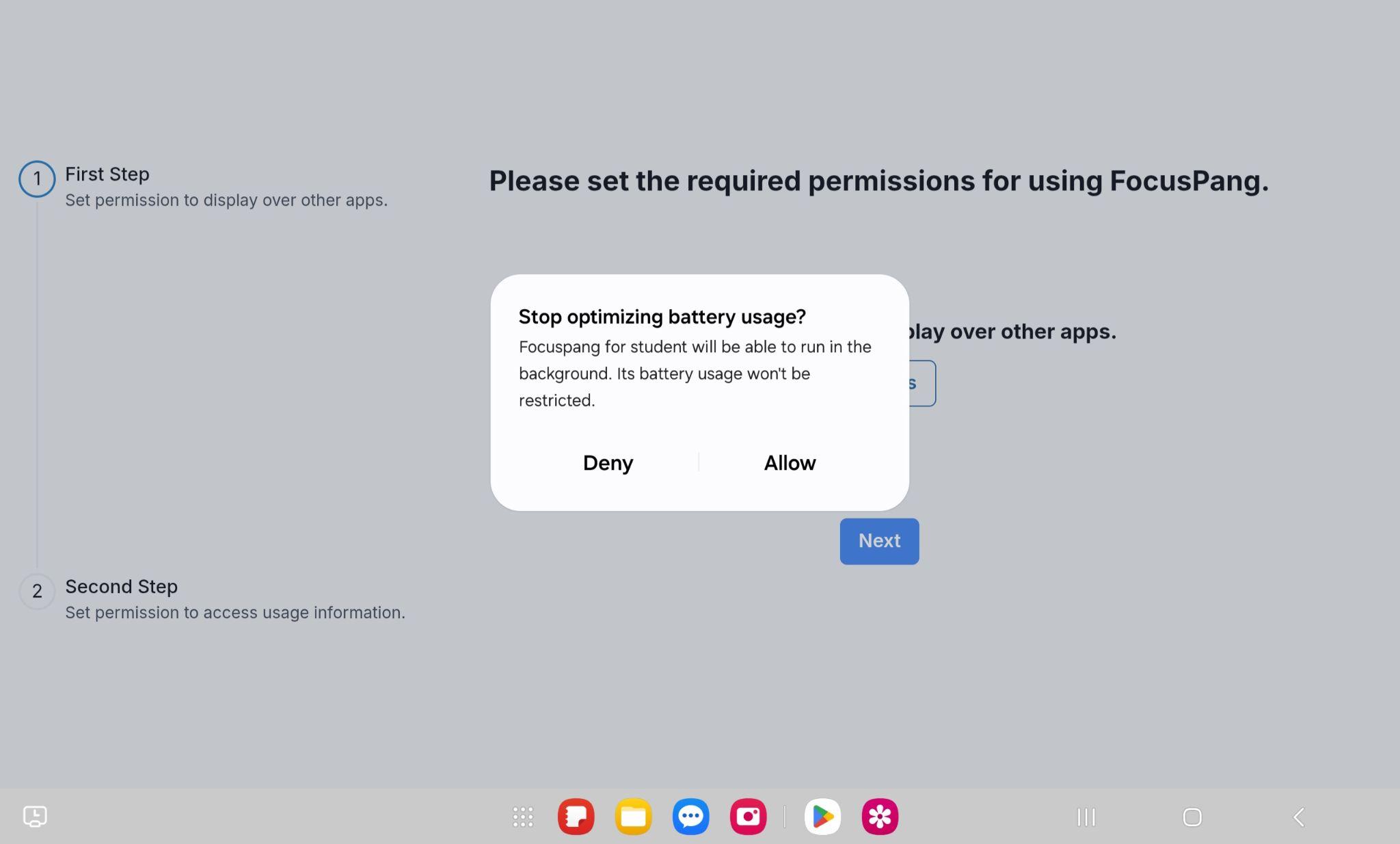
Allow this setting so the app can run in the background and maintain stable notifications.
3. Camera/Video Recording Permission
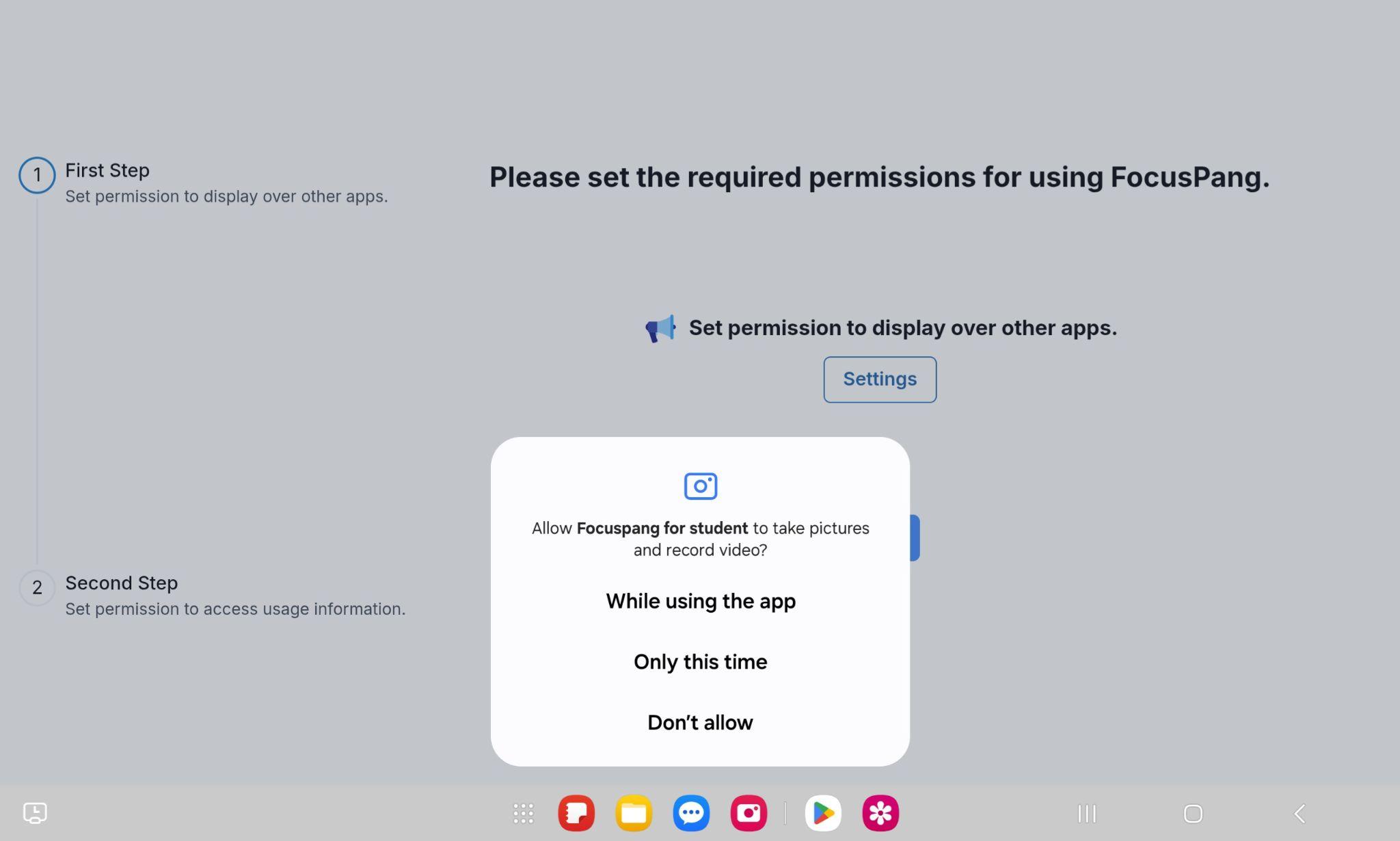
A pop-up will ask for access to the camera and video recording. Select Allow while using the app to enable proper functionality.
Step 3: Set Required Permissions
1. Display Over Other Apps Permission
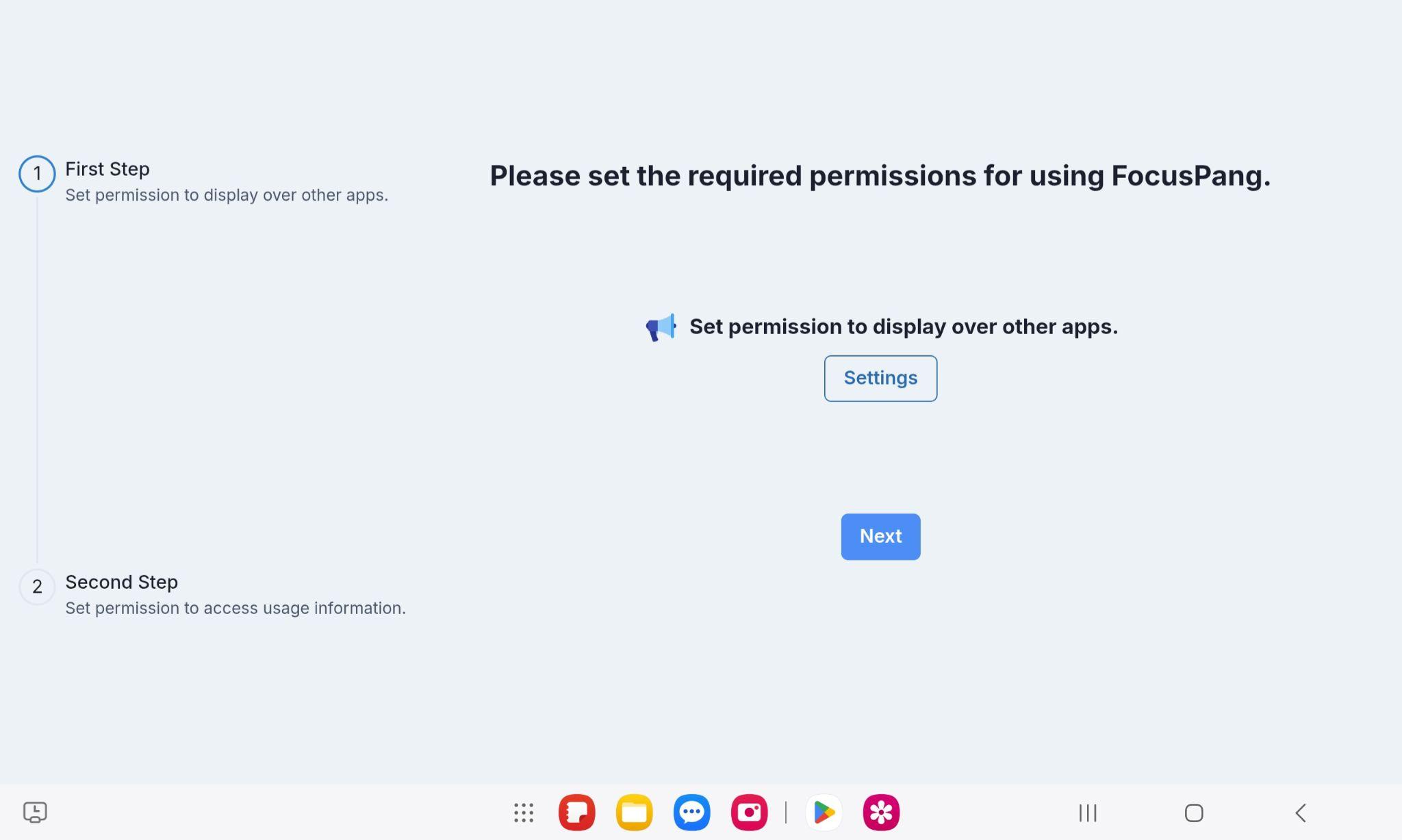
Tap Set up to open the Android permission settings.
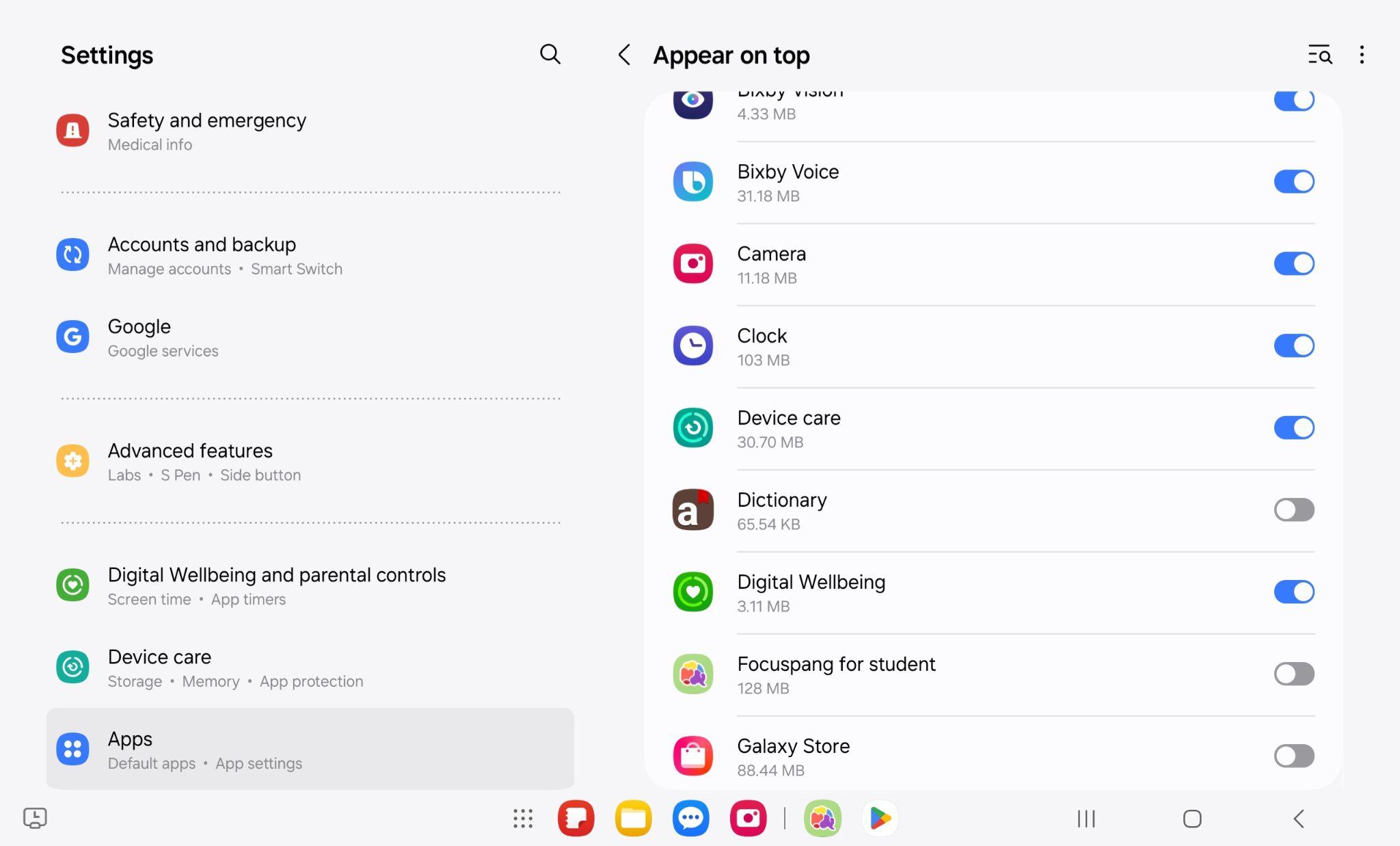
In the system screen, allow the focuspang app to display over other apps.
Return to the setup screen and tap Next to proceed.
2. Usage Access Permission
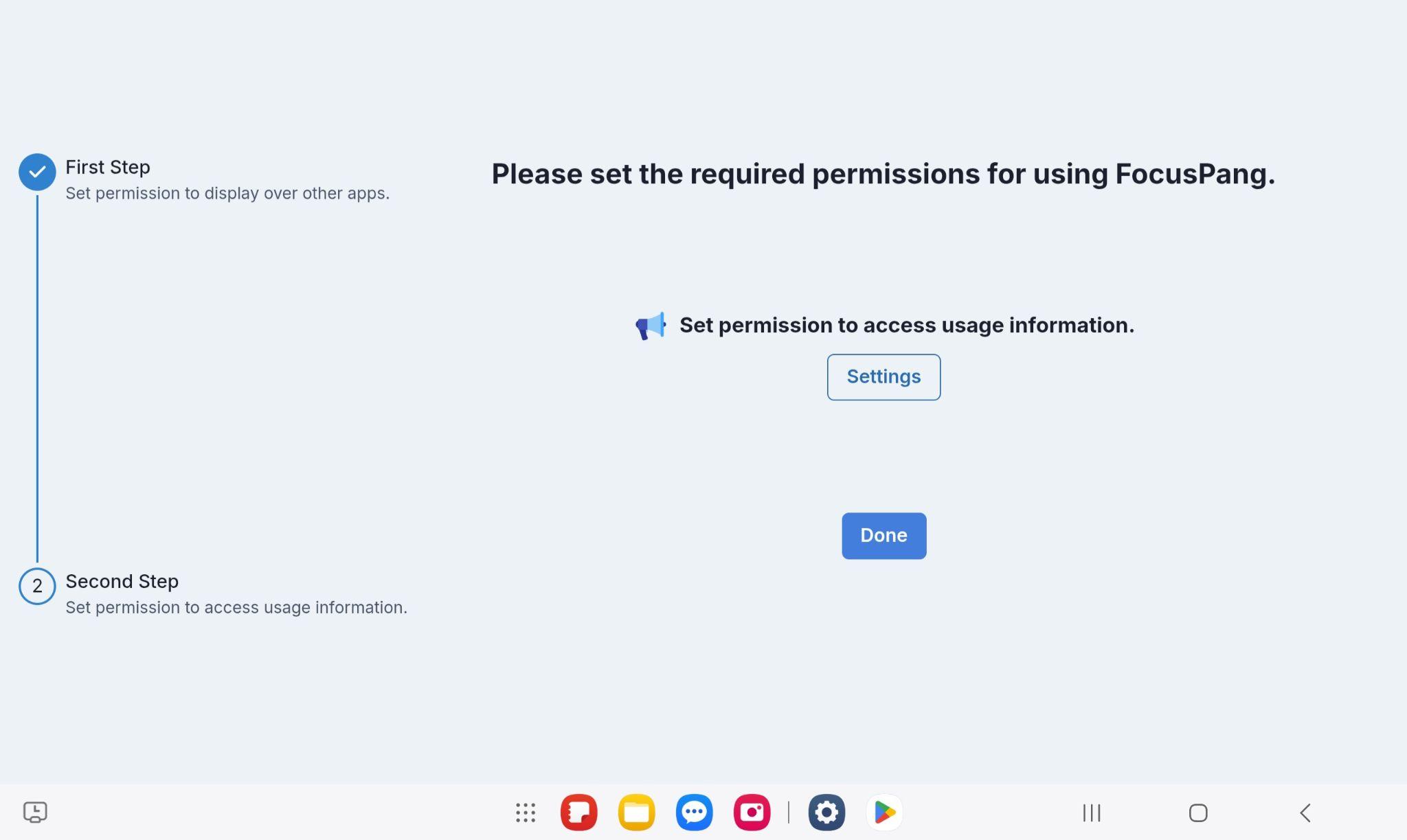
Tap Set up to go to the usage access settings.
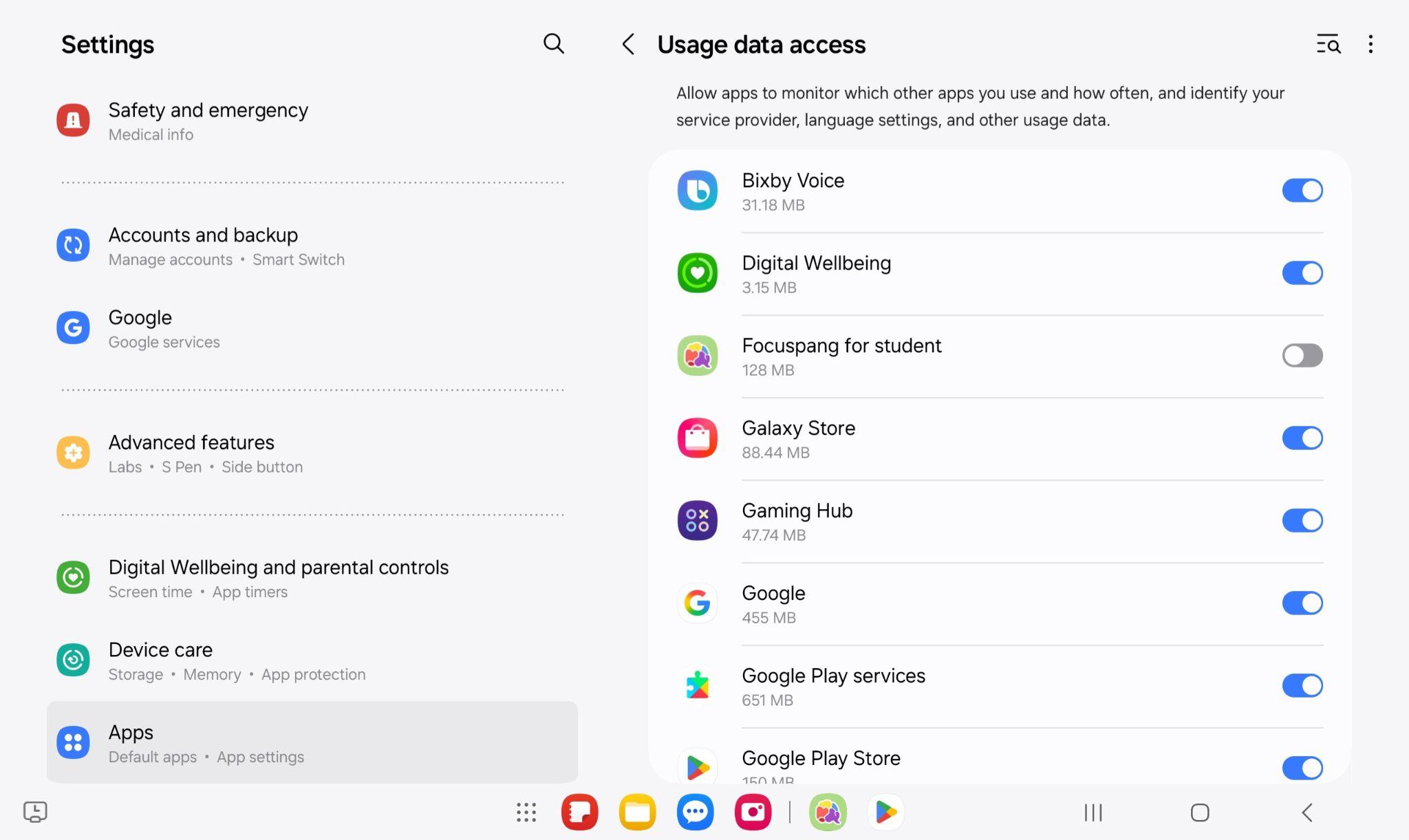
Return to the setup screen and tap Finish to complete the process.
If following the images is difficult, watch the tutorial videos:
- Accessibility Settings Video 1 (One UI 6.0 or higher) 🔗Watch this video
- Accessibility Settings Video 2 (Below One UI 6.0) 🔗Watch this video
Step 4: Log in with Invitation Code
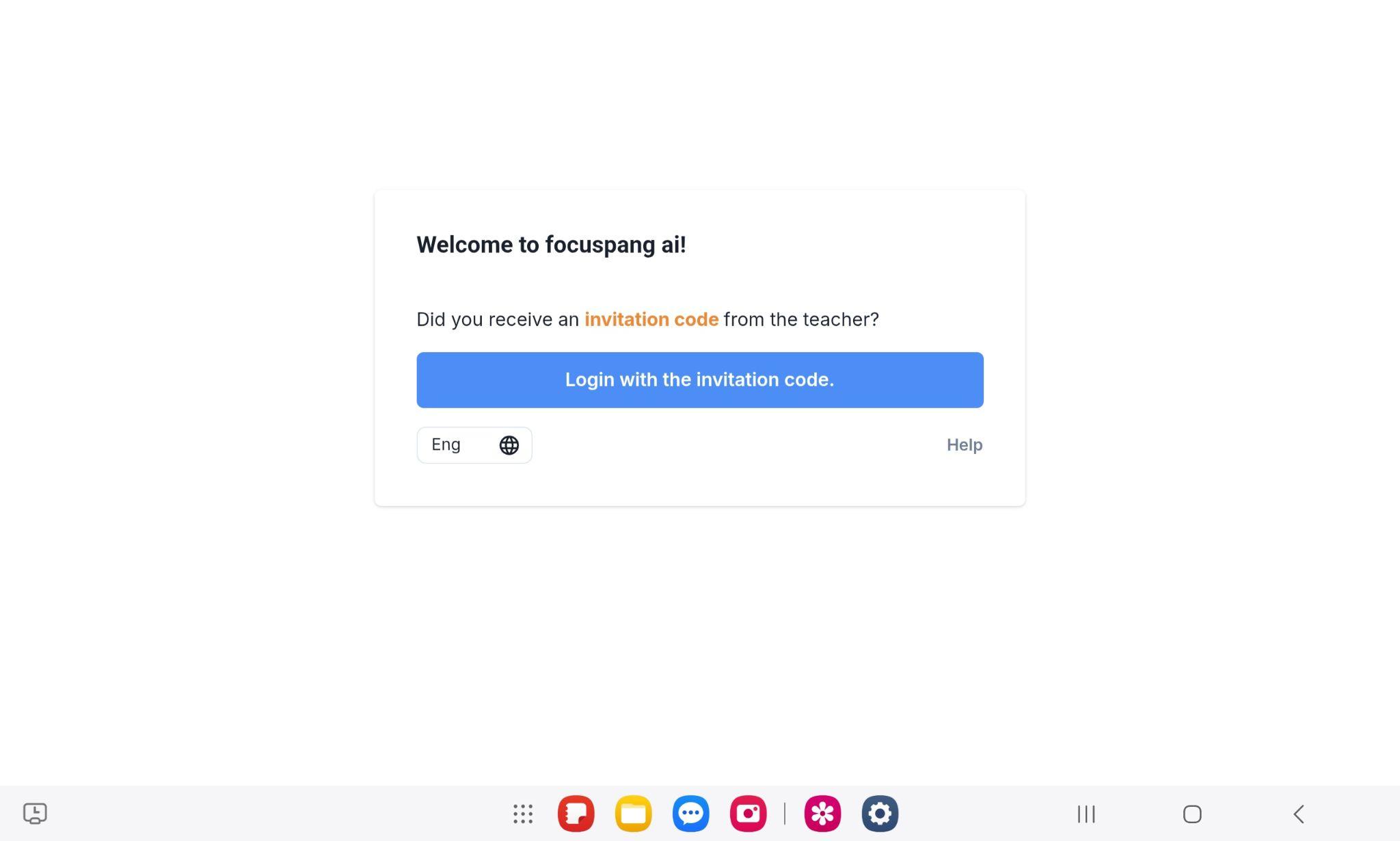
After completing all permissions, the login screen will appear. Enter the invitation code given by your teacher to log in.
If installation is difficult, please ask your school’s IT support teacher for assistance.
You can watch this video to see how it's done: 🔗Installation guide video
Next Step: Log in