3. Account Management
One of the administrator’s key responsibilities is managing the accounts of teachers who use focuspang.
Approving Teacher Accounts
After a teacher completes registration, their account must be approved by the administrator before it can be used.
Why is approval required?
- Enhanced security: Only approved staff can access the system
- Identity verification: Confirm that the applicant is an actual school staff member
- Access control: Ensure appropriate roles and access are assigned
Approval Process
1. Pending Approval Notification On the administrator page, you can view accounts that are waiting for approv
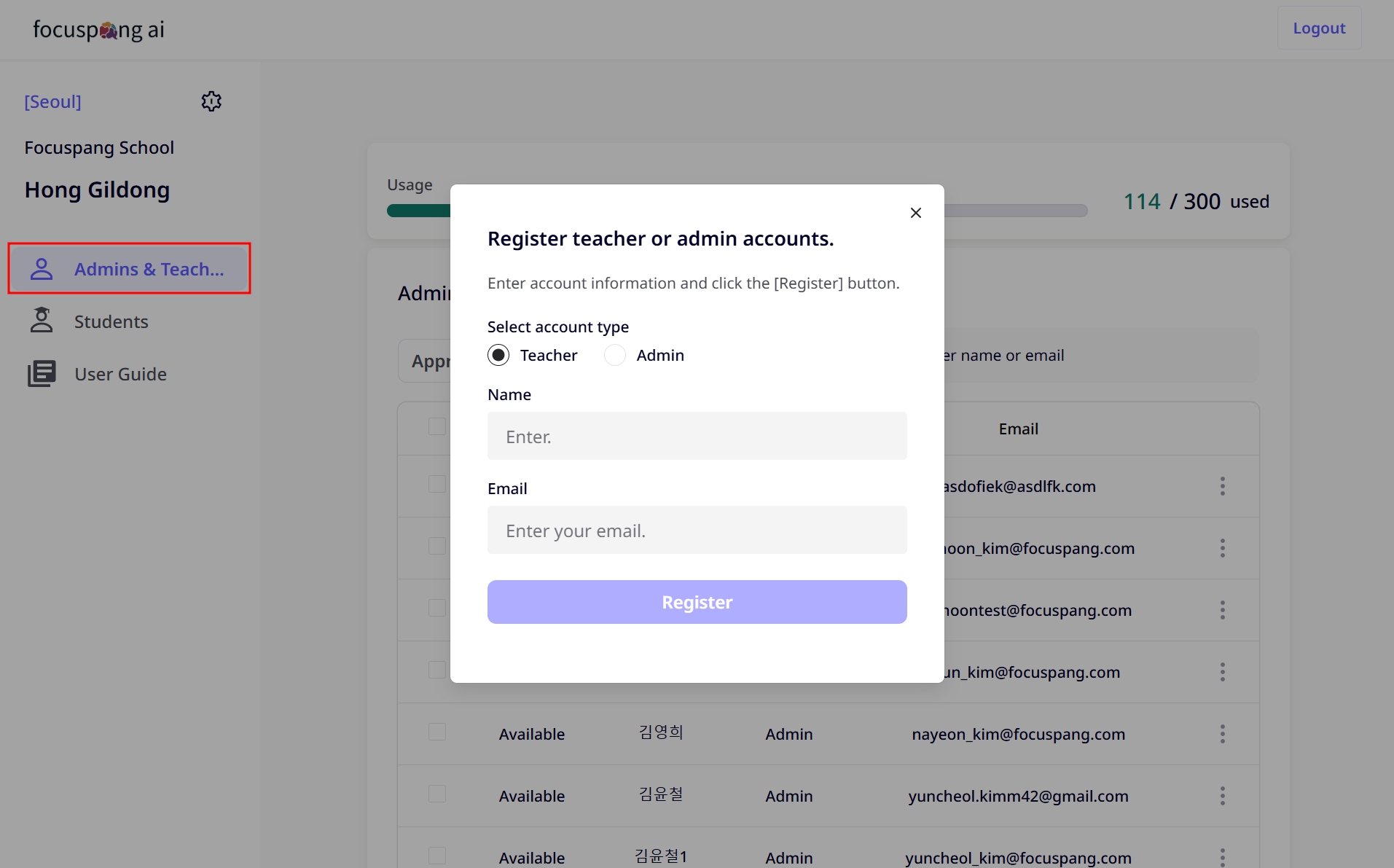
2. Manage Approval Status Click the [Status] icon to review pending accounts and approve them.
- Verify that the applicant is a teacher at the school
- Check the accuracy of the registration information
- Confirm there are no duplicate accounts with existing teachers
- If necessary, verify identity by directly contacting the teacher
Adding a New Administrator
When to Add Another Administrator
- To reduce the workload of the current administrator
- To ensure backup when the main administrator is unavailable
- To assign administrators for specific departments
- To provide a transition period when changing administrators
How to Add an Administrator
Click the [Add Administrator] button to create a new administrator account.
Newly added administrators have the same level of authority as the original administrator. They can access all account management functions, so choose carefully.
Managing Existing Accounts
Account Status Management
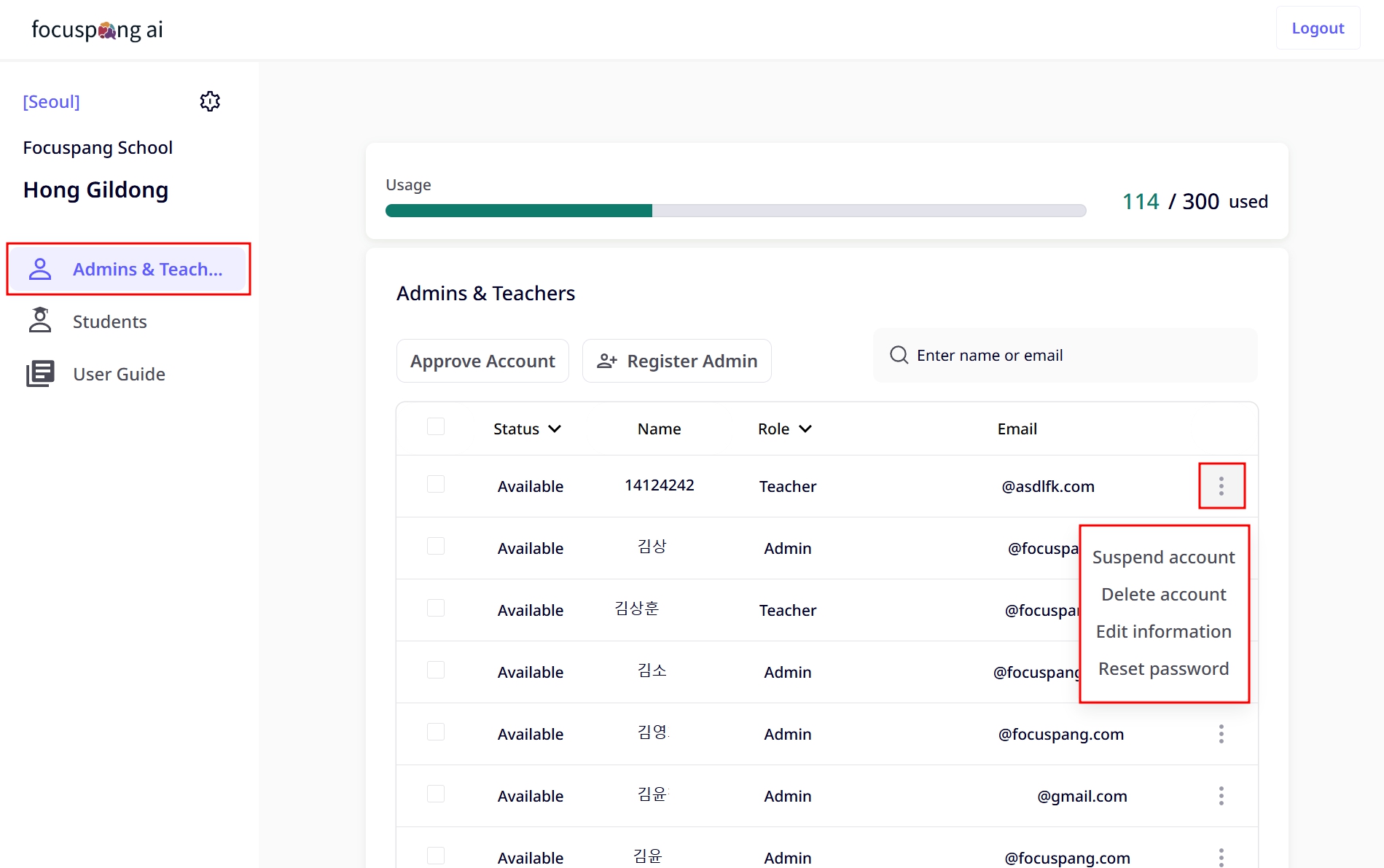
Administrators can suspend, delete, edit, or reset passwords for both teacher and administrator accounts.
1. Suspending an Account
- Used for temporary cases such as leave of absence or sick leave
- Login is disabled, but existing data is preserved
- Accounts can be reactivated at any time
2. Deleting an Account
- Used for permanent cases such as resignation or transfer
- Deleted accounts cannot be restored
- If needed, transfer related class data before deletion
3. Editing Information
- The following fields can be modified: name, account type
4. Resetting Passwords
- Used when a password is lost or a security issue occurs
- Password is reset to a temporary default (0000)
Managing Student Information
Administrator Rights for Student Information
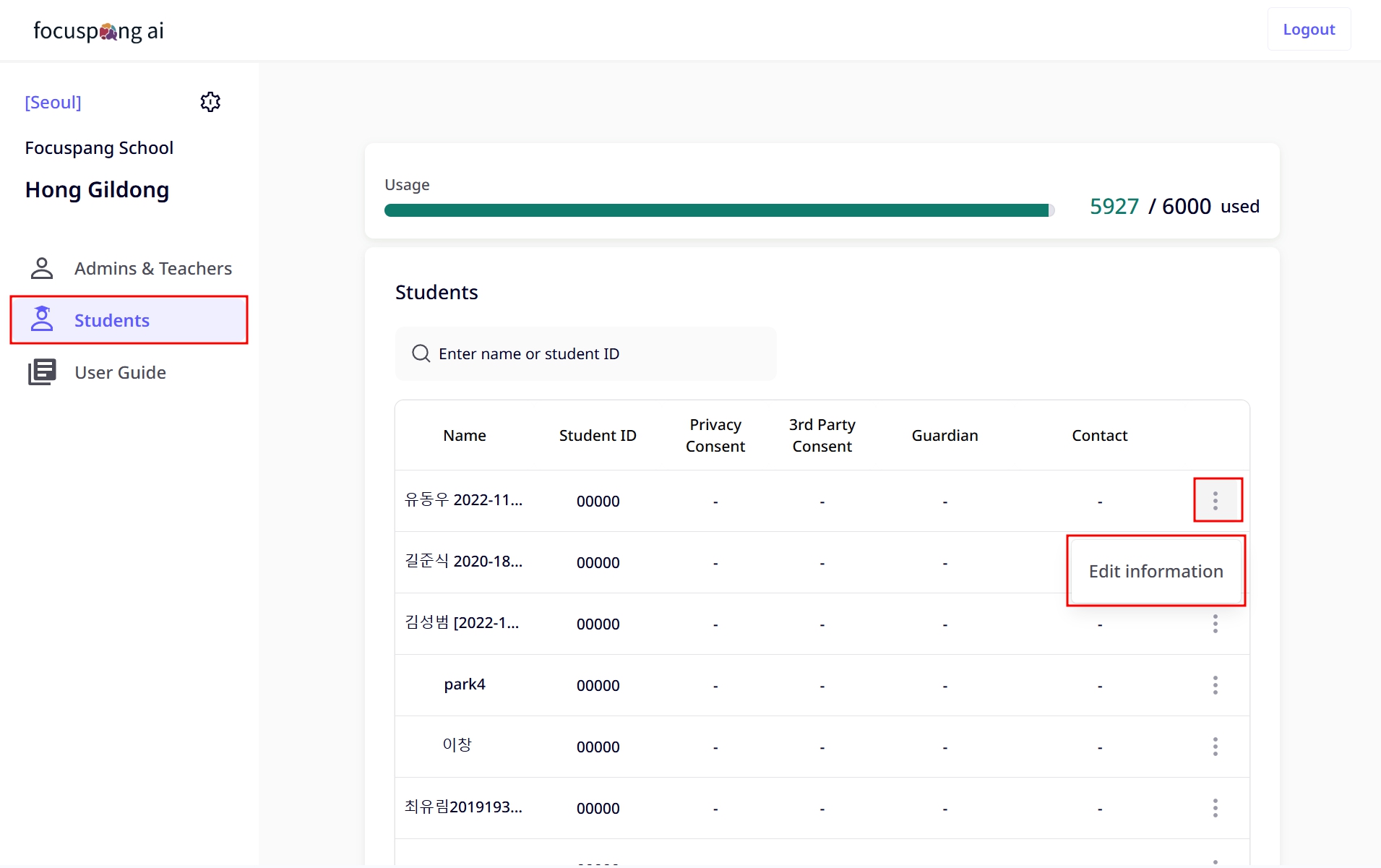
Administrators can edit basic student account details.
- Edit name: For legal name changes or correcting input errors
- Edit student ID: For system changes or corrections
Important Notes for Student Information Management
- Always consult the homeroom teacher before making changes
- Keep a record of all changes made
- Follow privacy protection regulations