5. Settings
You can securely and efficiently operate the system by managing your administrator account.
Changing your password
How to change your password
Click the Settings (gear) icon at the top left to change your account password.
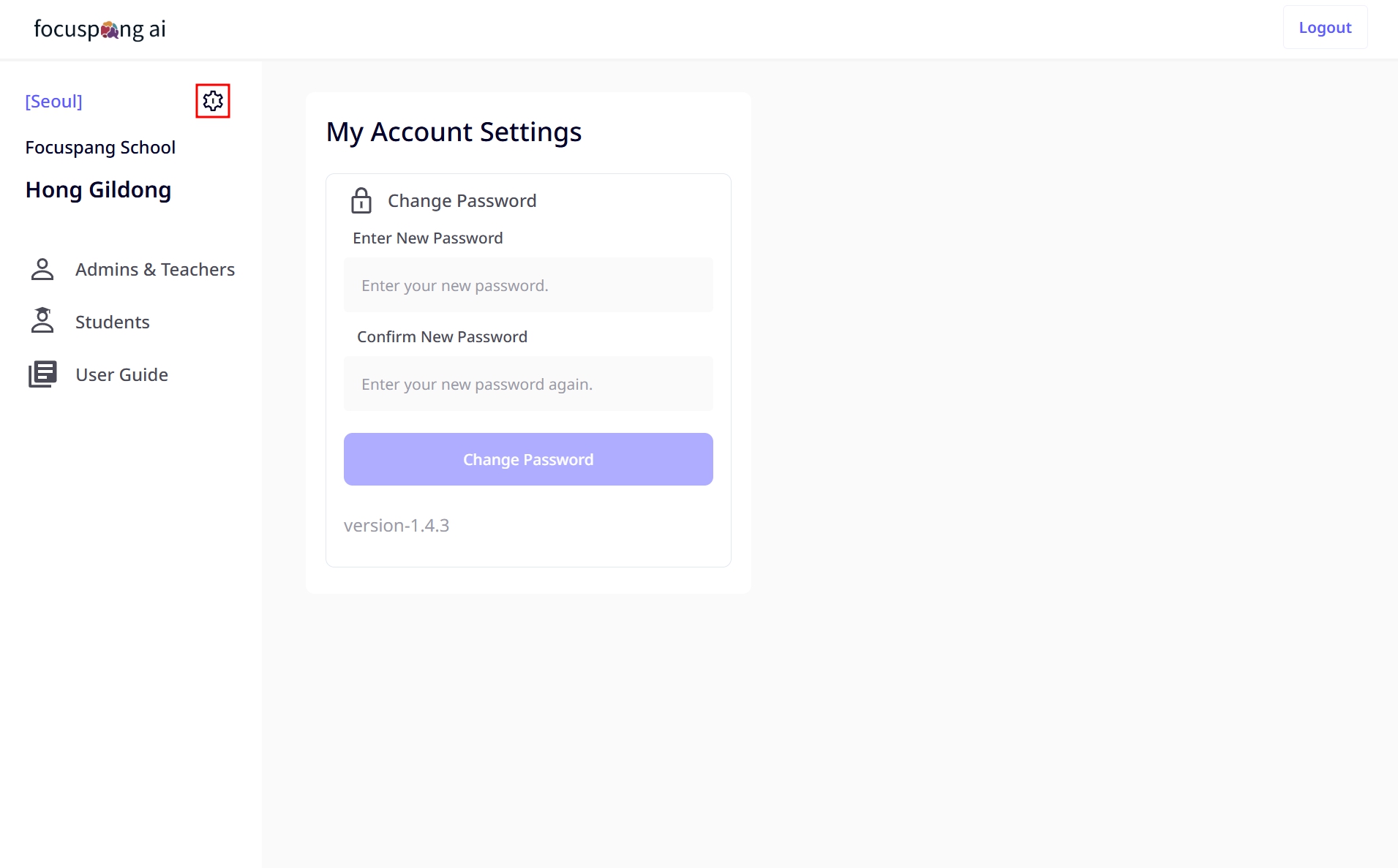
Guide to creating a secure password
Password creation rules
- Length: At least 8 characters (12+ recommended)
- Complexity: Combination of uppercase, lowercase, numbers, and special characters
- Uniqueness: Different from passwords used on other sites
- Unpredictability: Not related to personal information
Passwords to avoid
- Personal information: name, date of birth, phone number, etc.
- Sequential characters: 123456, abcdef
- Keyboard patterns: qwerty, asdf
- Common words: password, admin
Examples
- Good: 12 or more characters built from a sentence only you know, mixed with numbers and symbols
- Bad: 123456, password, HongGilDong1234
Best practices for settings management
Regular checks
- Monthly: Verify and update account information
- Quarterly: Change your password
- Semiannually: Review overall security settings
- Annually: Recheck system environment settings
Security tips
- Use a password manager: Safely create and store passwords
- Enable two-factor authentication whenever possible
- Regularly check logs: Monitor unusual access attempts
Preventive measures
- Keep information up to date: Immediately update when personal details change
- Test after changes: Ensure proper operation after adjusting settings
- Backup plan: Prepare alternative plans in case the administrator is unavailable